> ## Documentation Index
> Fetch the complete documentation index at: https://docs.softr.io/llms.txt
> Use this file to discover all available pages before exploring further.
# Grid Block
> Overview of the Grid block.
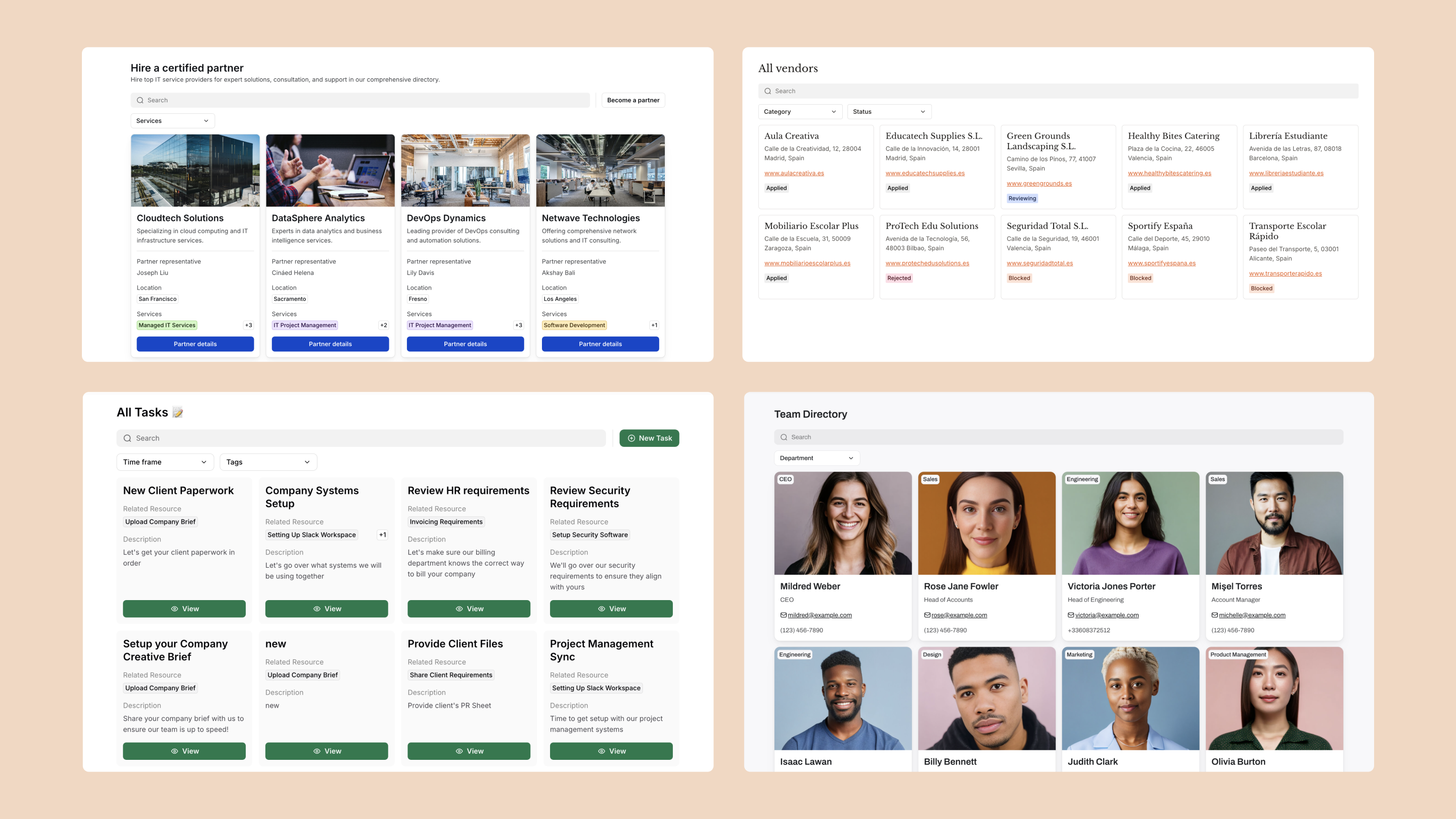
**Grid Blocks** display collections of items, such as products, tasks, or contacts, in a visually appealing grid format. Each item appears as a card with space for images, titles, descriptions, and other relevant details. The layout is ideal for presenting content that benefits from strong visual elements, like product images or profile pictures.
Cards within a Grid Block are interactive, enabling users to filter, sort, and update items seamlessly.
 ## **Use case examples**
* **Product Inventory:** Display products in a grid with images, names, SKUs, and stock details. Users can filter by category, availability, or location to easily track inventory.
* **Employee Directory:** Present team members in a searchable grid with photos, names, roles, departments, and contact information for quick reference.
* **Real Estate Listings:** Showcase properties as visually engaging cards with property images, locations, prices, and key features. Allow users to filter by price range, property type, or location.
# Configure a Grid block
**Build with AI:** Instead of configuring manually, you can add a Grid block instantly with the **AI Co-Builder**. Just click the AI icon in the editor and type: *"Create a grid of products showing their image, name, and price."*
## Source
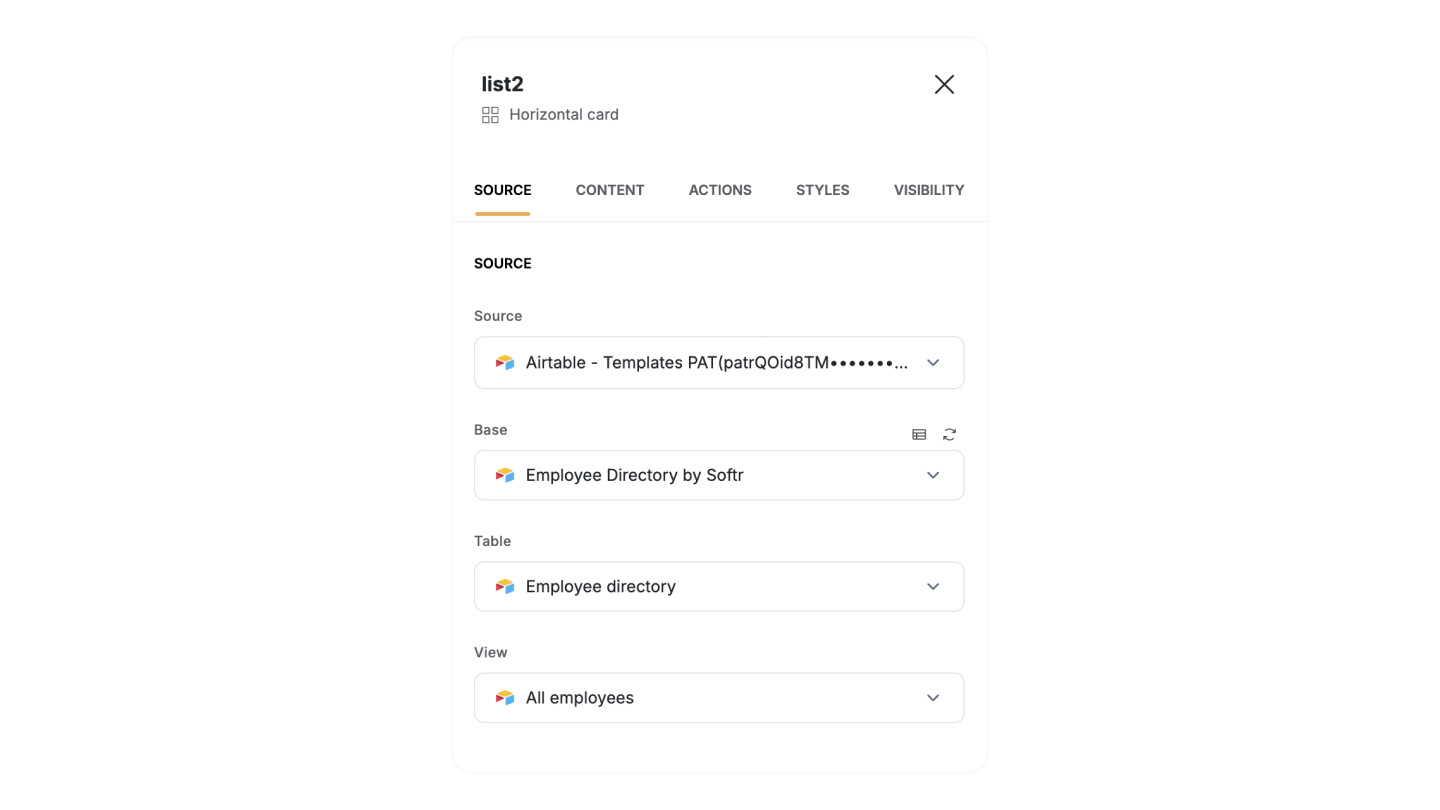
The **Source** panel connects the list block to your data source. Here, you can:
* Connect the list block to your [data source](/core-concepts-overview/c5VwEbsWtTfPyUZjmEKvfx/connect-your-data-source/41p6U2eZs6NZ5qZp7iKvnn).
* Set up [conditional filters](/user-groups-and-permissions/3oA6AaFzUiePs2sW2TpYrF/conditional-filters/mDnn7jnpPiYmJcT99jpt7m) to display only the data that meets specific criteria.
* **Define sorting rules** and set the number of items to display per page.
* **Customize the empty state message** that appears when no data matches the requirements.
Once you connect to your source data, you can configure Content, Actions, and block Visibility settings.
Some configuration options depend on the [data source](/core-concepts-overview/c5VwEbsWtTfPyUZjmEKvfx/connect-your-data-source/41p6U2eZs6NZ5qZp7iKvnn). For more details, check the documentation for your specific data source.
## **Use case examples**
* **Product Inventory:** Display products in a grid with images, names, SKUs, and stock details. Users can filter by category, availability, or location to easily track inventory.
* **Employee Directory:** Present team members in a searchable grid with photos, names, roles, departments, and contact information for quick reference.
* **Real Estate Listings:** Showcase properties as visually engaging cards with property images, locations, prices, and key features. Allow users to filter by price range, property type, or location.
# Configure a Grid block
**Build with AI:** Instead of configuring manually, you can add a Grid block instantly with the **AI Co-Builder**. Just click the AI icon in the editor and type: *"Create a grid of products showing their image, name, and price."*
## Source
The **Source** panel connects the list block to your data source. Here, you can:
* Connect the list block to your [data source](/core-concepts-overview/c5VwEbsWtTfPyUZjmEKvfx/connect-your-data-source/41p6U2eZs6NZ5qZp7iKvnn).
* Set up [conditional filters](/user-groups-and-permissions/3oA6AaFzUiePs2sW2TpYrF/conditional-filters/mDnn7jnpPiYmJcT99jpt7m) to display only the data that meets specific criteria.
* **Define sorting rules** and set the number of items to display per page.
* **Customize the empty state message** that appears when no data matches the requirements.
Once you connect to your source data, you can configure Content, Actions, and block Visibility settings.
Some configuration options depend on the [data source](/core-concepts-overview/c5VwEbsWtTfPyUZjmEKvfx/connect-your-data-source/41p6U2eZs6NZ5qZp7iKvnn). For more details, check the documentation for your specific data source.
 ## **Content**
In the **Content** tab, customize the List block layout and the data fields in your list block, adjust their display, and add features like search and filters to help users find information quickly.
### **Item fields**
**Item Fields** lets you connect fields from your **data source** to each list item, making it easy to display the information you need. You can control what information appears by adding, removing, or rearranging fields such as task names, assignees, or descriptions.
For each field in the **Item Fields** section of the secondary section, you can customize the following options:
* **Type:** Defines the display field type that controls how content appears in the block (e.g., text, checkbox, or image).
* **Content:** Chooses the specific data field from connected data sources to display.
* **Label (Optional):** Adds context to the field. If left blank, the label will not be visible to users.
## **Content**
In the **Content** tab, customize the List block layout and the data fields in your list block, adjust their display, and add features like search and filters to help users find information quickly.
### **Item fields**
**Item Fields** lets you connect fields from your **data source** to each list item, making it easy to display the information you need. You can control what information appears by adding, removing, or rearranging fields such as task names, assignees, or descriptions.
For each field in the **Item Fields** section of the secondary section, you can customize the following options:
* **Type:** Defines the display field type that controls how content appears in the block (e.g., text, checkbox, or image).
* **Content:** Chooses the specific data field from connected data sources to display.
* **Label (Optional):** Adds context to the field. If left blank, the label will not be visible to users.
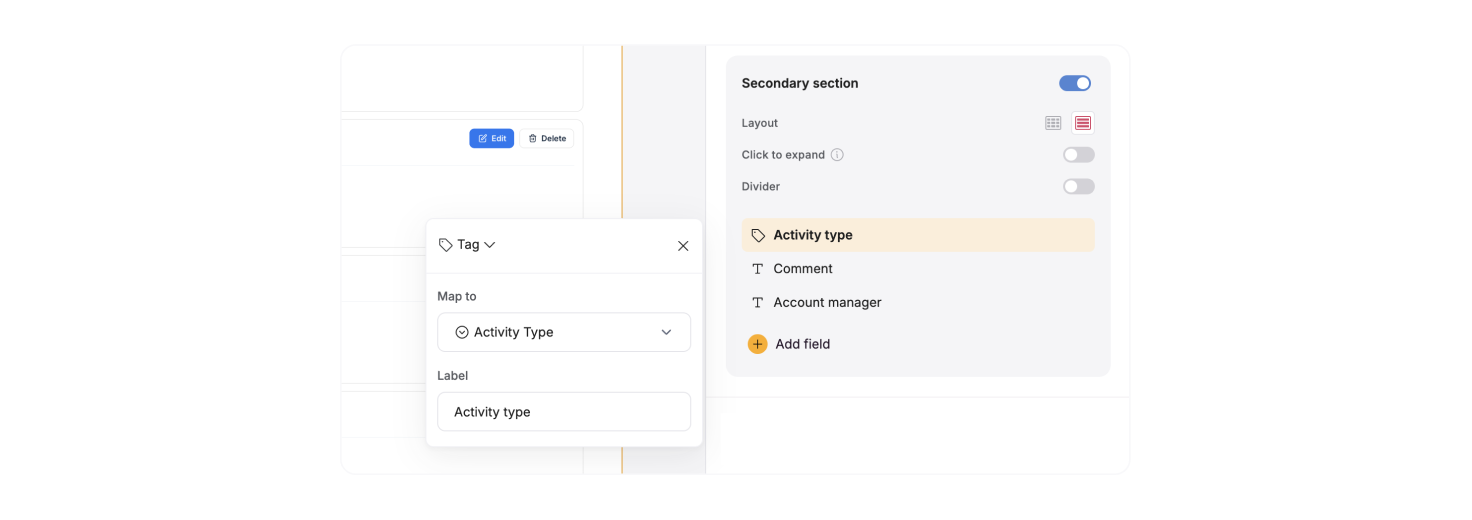 **Note:** Some display field types are compatible only with specific data formats. For example, if a field is set to display images, you cannot map it to text data. Ensure the field type matches your data source field format to avoid display issues.
**Supported field types**
| | |
| ------------------- | --------------------------------------------------------------------------------------------------------- |
| **Display Field** | **Description** |
| **Cover media** | Display a featured image as a prominent top section element. |
| **Cover media tag** | Allows you to display one or more tags on top of cover media. |
| **Text** | Displays plain text. Ideal for names, titles, or short descriptions. |
| **Rich Text** | Supports long text, markdown, or HTML formatting. Allows for more detailed descriptions or notes. |
| **Headings** | Various heading sizes |
| **Email** | Displays email addresses as clickable mailto links, allowing users to start an email directly. |
| **URL** | Displays website links as clickable URLs, allowing users to navigate to external pages. |
| **Tag** | Allows you to display one or more tags, helpful for organizing items by category or status. |
| **File** | Provides a link for users to download attachments, such as PDFs or other documents. |
| **Video** | Embed video content from a supported source, allowing users to watch content directly in the block. |
| **Audio** | Embed audio files, letting users listen to content directly within the block. |
| **Image** | Displays a single image, useful for things like profile pictures or product images. |
| **Image gallery** | Displays multiple images in a gallery format, useful for showcasing a collection of visuals. |
| **Embed** | Allows you to embed content from other services, such as YouTube videos, Calendly, or social media posts. |
| **Rating** | Displays a rating system, typically with stars, to visually represent ratings or scores. |
| **Checkbox** | Shows a checkbox, useful for indicating completed items or allowing users to mark items as done. |
### **Search bar**
The **Search Bar** allows users to search through items in your block, making it easier to find specific entries quickly.
You can configure which parameters you want the search to be performed by adding fields to Search by input. For instance, if you’re displaying a list of employees, you might select “Name,” “Department,” and “Job title” as searchable fields.
**Note:** Some display field types are compatible only with specific data formats. For example, if a field is set to display images, you cannot map it to text data. Ensure the field type matches your data source field format to avoid display issues.
**Supported field types**
| | |
| ------------------- | --------------------------------------------------------------------------------------------------------- |
| **Display Field** | **Description** |
| **Cover media** | Display a featured image as a prominent top section element. |
| **Cover media tag** | Allows you to display one or more tags on top of cover media. |
| **Text** | Displays plain text. Ideal for names, titles, or short descriptions. |
| **Rich Text** | Supports long text, markdown, or HTML formatting. Allows for more detailed descriptions or notes. |
| **Headings** | Various heading sizes |
| **Email** | Displays email addresses as clickable mailto links, allowing users to start an email directly. |
| **URL** | Displays website links as clickable URLs, allowing users to navigate to external pages. |
| **Tag** | Allows you to display one or more tags, helpful for organizing items by category or status. |
| **File** | Provides a link for users to download attachments, such as PDFs or other documents. |
| **Video** | Embed video content from a supported source, allowing users to watch content directly in the block. |
| **Audio** | Embed audio files, letting users listen to content directly within the block. |
| **Image** | Displays a single image, useful for things like profile pictures or product images. |
| **Image gallery** | Displays multiple images in a gallery format, useful for showcasing a collection of visuals. |
| **Embed** | Allows you to embed content from other services, such as YouTube videos, Calendly, or social media posts. |
| **Rating** | Displays a rating system, typically with stars, to visually represent ratings or scores. |
| **Checkbox** | Shows a checkbox, useful for indicating completed items or allowing users to mark items as done. |
### **Search bar**
The **Search Bar** allows users to search through items in your block, making it easier to find specific entries quickly.
You can configure which parameters you want the search to be performed by adding fields to Search by input. For instance, if you’re displaying a list of employees, you might select “Name,” “Department,” and “Job title” as searchable fields.
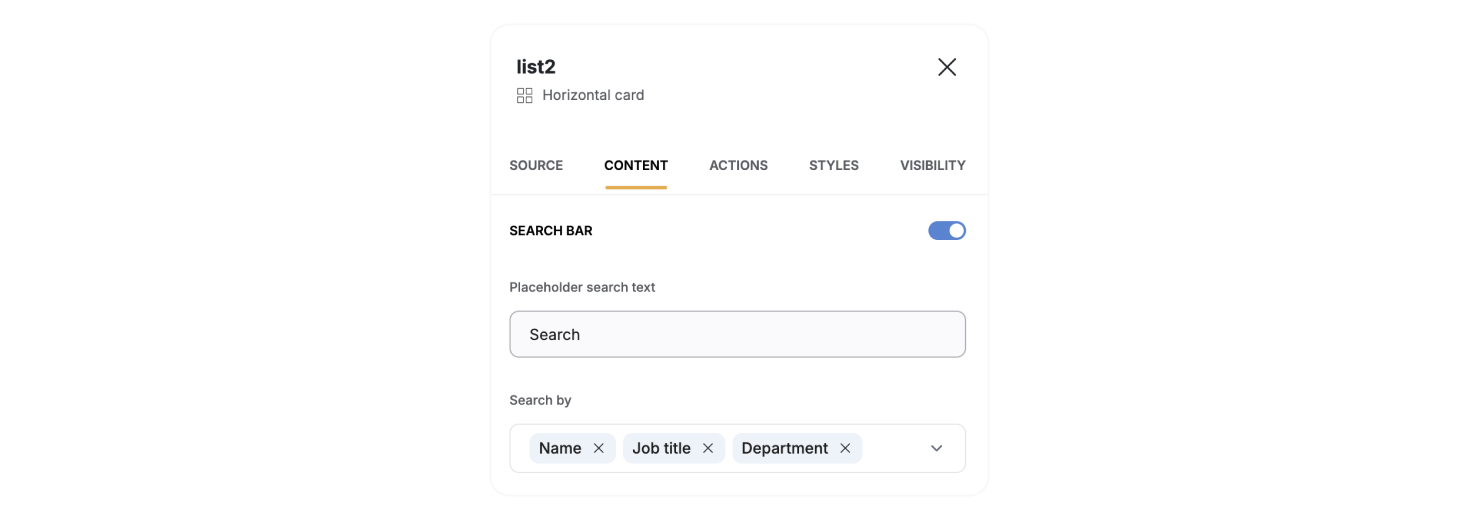 If no fields are selected, the search bar will display all items regardless of the search term. To ensure meaningful search results, always select at least one field.
### **Filters**
Filters allow your app users to narrow down list items based on specific fields, making it easier to find what they need without scrolling through all the items. You can set up one or more filters in the block to enhance user search functionality.
Choose between a **Dropdown** menu (collapsible for large option sets) or **Tags** (clickable labels for frequently used categories). Depending on your layout needs, decide where filters will appear—at the t**op** or **Left** of the block.
If no fields are selected, the search bar will display all items regardless of the search term. To ensure meaningful search results, always select at least one field.
### **Filters**
Filters allow your app users to narrow down list items based on specific fields, making it easier to find what they need without scrolling through all the items. You can set up one or more filters in the block to enhance user search functionality.
Choose between a **Dropdown** menu (collapsible for large option sets) or **Tags** (clickable labels for frequently used categories). Depending on your layout needs, decide where filters will appear—at the t**op** or **Left** of the block.
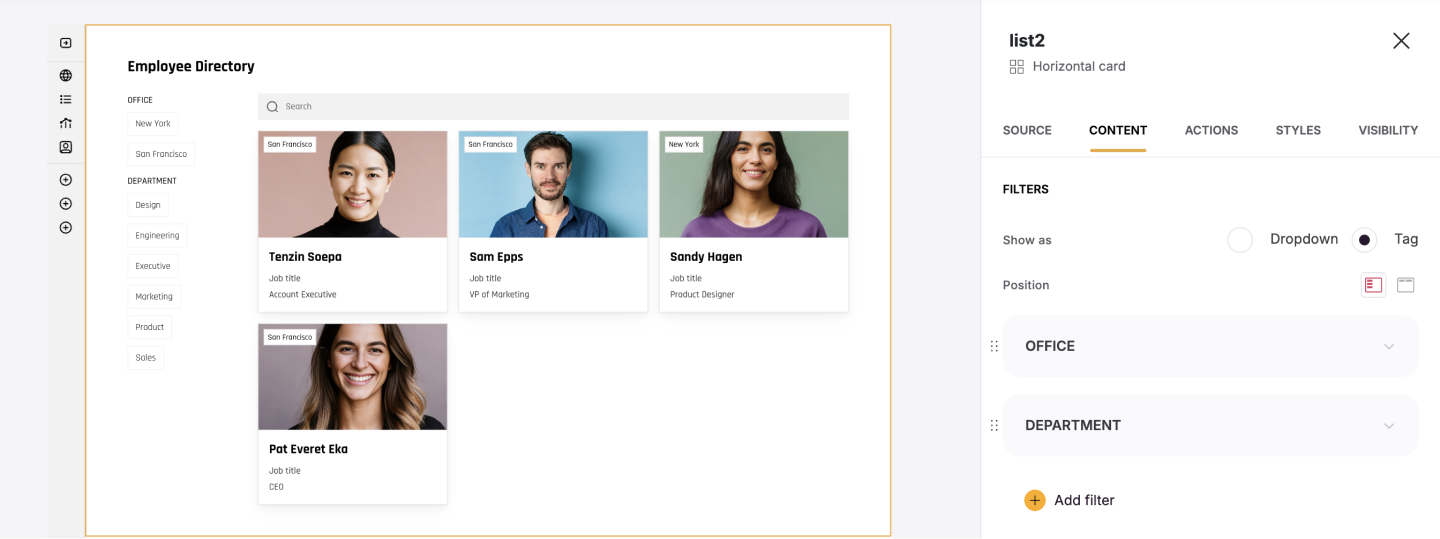 For each filter, you can configure:
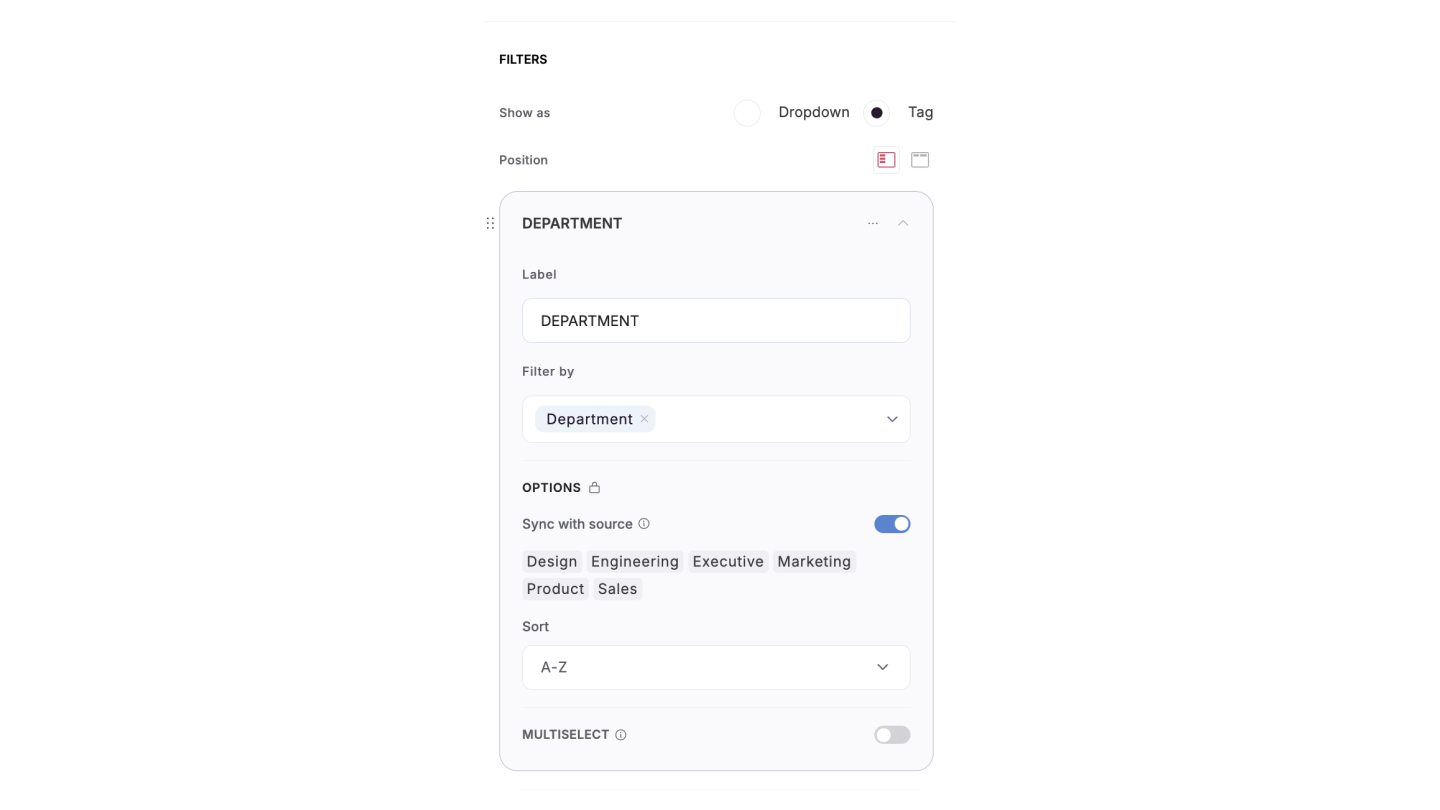
* **Label**: Add a descriptive label to guide users, such as **"Filter by Status"** or **"Filter by Category**.”
* **Field**: Select the data field users can filter by, such as **Status**, **Category**, or **Language**.
* **Options**: Define the values users can select in the filter.
* **When Sync with Data Source is Enabled,** the filter options automatically pull all available values from your data source. You can then select which of these synced values to display in the filter, making it easy to keep options updated while retaining customization. \*This feature is only available for specific field types, such as **single-select**, **multi-select**, and **linked record** fields.
* **When Sync is Disabled**: You must manually define and update the filter options. This allows full control over which values appear but requires manual changes whenever your data is updated.
* **Sorting Options**: You can arrange filter options alphabetically (**A-Z** or **Z-A**) or in a custom order based on relevance.
* **Multi-select (Optional):** This option allows users to select multiple filter options at a time. It is useful when filtering by multiple categories, statuses, or other fields simultaneously.
For each filter, you can configure:
* **Label**: Add a descriptive label to guide users, such as **"Filter by Status"** or **"Filter by Category**.”
* **Field**: Select the data field users can filter by, such as **Status**, **Category**, or **Language**.
* **Options**: Define the values users can select in the filter.
* **When Sync with Data Source is Enabled,** the filter options automatically pull all available values from your data source. You can then select which of these synced values to display in the filter, making it easy to keep options updated while retaining customization. \*This feature is only available for specific field types, such as **single-select**, **multi-select**, and **linked record** fields.
* **When Sync is Disabled**: You must manually define and update the filter options. This allows full control over which values appear but requires manual changes whenever your data is updated.
* **Sorting Options**: You can arrange filter options alphabetically (**A-Z** or **Z-A**) or in a custom order based on relevance.
* **Multi-select (Optional):** This option allows users to select multiple filter options at a time. It is useful when filtering by multiple categories, statuses, or other fields simultaneously.
 **Filtering the Filter Options**
You can also filter the filter options to display different options based on user attributes, selected records, etc. Just click on the branching icon next to the Options subtitle:
**Filtering the Filter Options**
You can also filter the filter options to display different options based on user attributes, selected records, etc. Just click on the branching icon next to the Options subtitle:
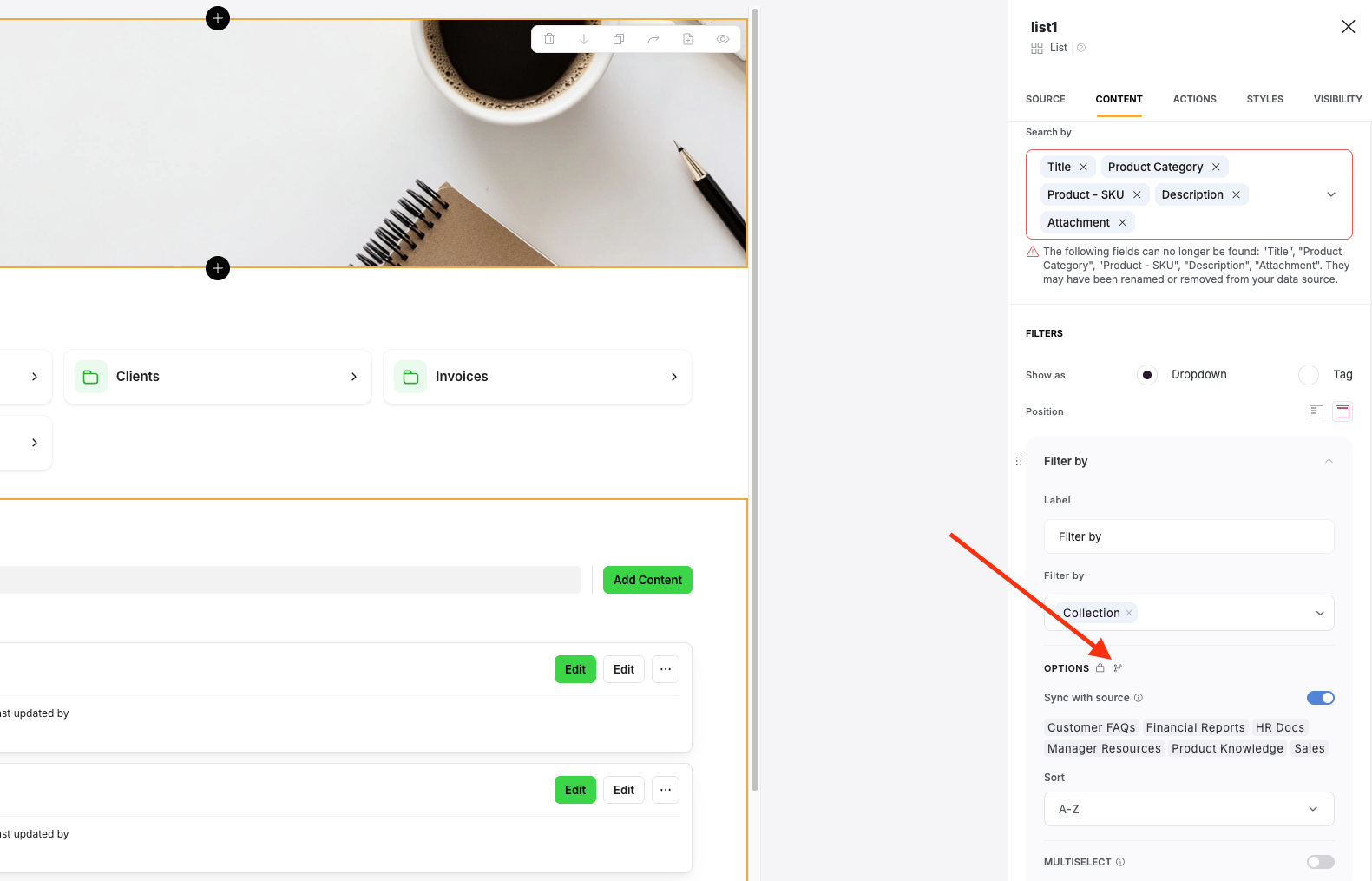 Then toggle it on and setup the conditions you want to apply to filter to the filter.
 ### **Embed Block**
You can embed any Softr block in another application. Learn how in our [Page and Block Embed](/application-settings/n3K2UEfpC9BpHgakMzUU5Y/page-and-block-embed/kaMvDCneGdx43AxHnmf7bm) guide.
## Relevant Guides
* [How to set up a record detail page?](/building-blocks/vikC2AWEpQGkZd4jGyoVxo/item-details-block-/4bE8XaFbJp45wkAwuWiz8f)
* [How to filter list records by Page URL parameter?](/how-to-guides/ioi5BbuQ2RDM7aHPrpXnjG/how-to-filter-list-by-page-url-parameters/42JZoeYwMstwaL9aoBdRjz)
### **Embed Block**
You can embed any Softr block in another application. Learn how in our [Page and Block Embed](/application-settings/n3K2UEfpC9BpHgakMzUU5Y/page-and-block-embed/kaMvDCneGdx43AxHnmf7bm) guide.
## Relevant Guides
* [How to set up a record detail page?](/building-blocks/vikC2AWEpQGkZd4jGyoVxo/item-details-block-/4bE8XaFbJp45wkAwuWiz8f)
* [How to filter list records by Page URL parameter?](/how-to-guides/ioi5BbuQ2RDM7aHPrpXnjG/how-to-filter-list-by-page-url-parameters/42JZoeYwMstwaL9aoBdRjz)