> ## Documentation Index
> Fetch the complete documentation index at: https://docs.softr.io/llms.txt
> Use this file to discover all available pages before exploring further.
# Feature
> The Feature block is for presenting some details about your product, highlighting its key features and advantages.
While the [Hero](/building-blocks/vikC2AWEpQGkZd4jGyoVxo/hero/avyLWEvNZNUqYewF51kMLA) area is for giving some general idea about your product and emphasizing its value proposition, the **Feature** block is supposed to go a bit more into details, providing concise information on the key features of the product and what they allow the users to achieve. The block has several layouts, which we'll discuss separately in the following articles, but let's first check out how the block configuration is organized in general, and what are the key settings.
The block has 4 key components:
* **Title**
* **Subtitle**
* **Image**
* **Features List**
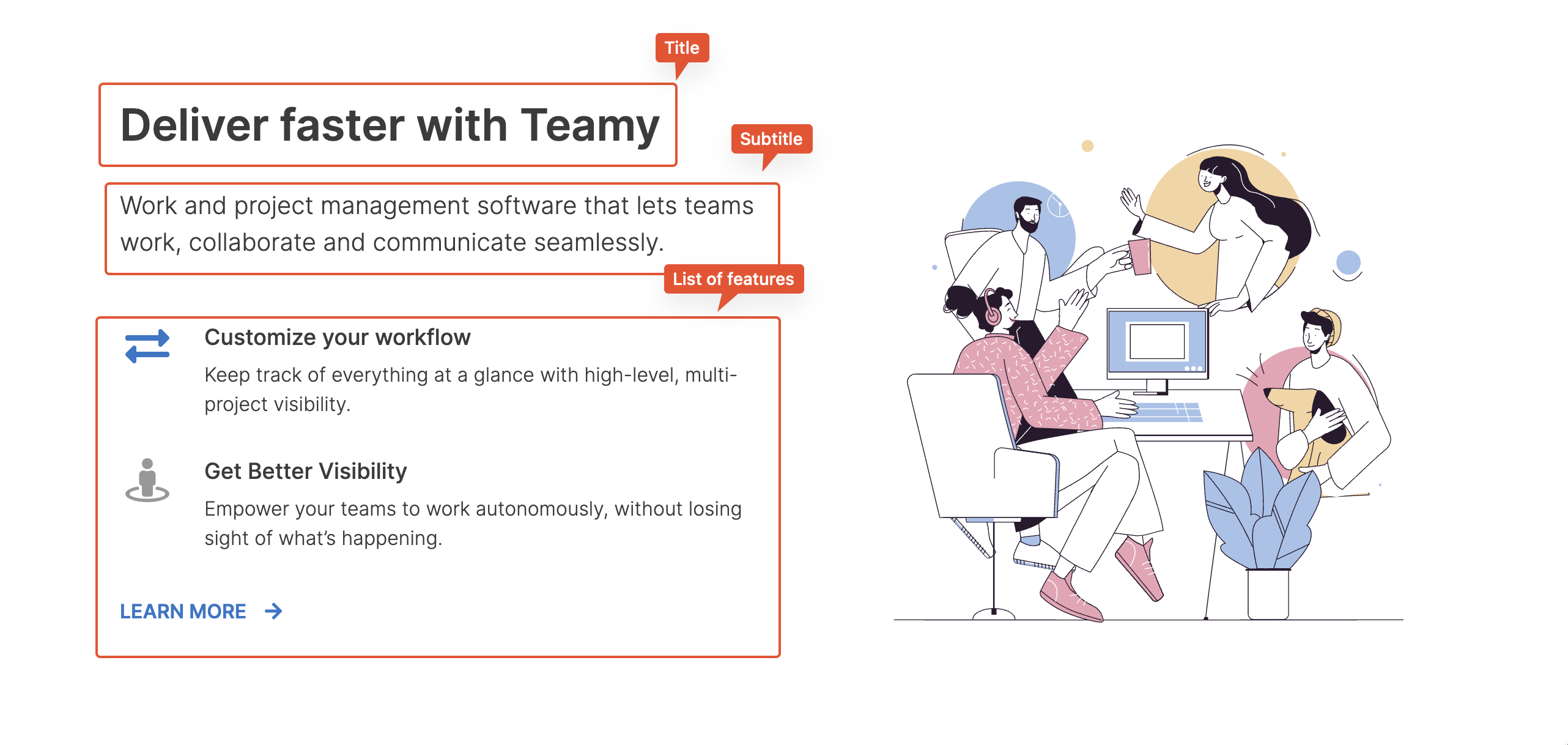 Let's check how each component is configured.
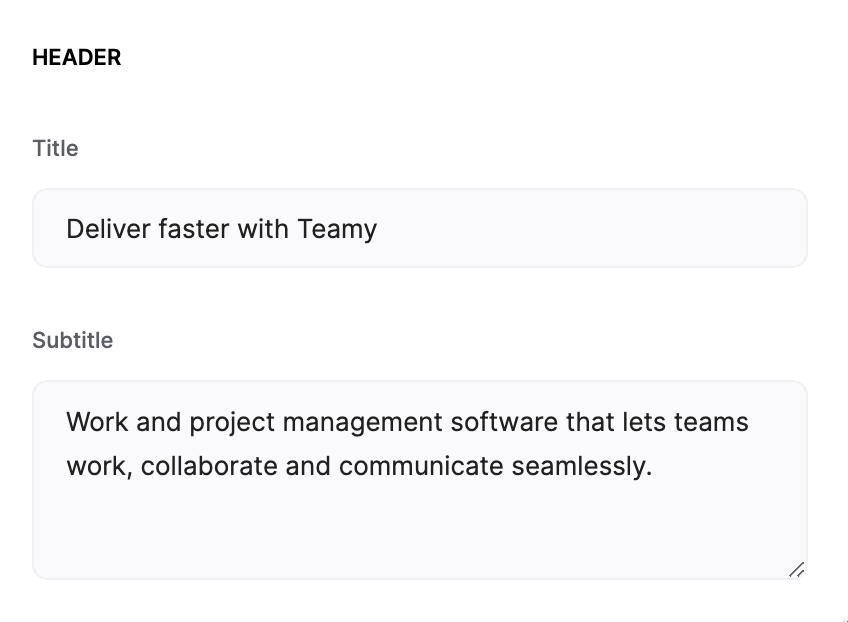
## Title and Subtitle
These are two text areas where you can enter the text.
Let's check how each component is configured.
## Title and Subtitle
These are two text areas where you can enter the text.
 ## Image and Background Image
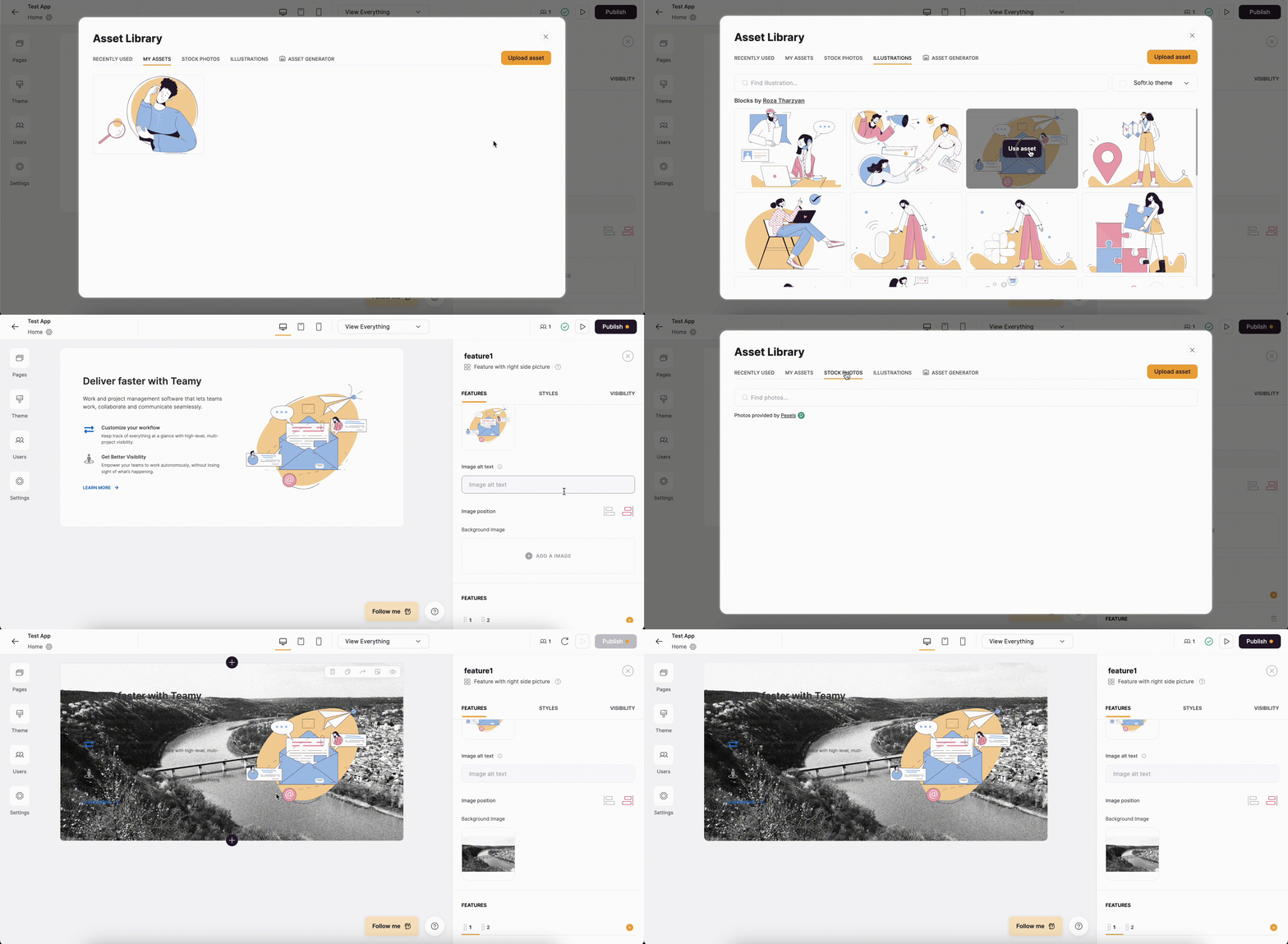
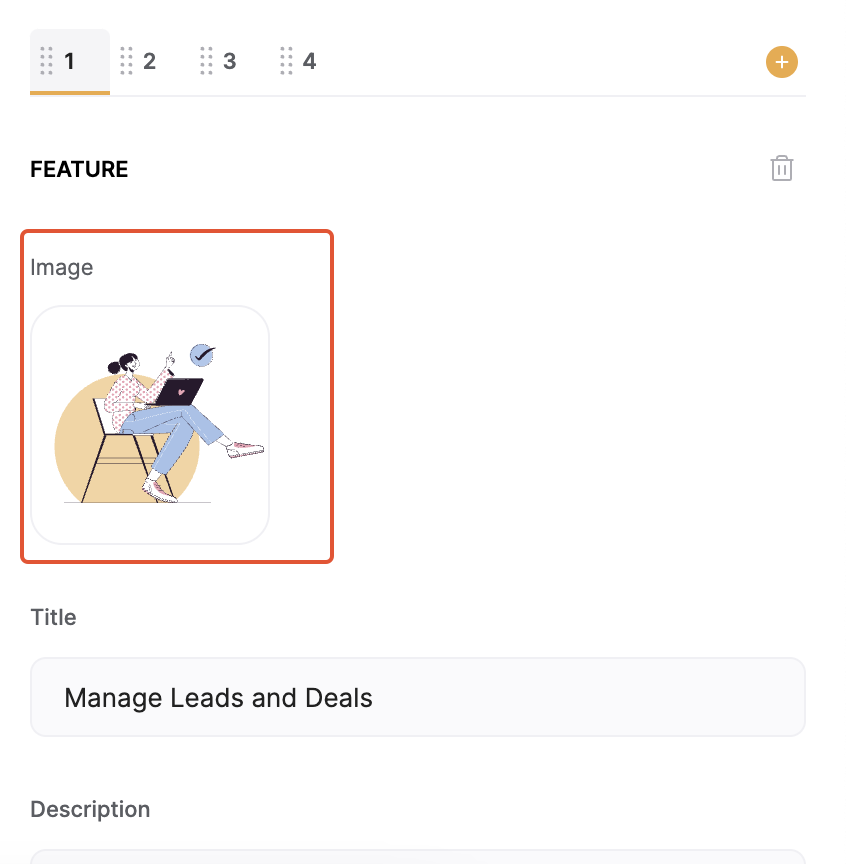
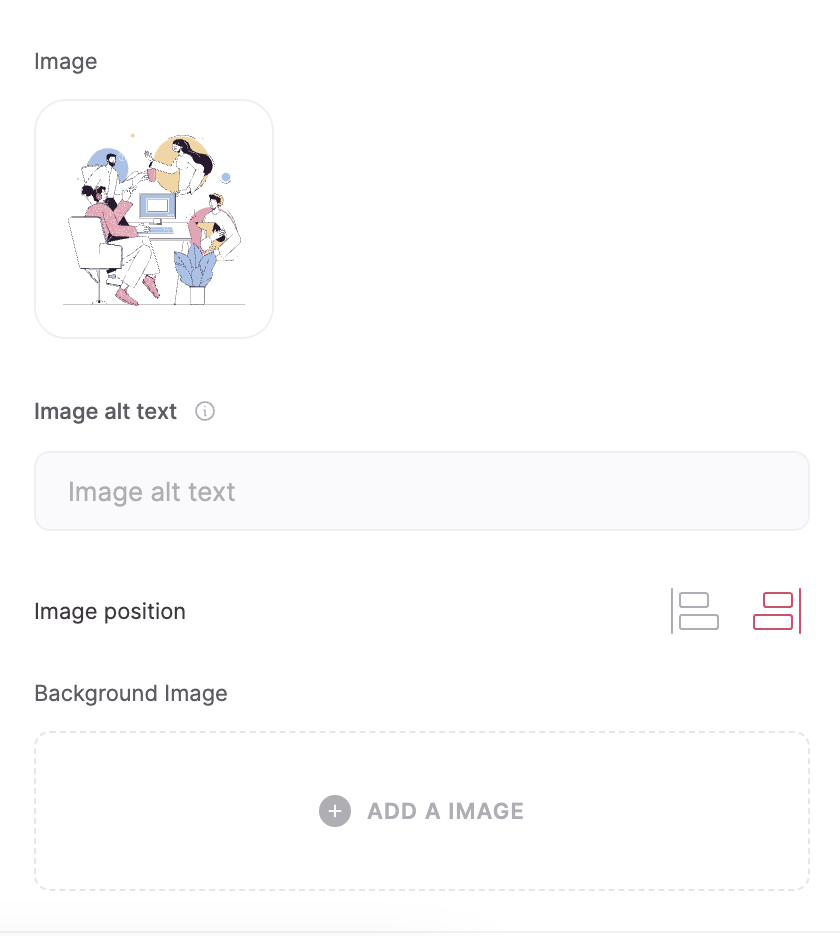 Here you can add an image (either upload or select from gallery) by clicking on the image icon as well as enter an "alt" text for the image (specifies an alternate text for an image if the image cannot be displayed).
Next, you have the option to change the **Image Position**. It can be set to either **Left** or **Right**. Lastly, there is a field to upload a **Background Image** for the whole **Feature** area. The animation below shows the process of configuring this section.
Here you can add an image (either upload or select from gallery) by clicking on the image icon as well as enter an "alt" text for the image (specifies an alternate text for an image if the image cannot be displayed).
Next, you have the option to change the **Image Position**. It can be set to either **Left** or **Right**. Lastly, there is a field to upload a **Background Image** for the whole **Feature** area. The animation below shows the process of configuring this section.
 ## Features
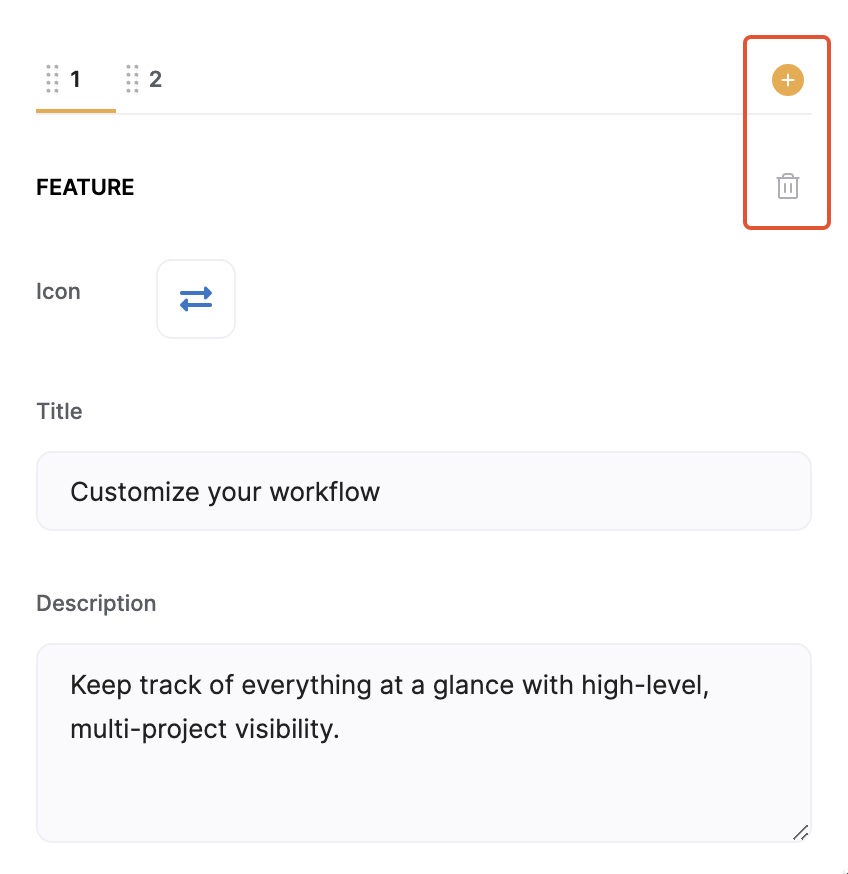
In this section you add the features along with their **Title**, **Description**, and **Icon**.
The features are added within separate tabs as shown below. There's also a plus button for adding a new feature tab as well as a delete option to delete the current feature.
## Features
In this section you add the features along with their **Title**, **Description**, and **Icon**.
The features are added within separate tabs as shown below. There's also a plus button for adding a new feature tab as well as a delete option to delete the current feature.
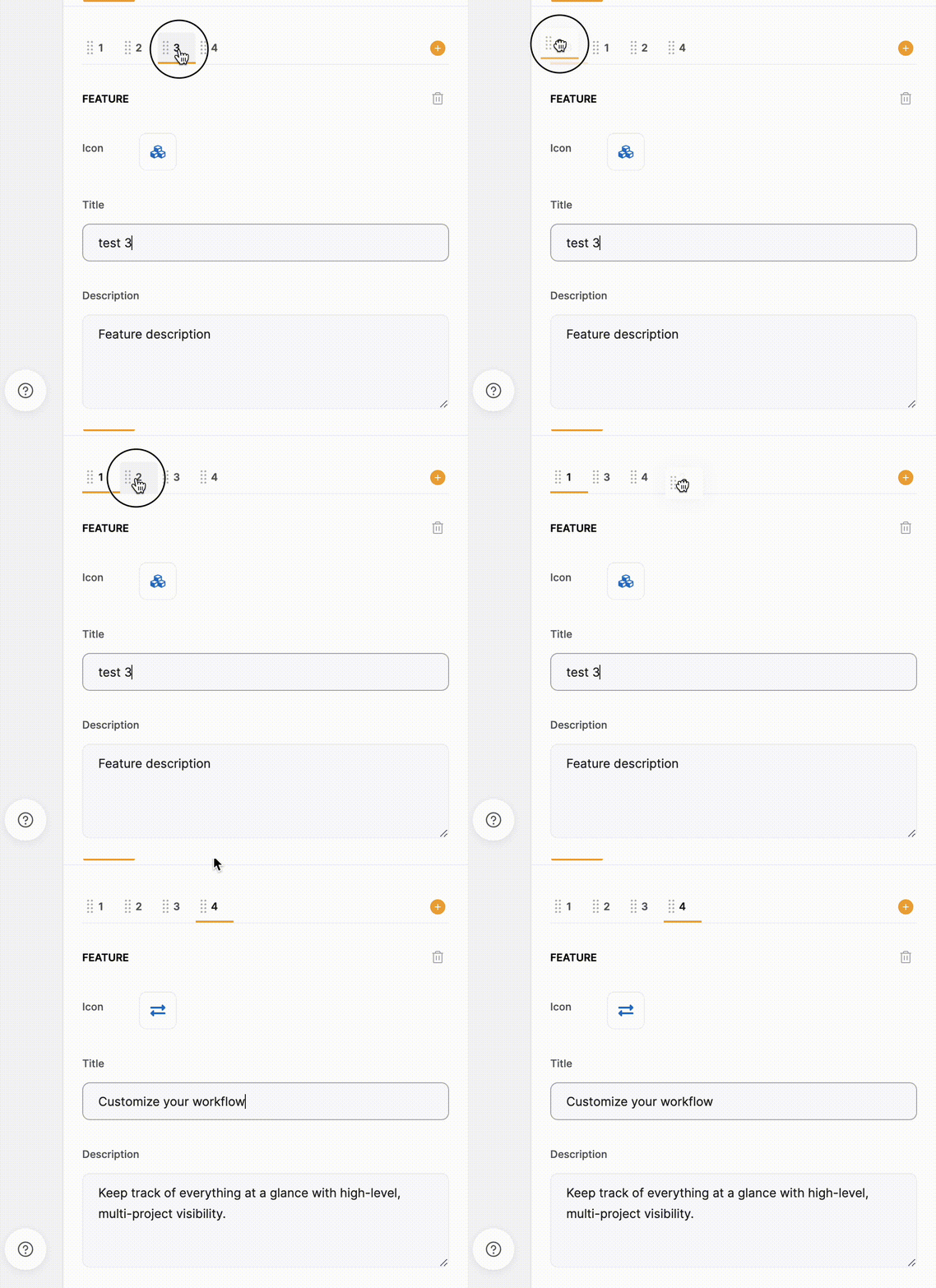
 You can also reorganize the tabs using drag and drop.
 # Feature Block Layouts
## Layout: Feature with right side picture
# Feature Block Layouts
## Layout: Feature with right side picture
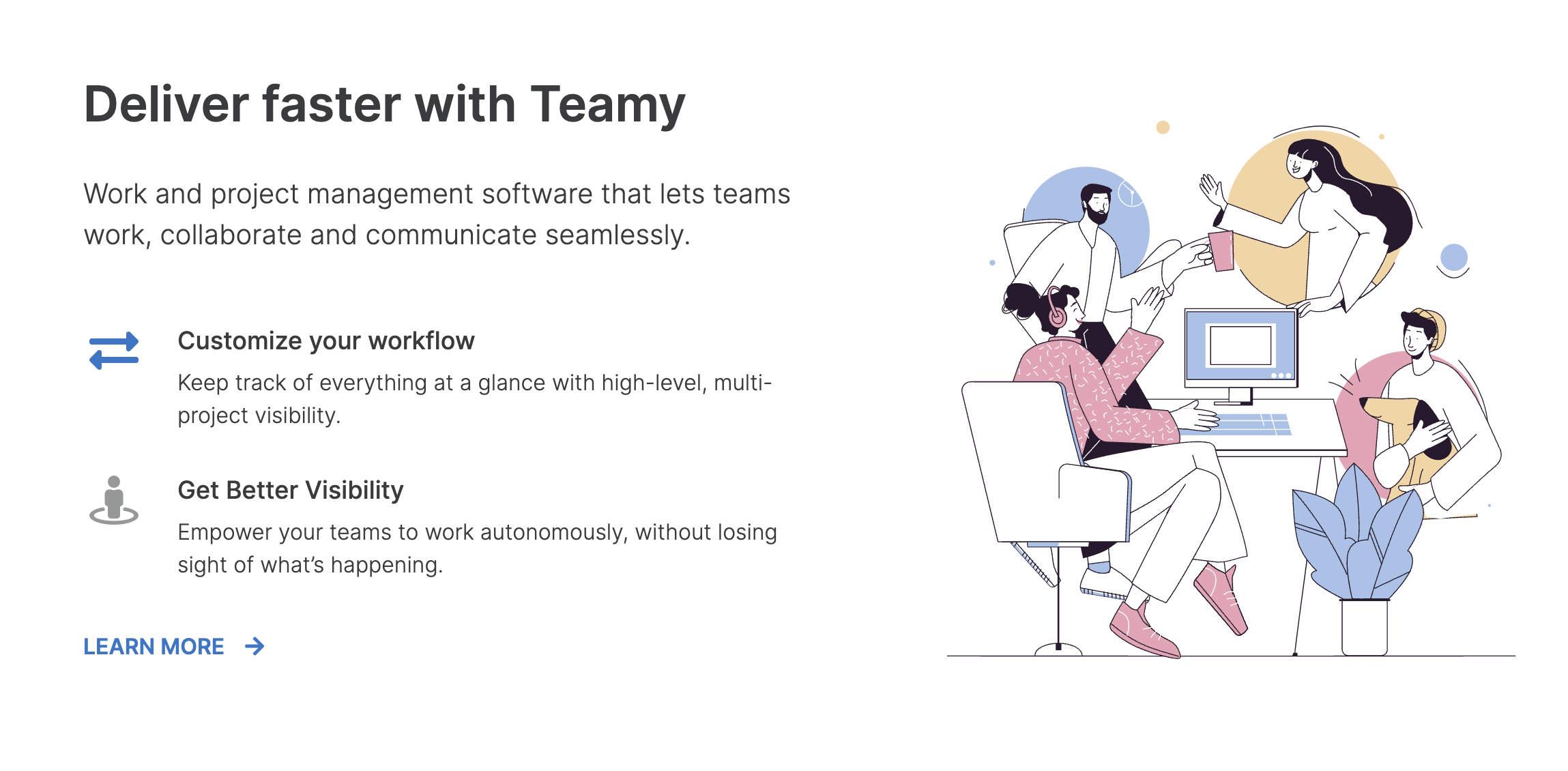 This layout has a one-column list of features and the image is on the right by default.
## Layout: Feature with left side picture
This layout has a one-column list of features and the image is on the right by default.
## Layout: Feature with left side picture
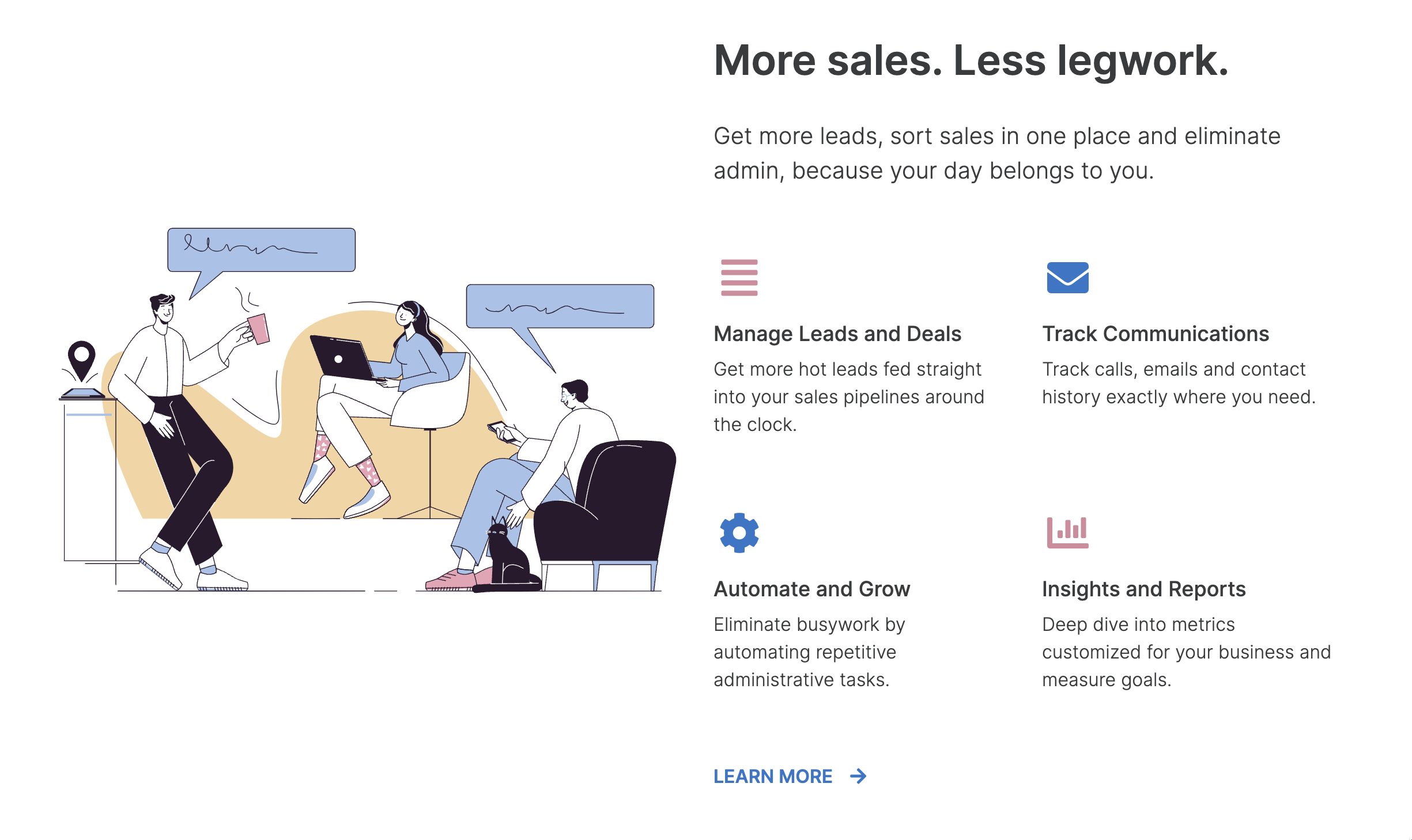 In this layout, the features list is organized into two columns, and the image is on the left side by default.
## Layout: Feature with link
In this layout, the features list is organized into two columns, and the image is on the left side by default.
## Layout: Feature with link
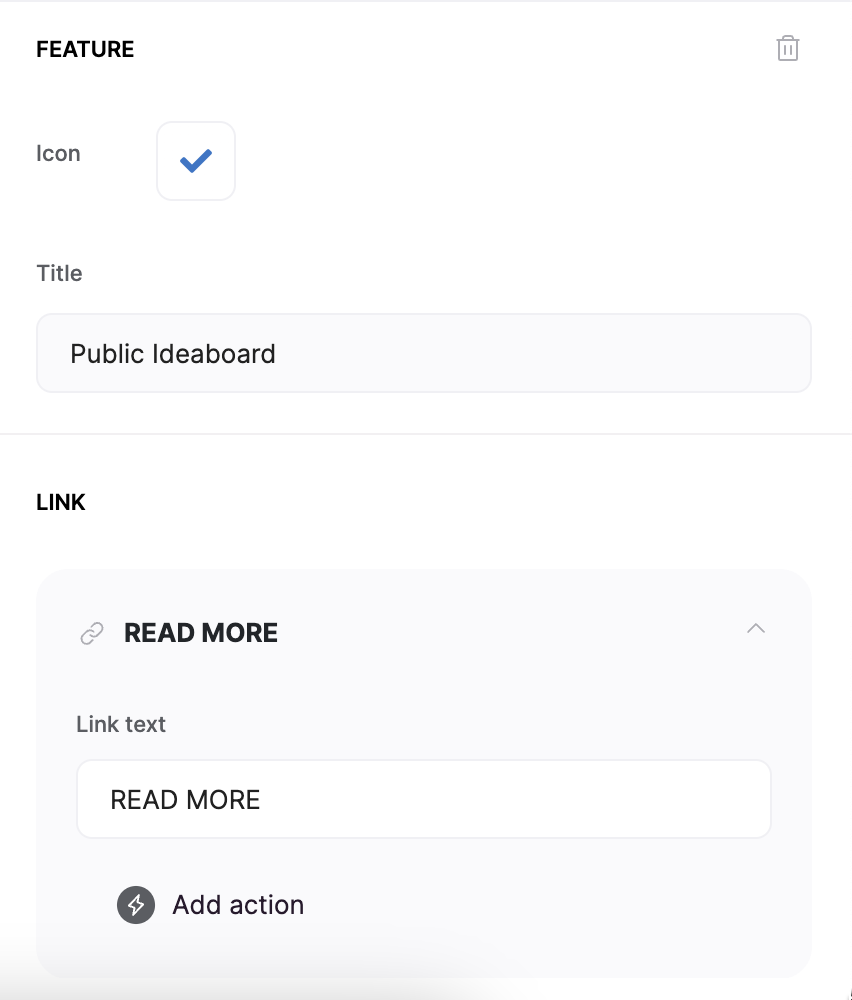
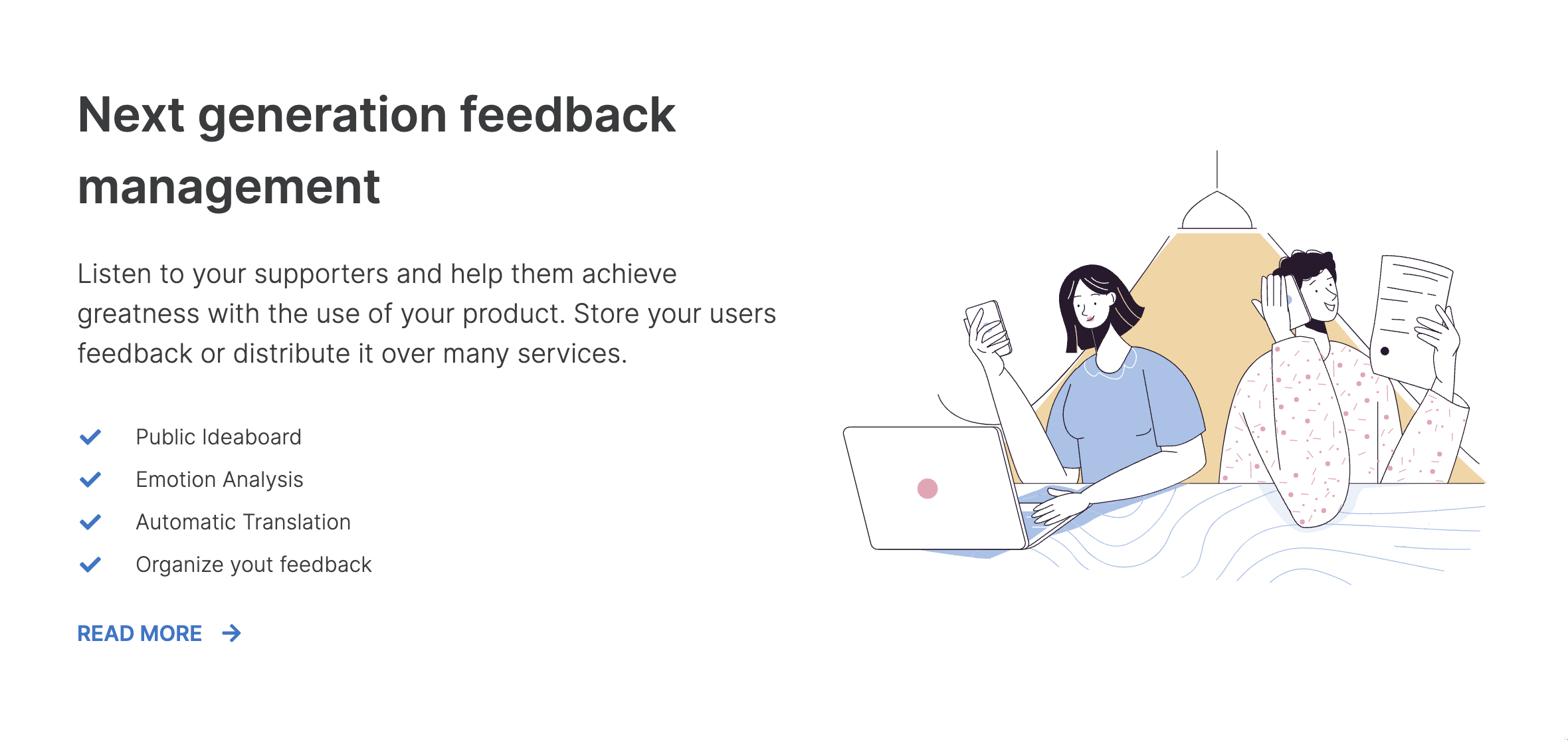 In this layout, the features don't have a subtitle field (only title) and are organized into one column, as can be seen in the image above. Moreover, there's a link at the bottom, the **Text** and **Action** of which can be customized, as shown below.
 ## Layout: Feature with product demo
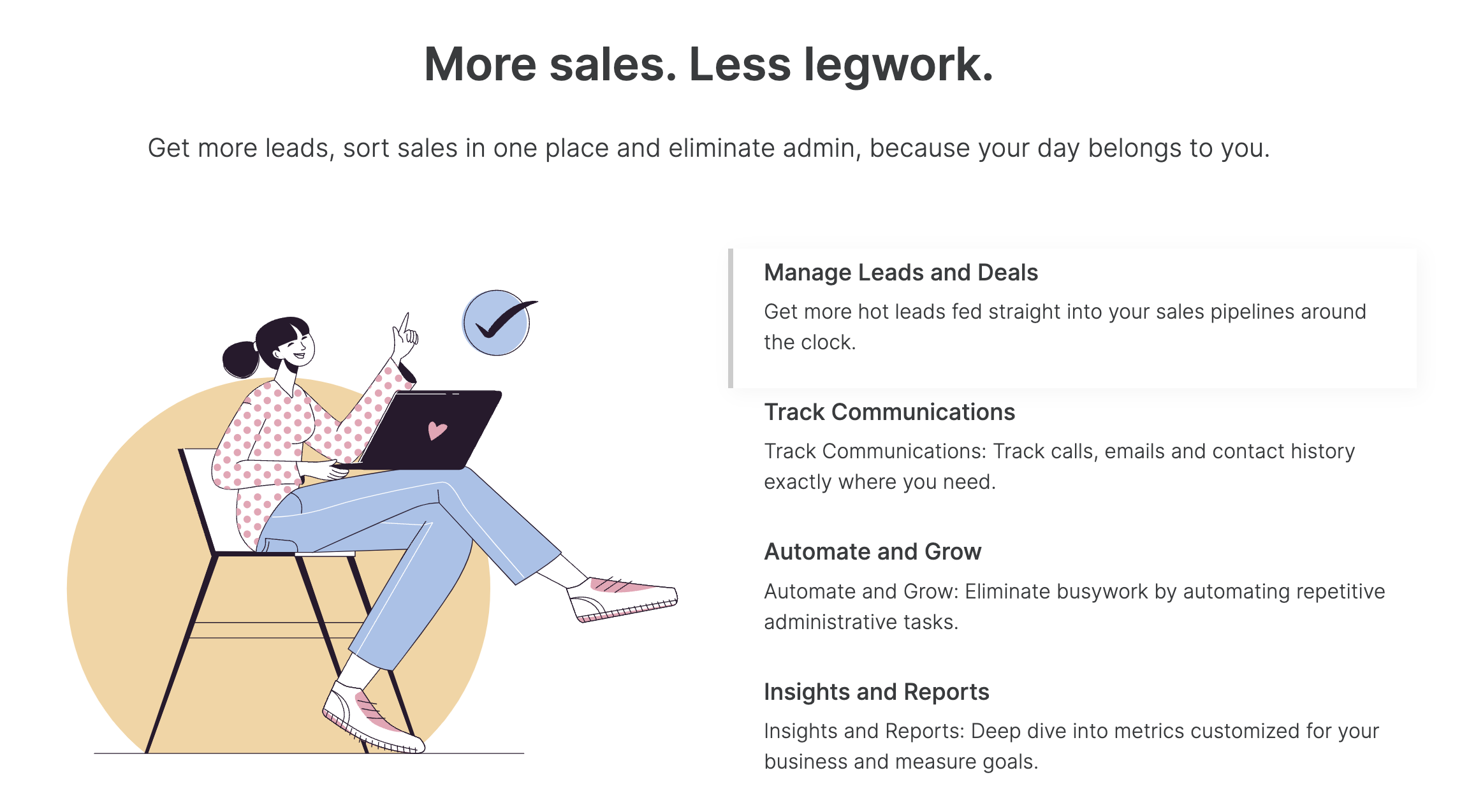 This layout allows you to add an image to the feature to demonstrate it.
 The users can switch between between the features to view each one, as shown below.