> ## Documentation Index
> Fetch the complete documentation index at: https://docs.softr.io/llms.txt
> Use this file to discover all available pages before exploring further.
# CTA
> The main features of the CTA block.
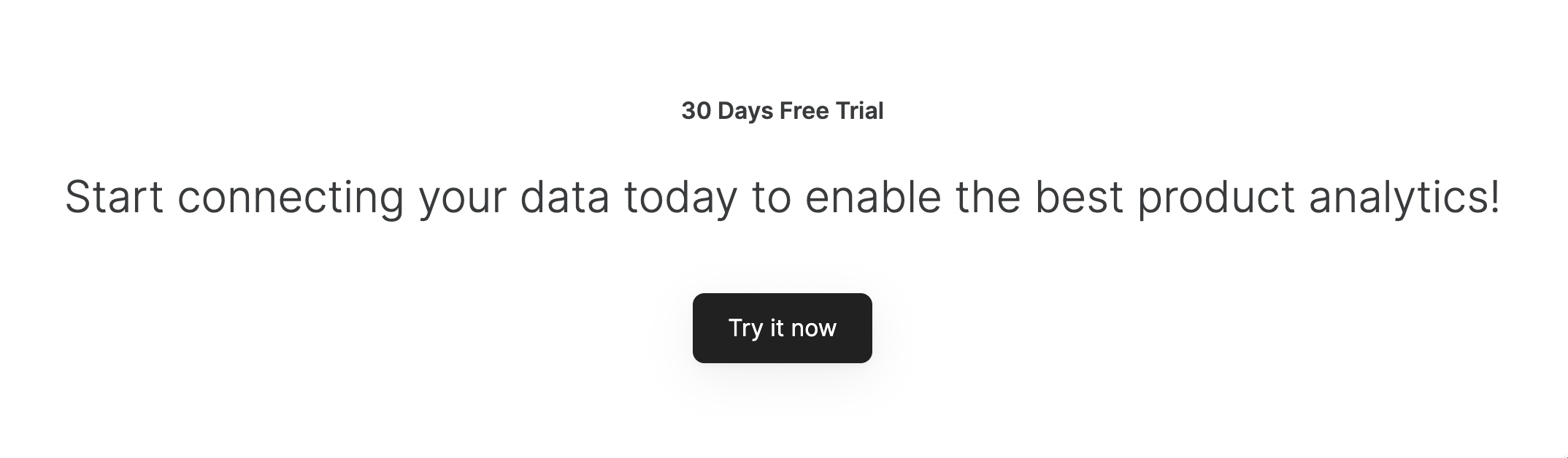
This is a simple block with some text and one or more CTA buttons that accomplish certain actions. The block has a **Title**, **Subtitle**, and a **Button(s)**.
 # Common Block Features
## Title, Subtitle, and Background Image
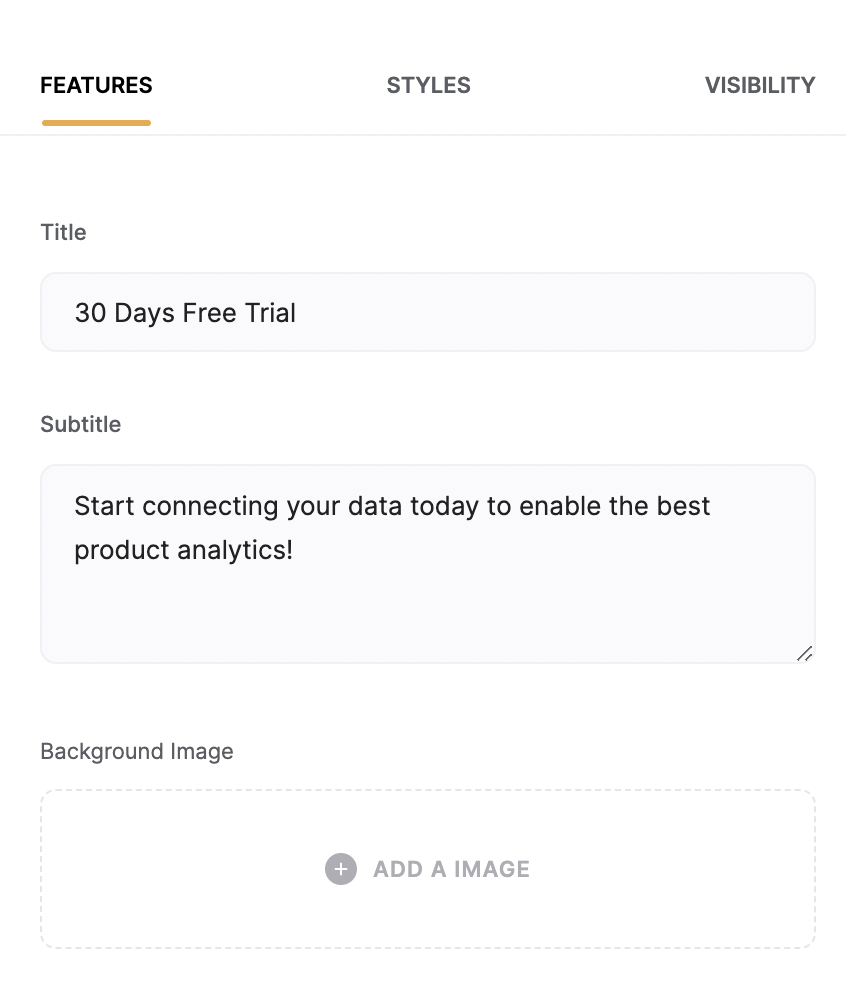
These settings are located under the **Features** tab of block settings, and here you customize the **Title** and **Subtitle** texts and can add a **Background Image** for the whole block.
# Common Block Features
## Title, Subtitle, and Background Image
These settings are located under the **Features** tab of block settings, and here you customize the **Title** and **Subtitle** texts and can add a **Background Image** for the whole block.
 ## Button
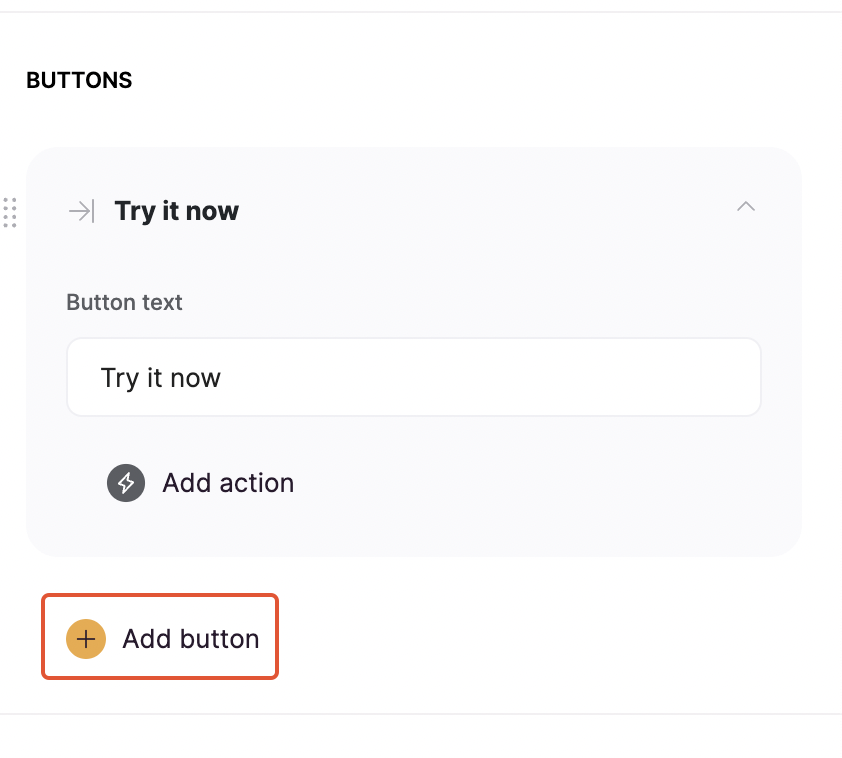
By default, there's only one button, but you can use the **Add Button** option to add more buttons.
## Button
By default, there's only one button, but you can use the **Add Button** option to add more buttons.
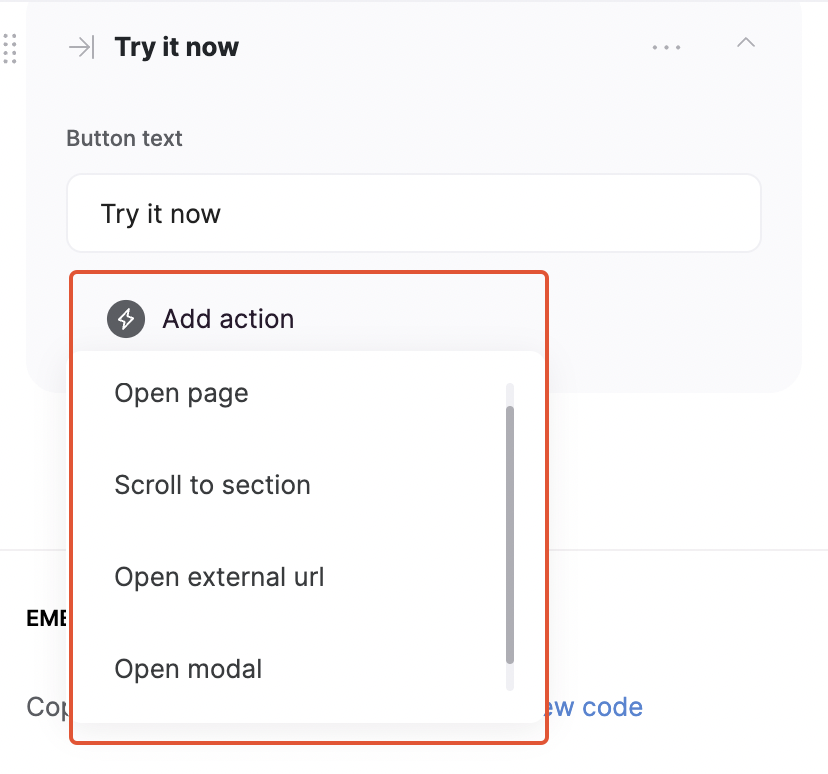
 In the [Call to action with email capture](/6772b65a34c84bfdbe1bc16e8b03f525) layout the button allows to capture the user's email, but in the rest of the layouts it has the following **Action** options:
* **Open page** to open another page within the app;
* **Scroll to section** to scroll to a specific section within the page;
* **Open external url;**
* **Open Modal** to open another page within a pop-up.
In the [Call to action with email capture](/6772b65a34c84bfdbe1bc16e8b03f525) layout the button allows to capture the user's email, but in the rest of the layouts it has the following **Action** options:
* **Open page** to open another page within the app;
* **Scroll to section** to scroll to a specific section within the page;
* **Open external url;**
* **Open Modal** to open another page within a pop-up.
 # CTA Block Layouts
## Layout: Call to action with a button
# CTA Block Layouts
## Layout: Call to action with a button
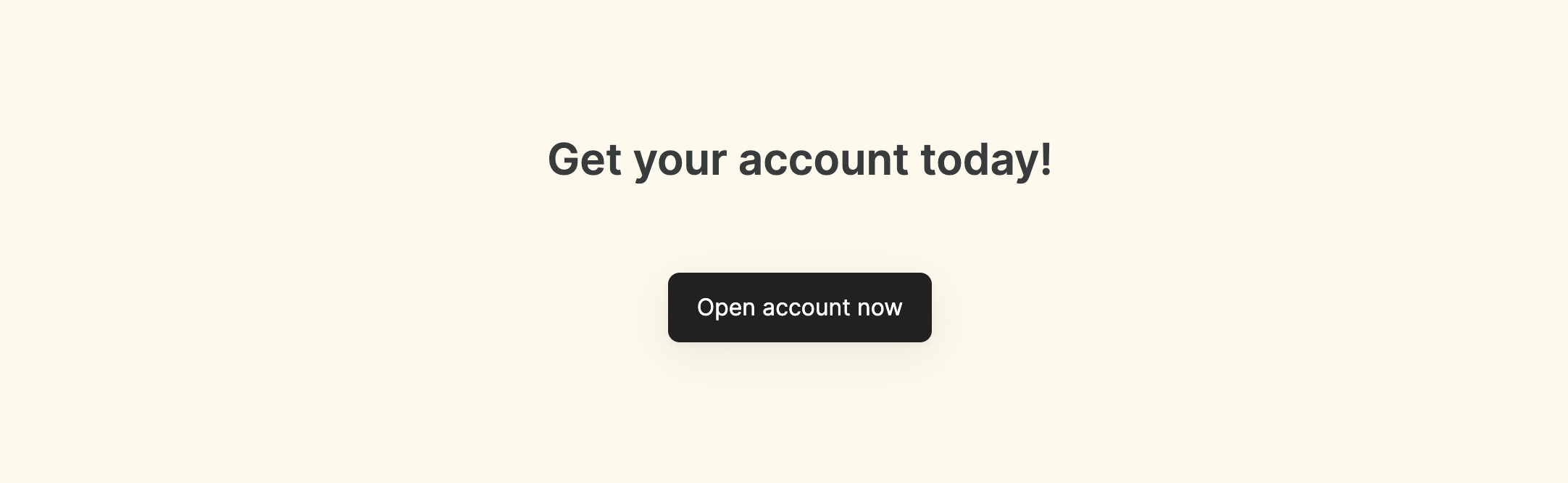
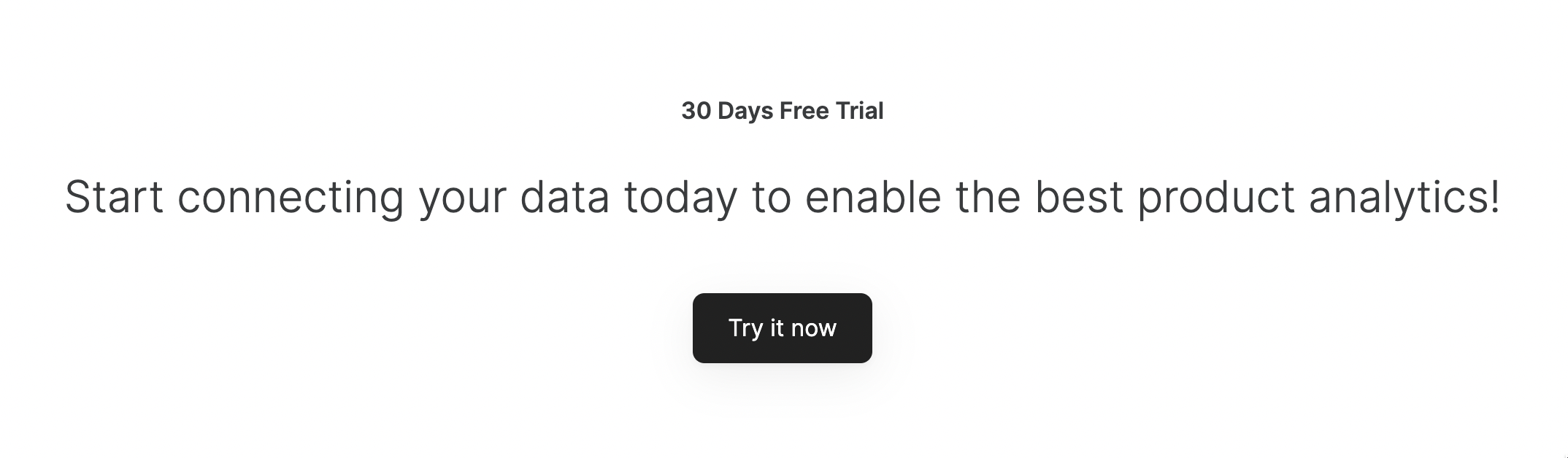 A layout with a button positioned at the bottom of the block.
## Layout: Call to action with email capture
A layout with a button positioned at the bottom of the block.
## Layout: Call to action with email capture
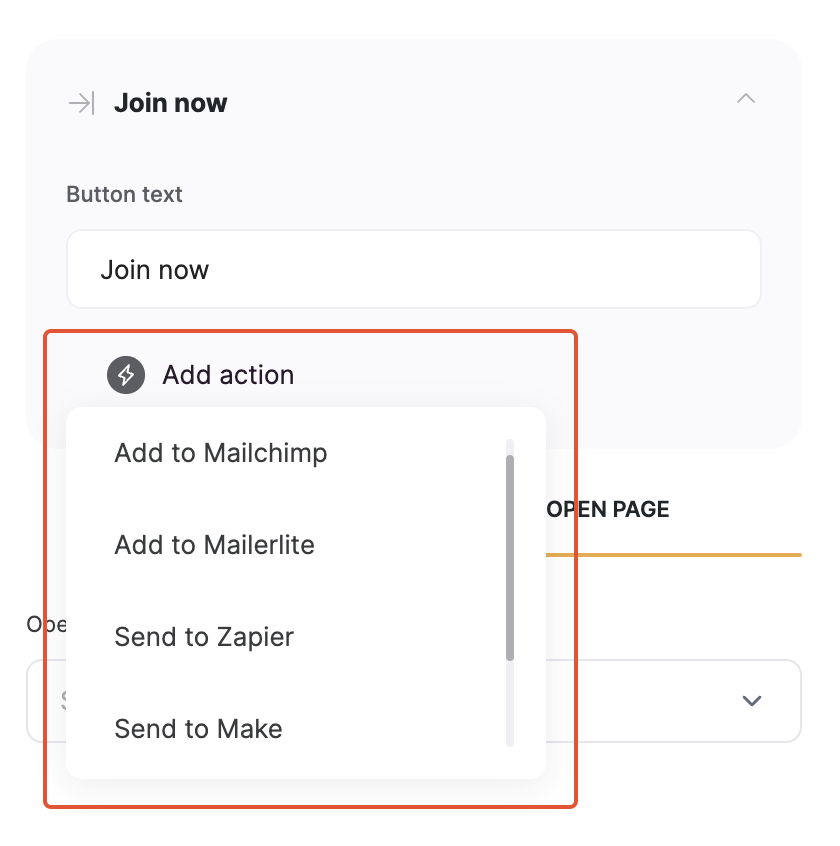
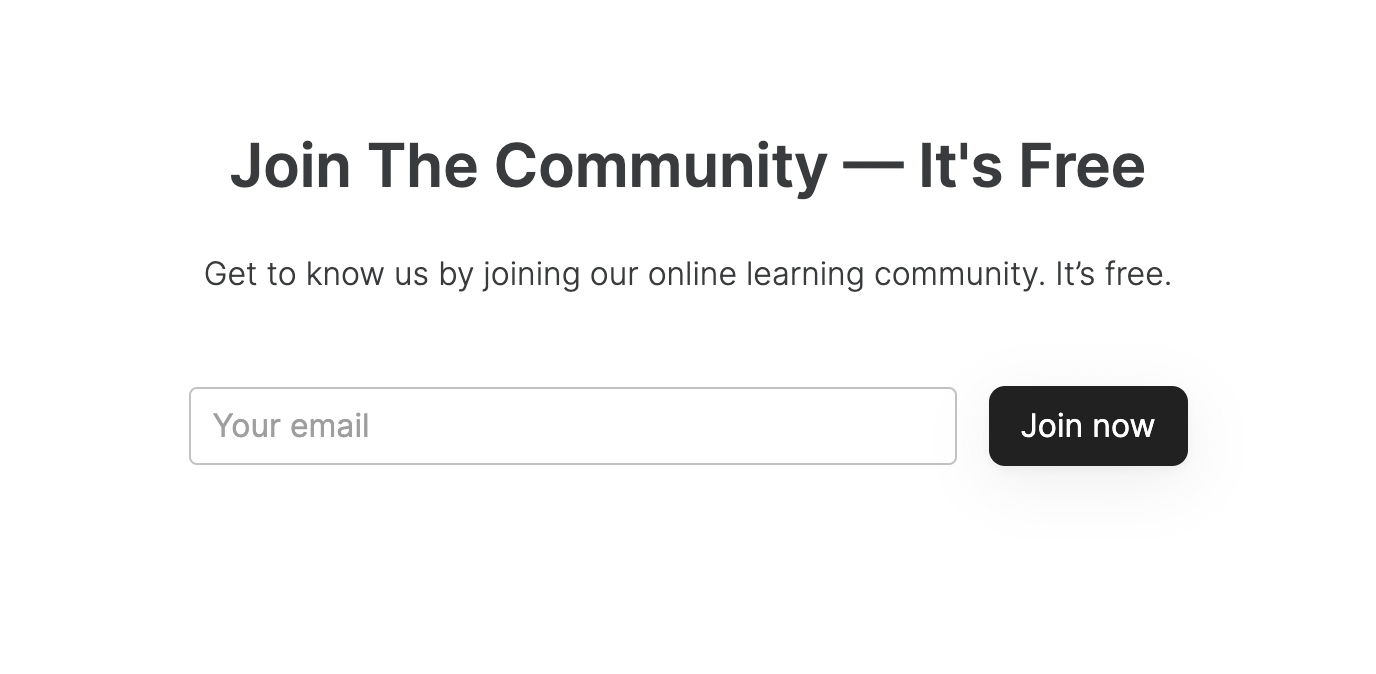 In this layout, instead of a simple CTA button, you have an email capture area. You can set the button **Action** to send the captured email to one of the supported services (more details in the [Integrations](/integrations/etS18kJqm1fuD58KCsjC3z/mailchimp/2GvSLRGrgMfe8S3drMWao1) section) or simply forward it to the specified email address.
 ## Layout: Call to action with a button on the right
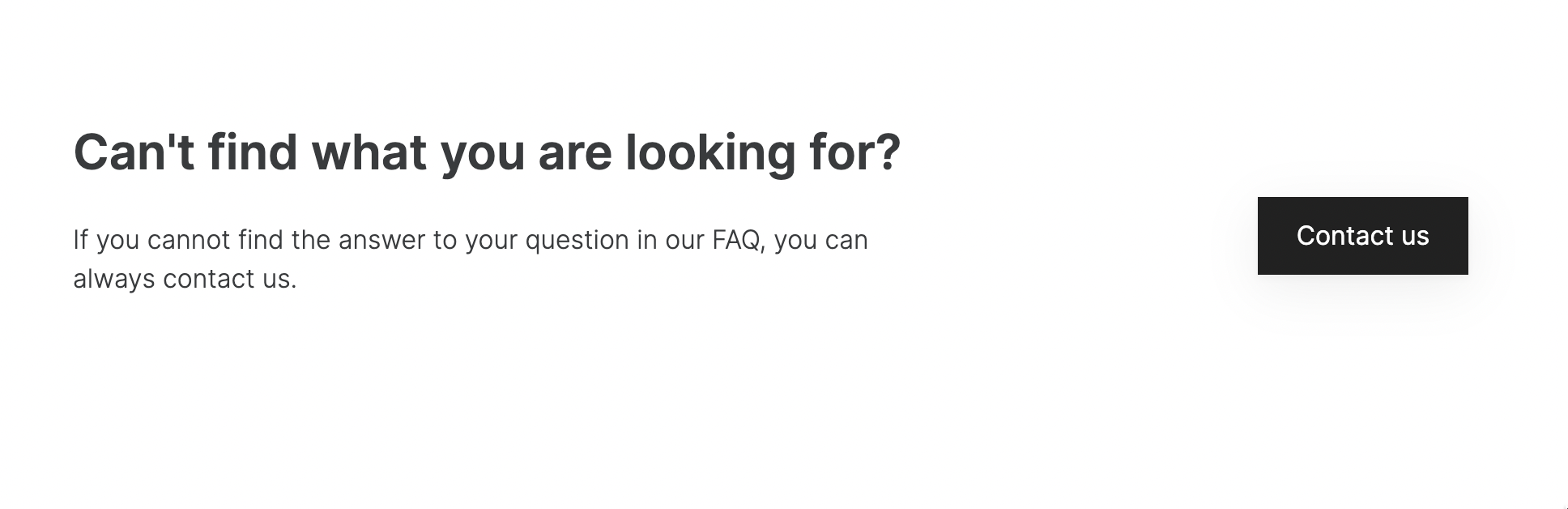
This layout is similar to the Call to action with a button but the button is positioned on the right hand.
## Layout: Call to action with a button on the right
This layout is similar to the Call to action with a button but the button is positioned on the right hand.
 ## Layout: Call to action with a text and action button
 This is a layout with a large text on a dark background and a CTA button.