> ## Documentation Index
> Fetch the complete documentation index at: https://docs.softr.io/llms.txt
> Use this file to discover all available pages before exploring further.
# Comments block
> Adding a comments feature to a List Details.
The Comments block lets users add and view comments linked to a specific item in your app — like a project, task, or client. It’s perfect for sharing updates, asking questions, or keeping track of important details in one place.
### Key things to know
* Comments can be enabled from any [Item detail block](/building-blocks/vikC2AWEpQGkZd4jGyoVxo/item-details-block-/4bE8XaFbJp45wkAwuWiz8f)or any list type block ([List](/building-blocks/vikC2AWEpQGkZd4jGyoVxo/list-block/pQhPYuA28VXr5tLLFBcbCU), [Grid](/building-blocks/vikC2AWEpQGkZd4jGyoVxo/grid-block/42JZoeYwMsogZcveqh74QH), [Table](/building-blocks/vikC2AWEpQGkZd4jGyoVxo/table-block-/j7rGwu7J7zuU69h3bZ7HFe))
* **Comments are always linked to a record** — they can’t exist on their own.
* You **don’t need to set up an extra table** to store them. Comments are saved directly inside your Softr app.
* Each record has **one comment thread**, even if you show it in multiple places.
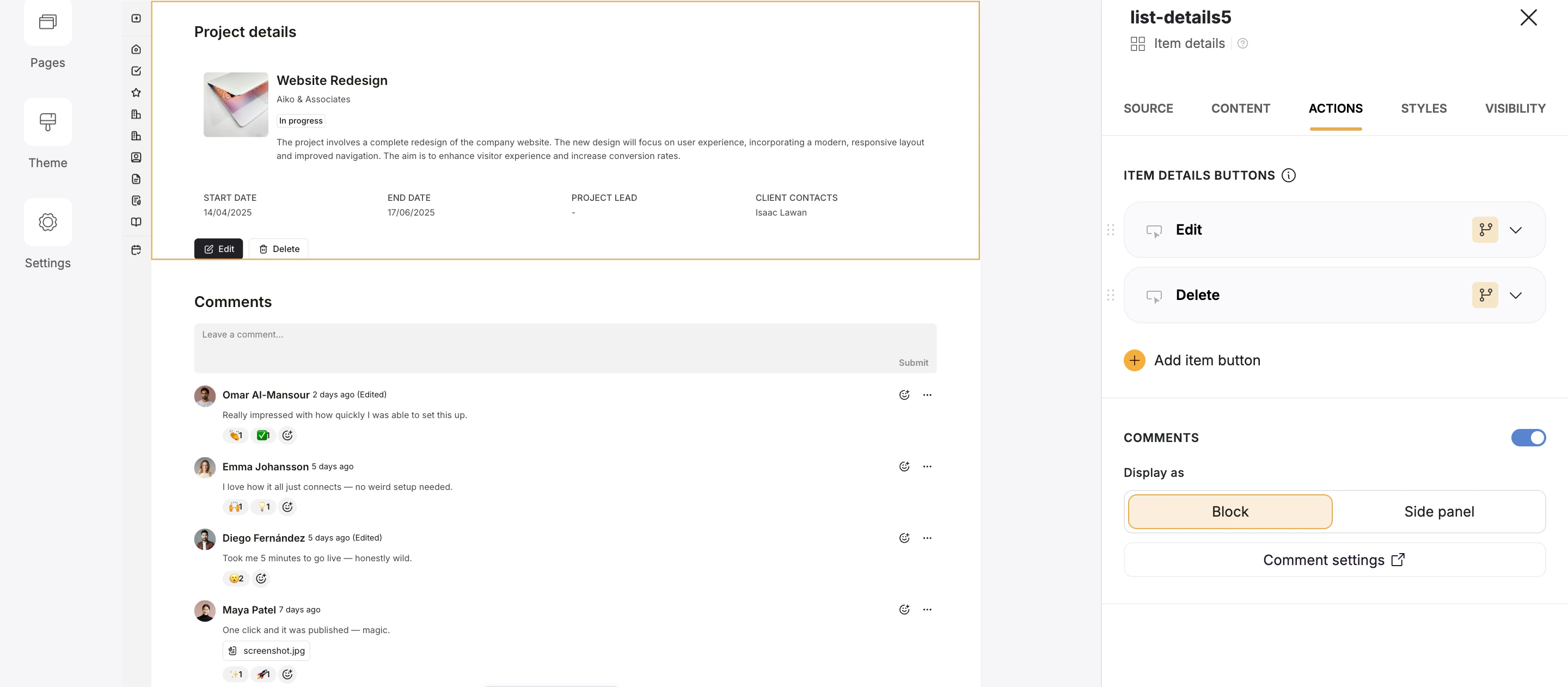
* You can show comments as:
* A **block** on a details page
* A **side panel** (new!) that opens when clicking a button on a list
### Examples
Here’s how you can use comments in your app:
* **Projects** – Let your team discuss project updates or next steps.
* **Support tickets** – Add internal notes or track follow-ups.
* **Clients** – Keep a record of conversations or important context.
### How to set up Comments block for Item detail block
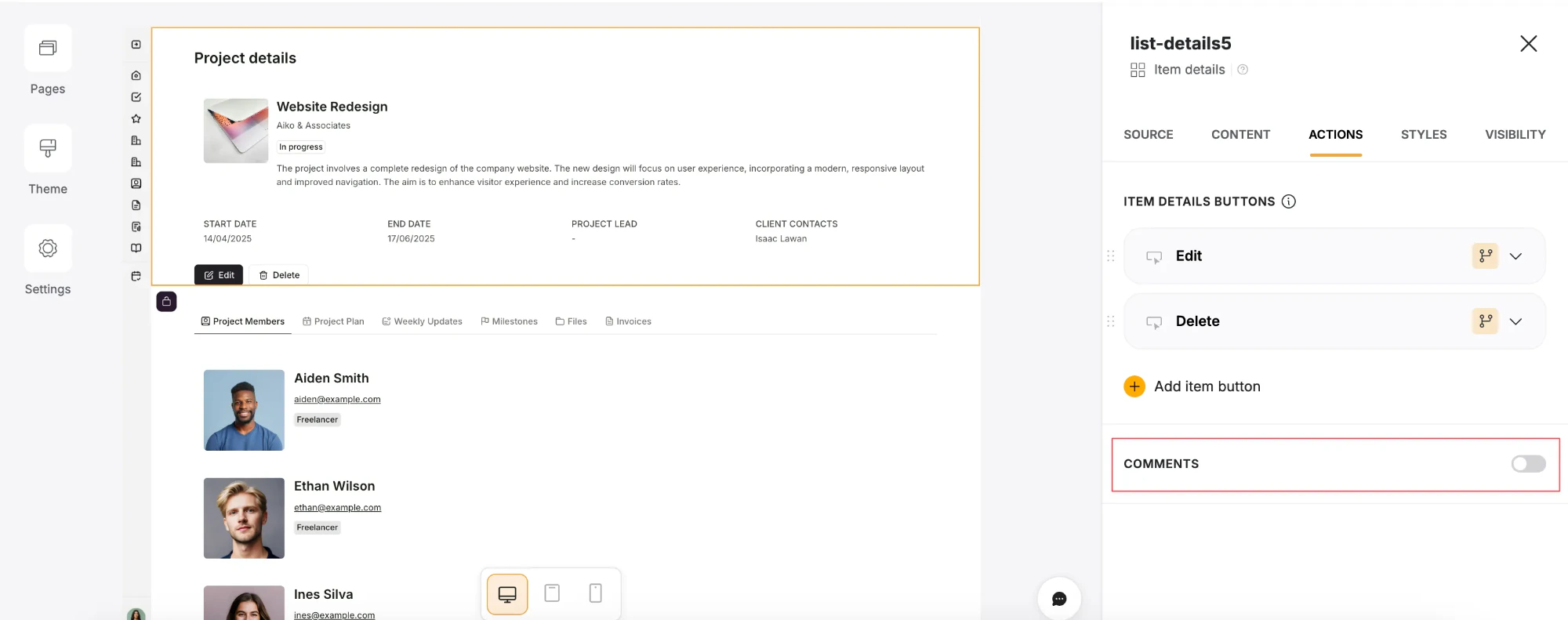
1. Enable the **Comments block** in the **Action** tab of the [**Item detail block**](/building-blocks/vikC2AWEpQGkZd4jGyoVxo/item-details-block-/4bE8XaFbJp45wkAwuWiz8f)
 2. Choose if you want to show comments as a block or side panel.
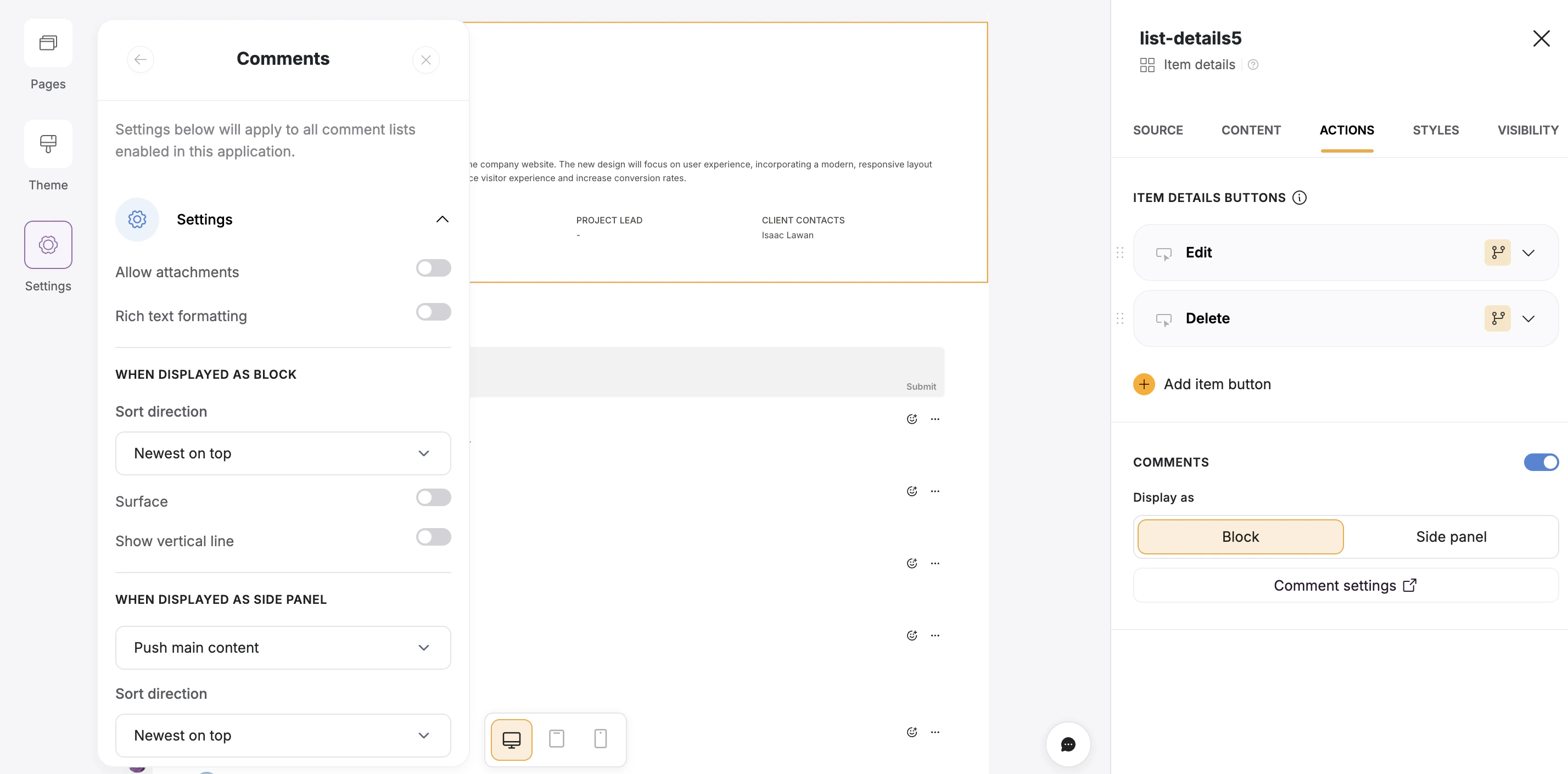
 3. Configure Features, Permissions and Style in Comments Settings
 ### How to set up Comments for a List block
1. Add a new **Item button** in the **Actions tab** → **Open Comments.**
### How to set up Comments for a List block
1. Add a new **Item button** in the **Actions tab** → **Open Comments.**
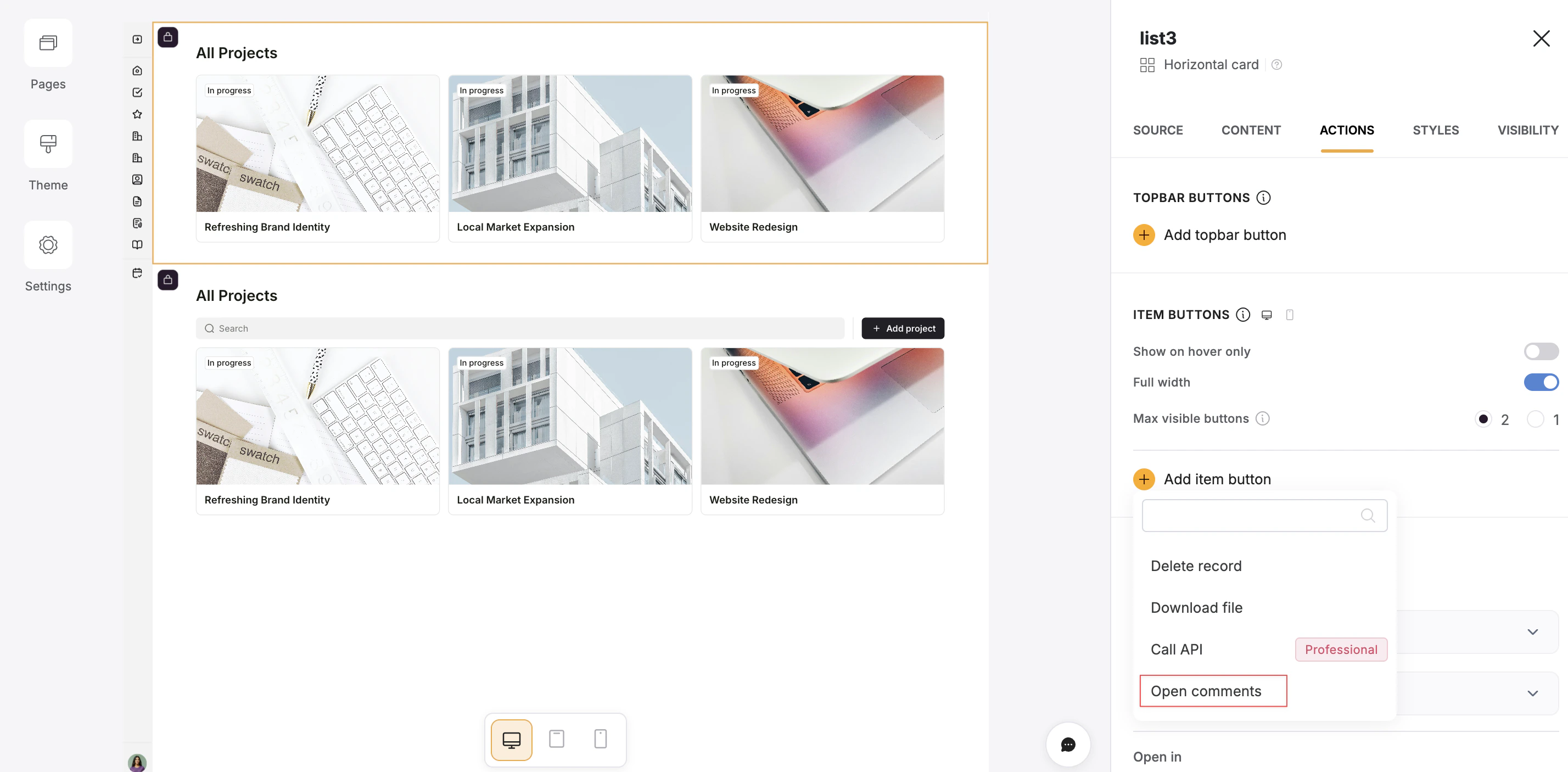 2. Note: In this case, the Comments tab can only be visualized in a **Side panel.**
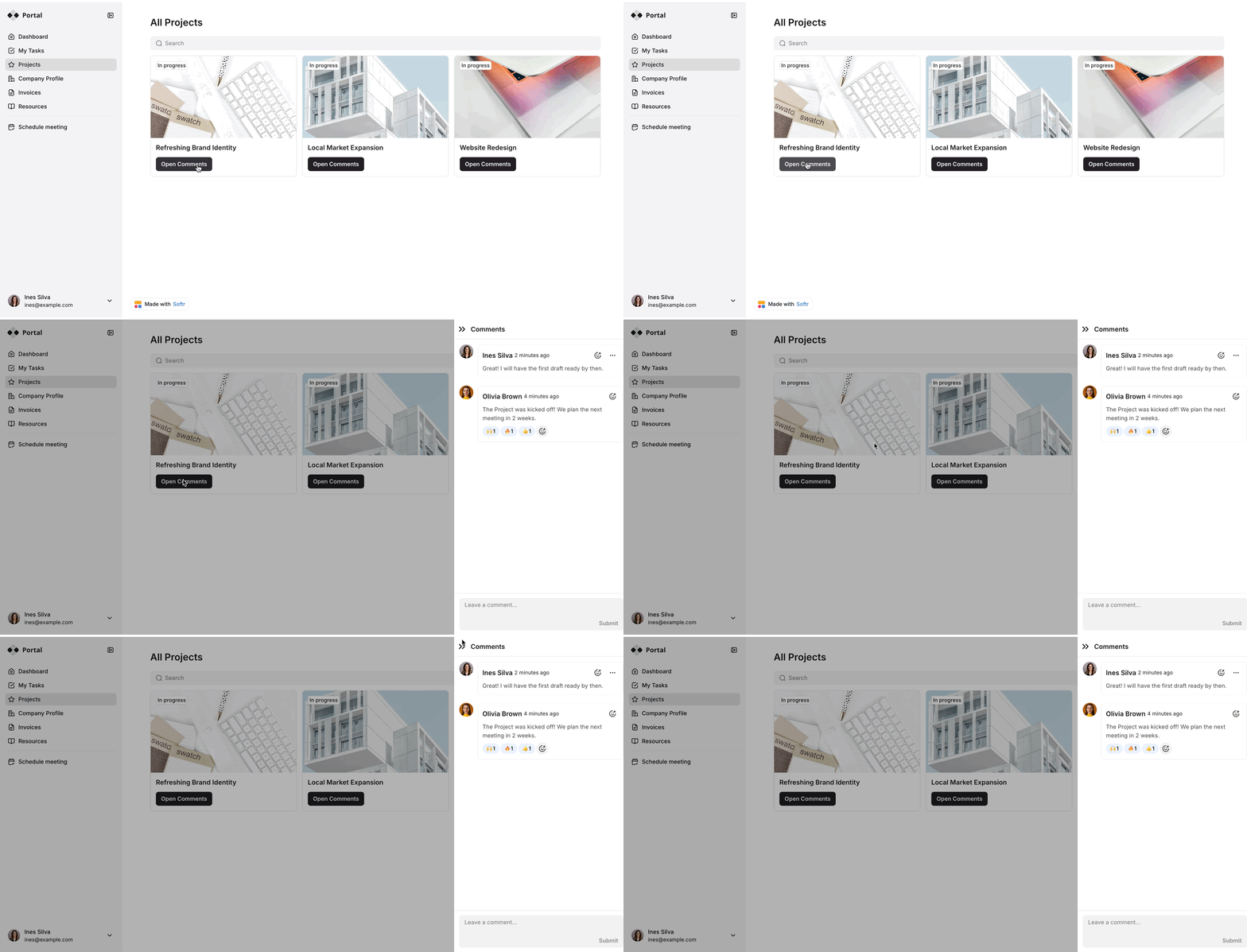 3. Configure Features, Permissions, and Style in **Comments Settings**
### Comments settings and customization
Go to **Settings → Comments** to control how comments work across your app. From there, you can:
* Add features like **Rich text formatting** and **file upload** option.
* Change the **sorting order**, visual **style**, and **message text**
* Set **who can comment or view comments** (e.g. everyone, only Admins)
### Notifications
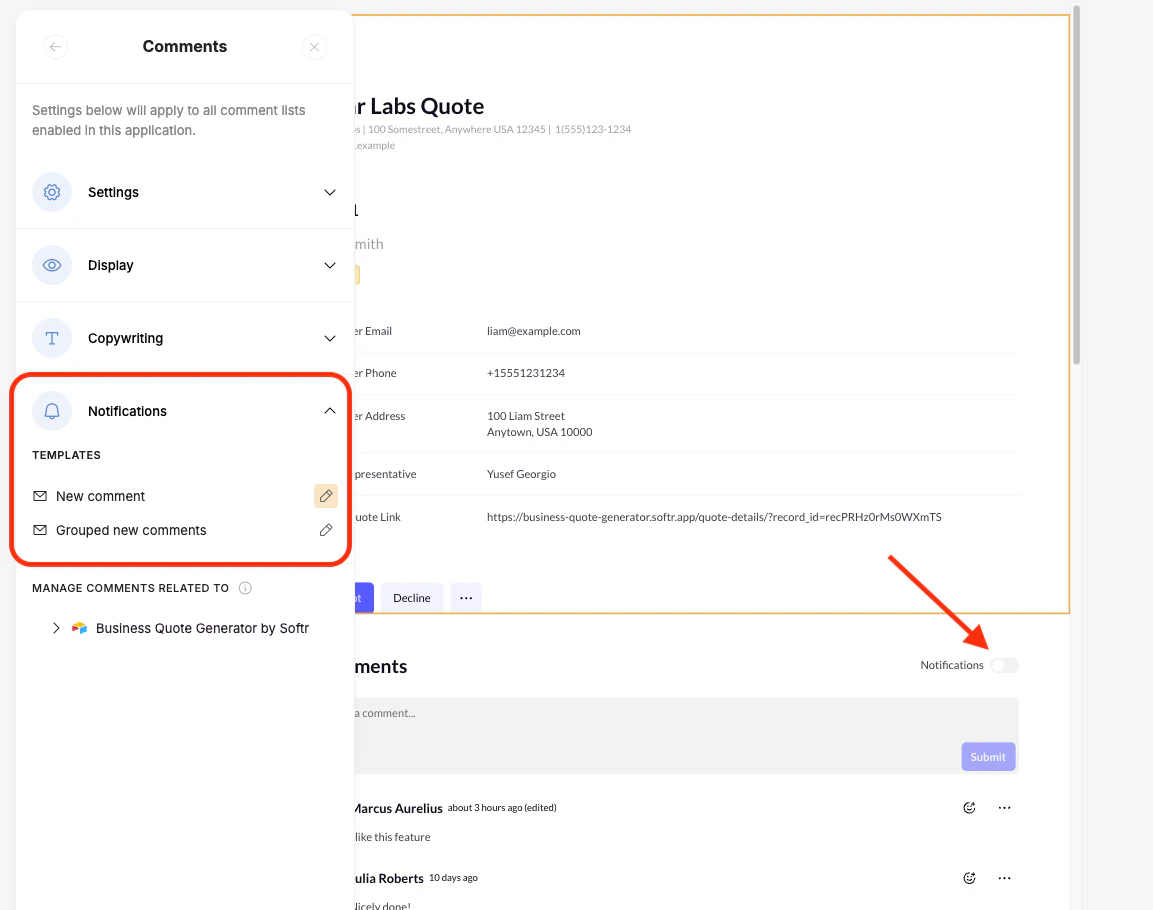
Your app users can toggle Notifications on and off on the comments if they want to be notified by email when a new comment occurs on an item. You can also customize the notification emails that are sent to your users in the Notification section of the Comment Settings menu.
3. Configure Features, Permissions, and Style in **Comments Settings**
### Comments settings and customization
Go to **Settings → Comments** to control how comments work across your app. From there, you can:
* Add features like **Rich text formatting** and **file upload** option.
* Change the **sorting order**, visual **style**, and **message text**
* Set **who can comment or view comments** (e.g. everyone, only Admins)
### Notifications
Your app users can toggle Notifications on and off on the comments if they want to be notified by email when a new comment occurs on an item. You can also customize the notification emails that are sent to your users in the Notification section of the Comment Settings menu.