> ## Documentation Index
> Fetch the complete documentation index at: https://docs.softr.io/llms.txt
> Use this file to discover all available pages before exploring further.
# Footer Settings
> Create navigational footers for pages in your app
Footers allow your app users to access links and pages at the bottom of your app pages. Sometimes you may have more links and screens to show them than can fit on the main navigation. Footers are a great way to provide complementary and enriches information about your app that are not as commonly needed, such as Terms of Service, Privacy Policy links, Careers pages, social links, etc.
Any Footers you create can be enabled or disabled on any page in your app. For instance, you may want a footer on your landing page, but not on the dashboard page once your users are logged in.
## Creating Footers
You can create and edit footers in Softr by following these steps:
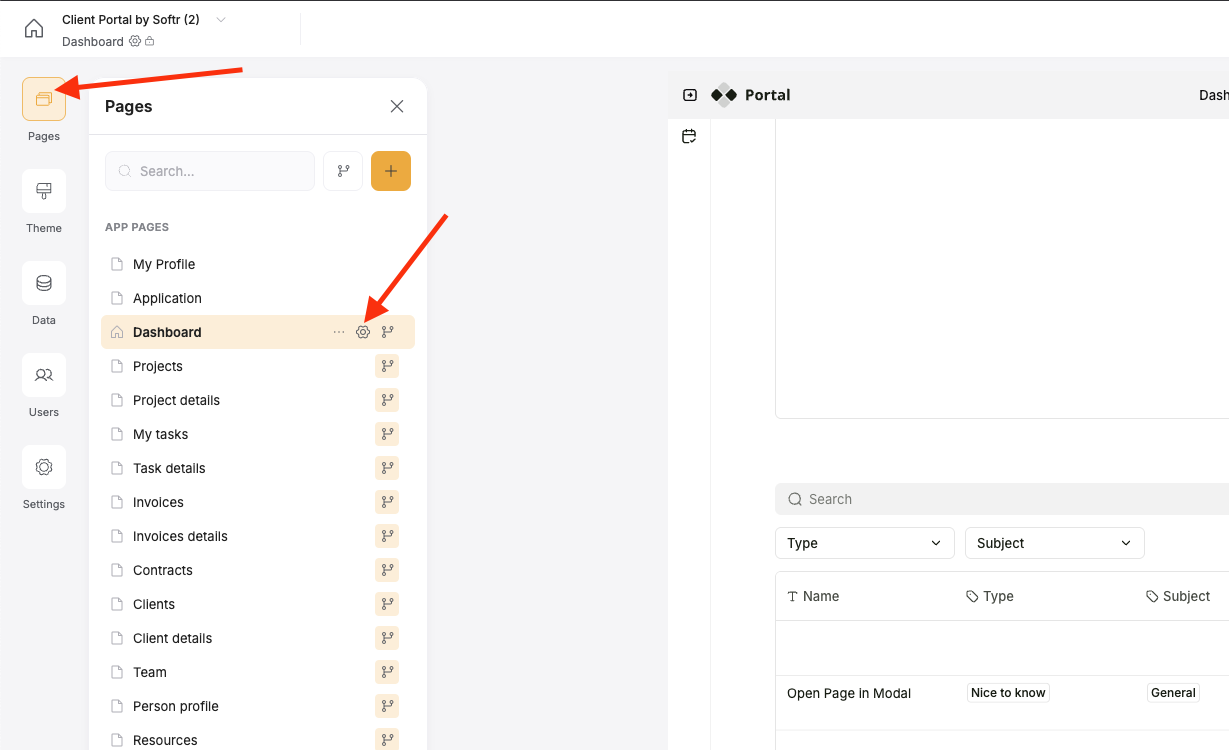
Click on the Page menu to open all the pages in your app, then click on the gear icon to open the settings for the desired page.
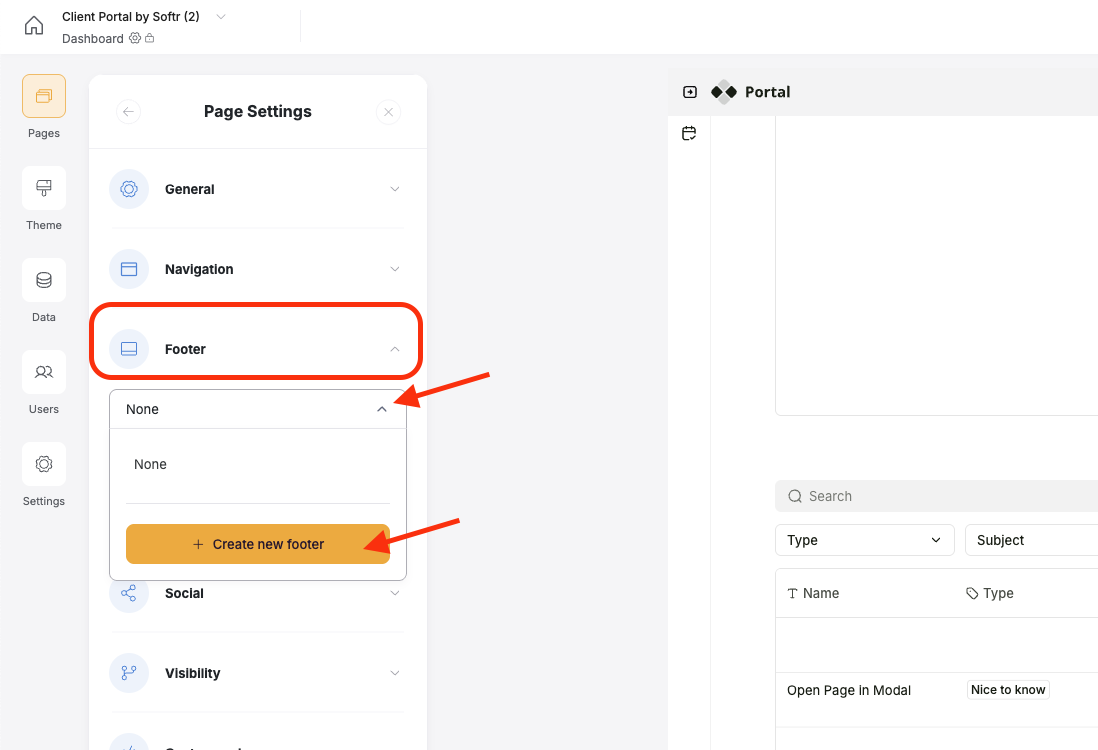
 Click on the Footer accordion section in the page settings to expose another dropdown. Here you can choose “None” to show no footer on this page, select an existing footer, or create a new one.
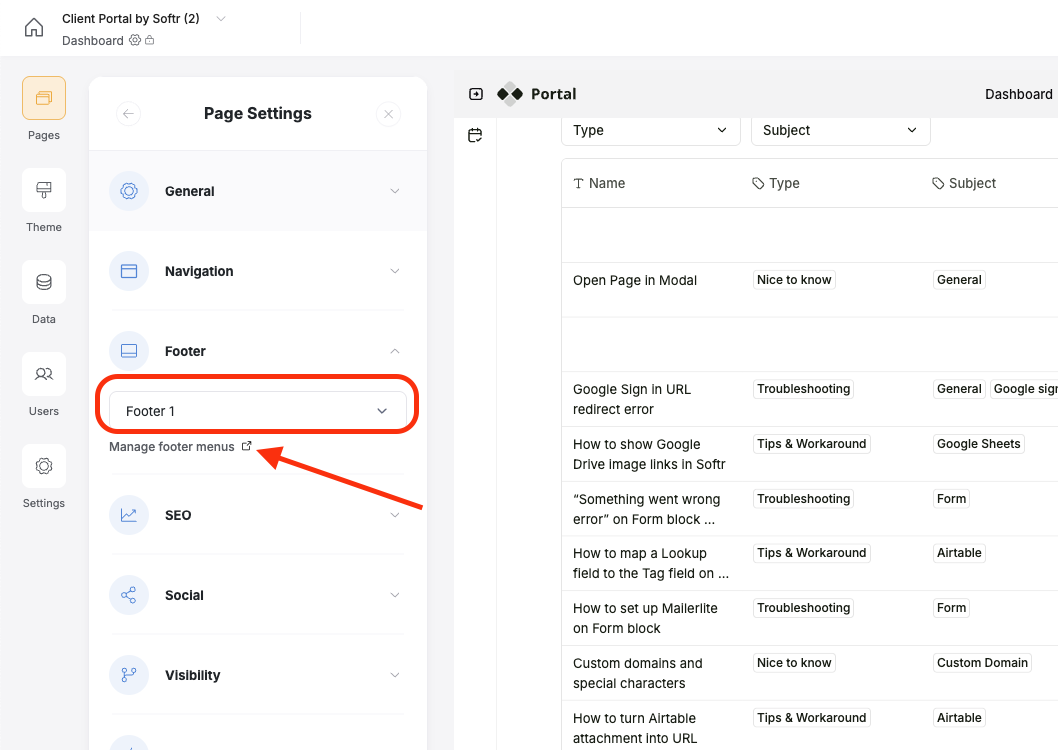
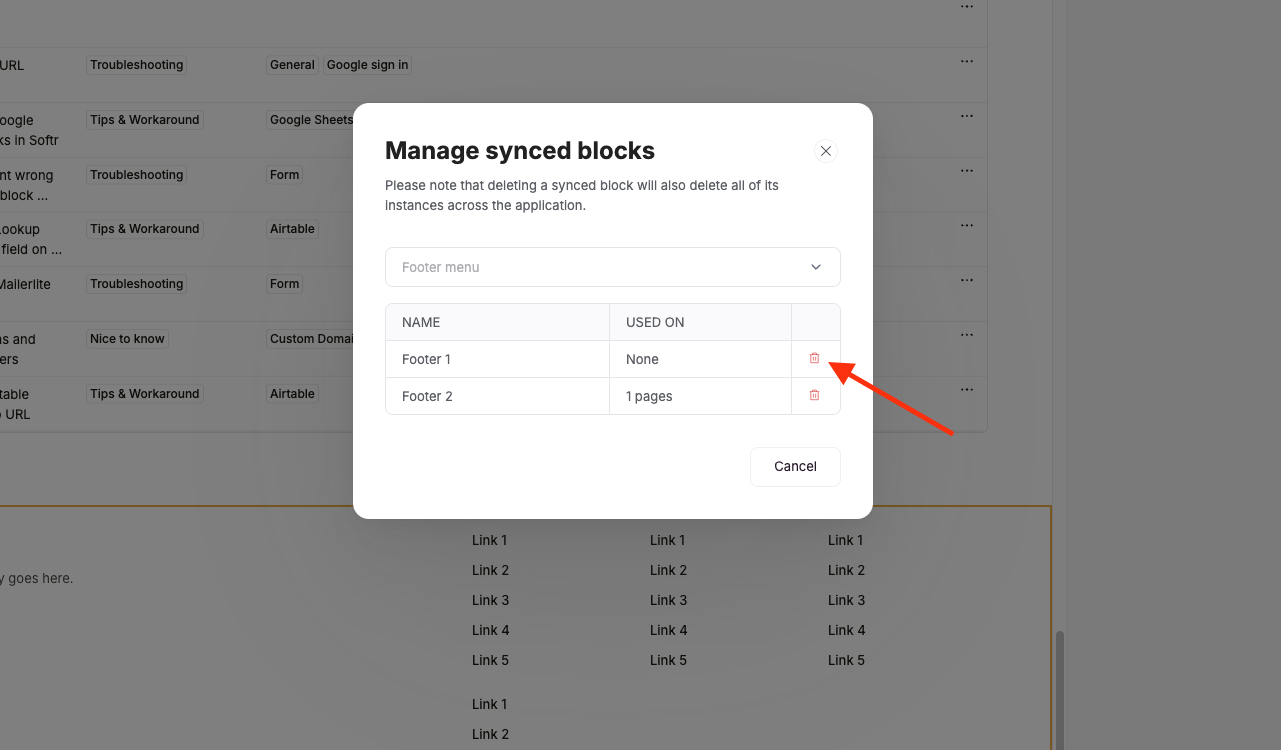
 Click **+ Create a Footer** and select it to enable it on the current page. You can manage and edit Footers by clicking the Manage Footers icon just below the dropdown. Here you can delete footers and see how many pages they are currently being used on.
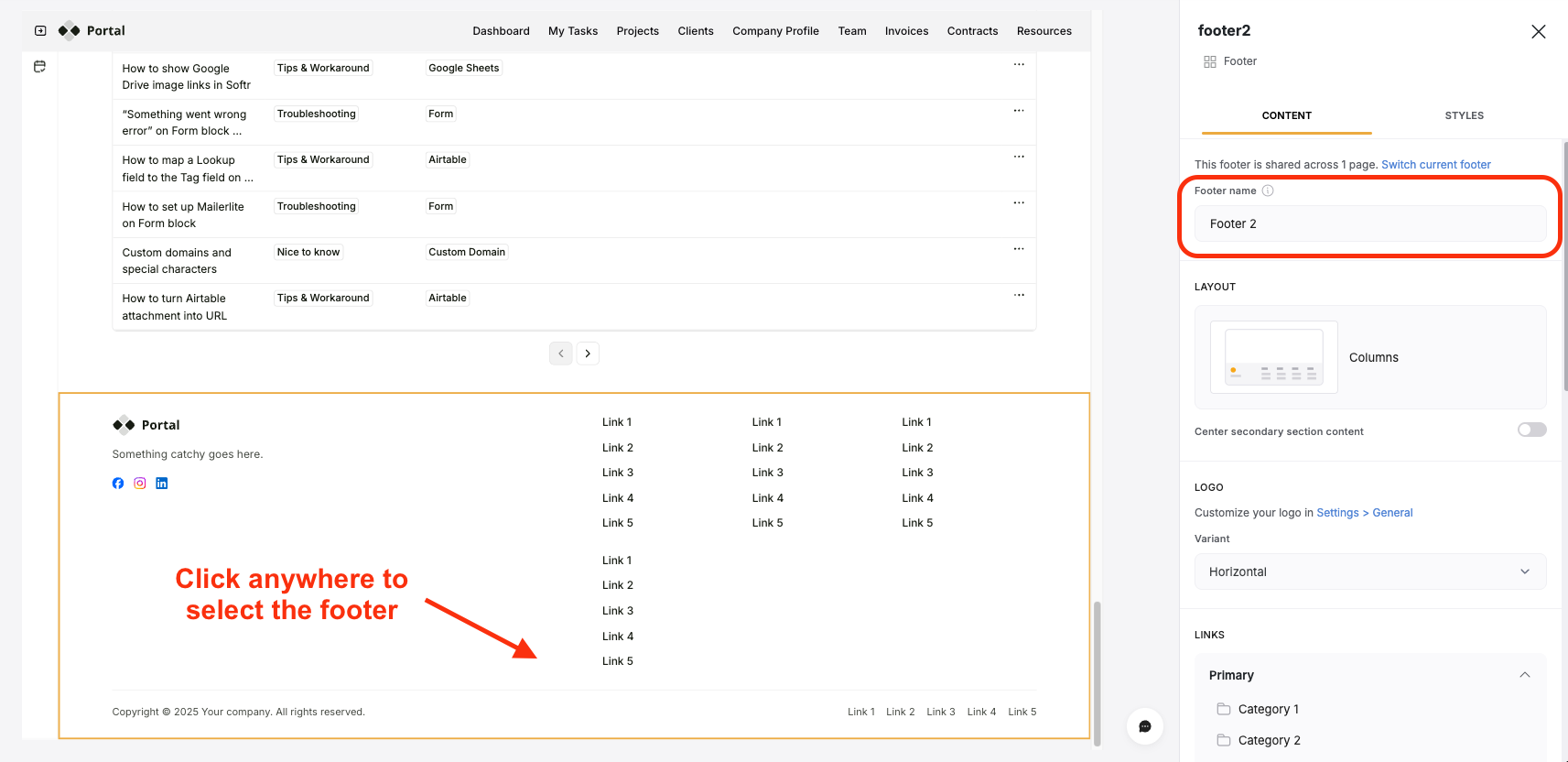
 The footer provides a host of options so you can build exactly what you need. Once a footer has been turned on for a page, click anywhere in the Footer to open its settings panel. Let’s take a look at some of the options available.
**Rename**
You can rename the footer in the Content tab. This will also be reflected in the page settings options when selecting footers.
The footer provides a host of options so you can build exactly what you need. Once a footer has been turned on for a page, click anywhere in the Footer to open its settings panel. Let’s take a look at some of the options available.
**Rename**
You can rename the footer in the Content tab. This will also be reflected in the page settings options when selecting footers.
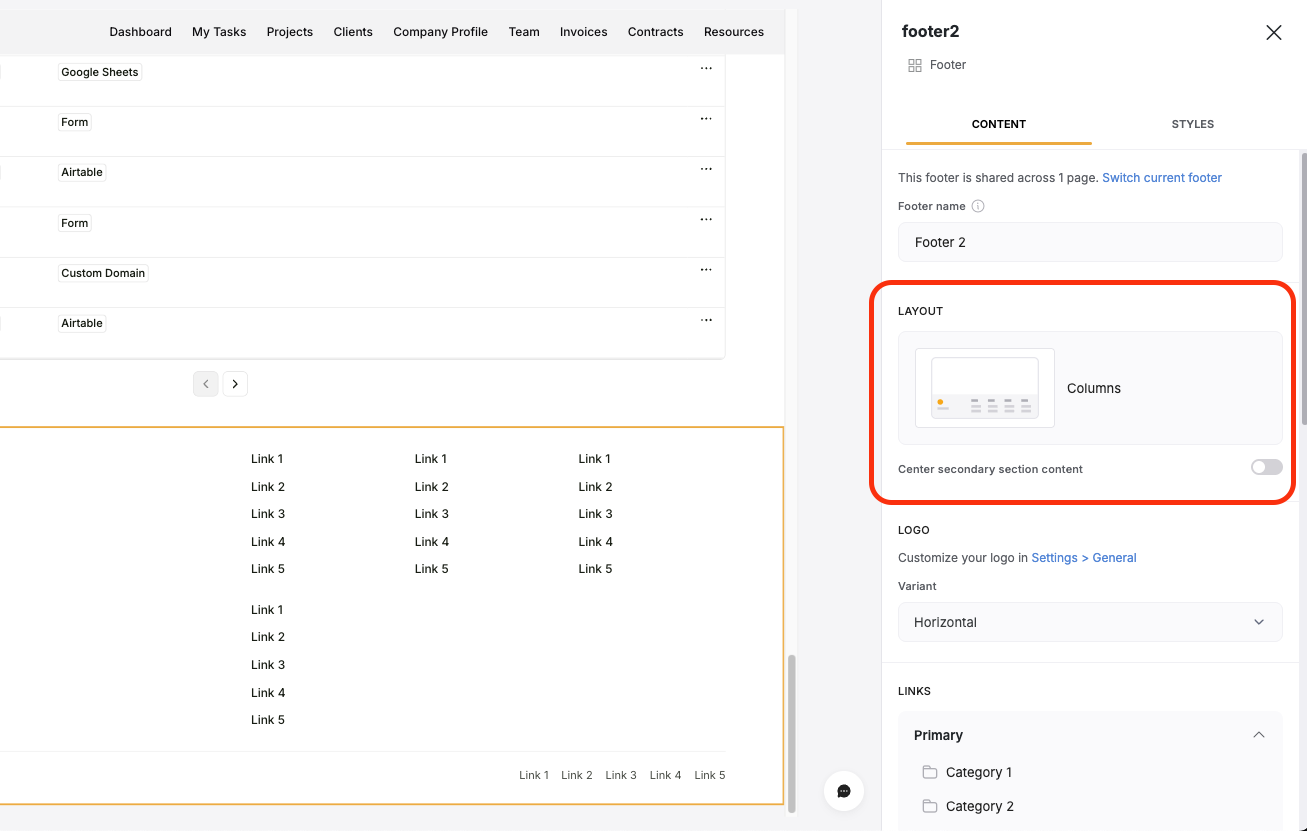
 **Layout**
In the Layout section, you can choose the general format of your footer such as Columns or Simple. You can further refine this layout in other settings below. Also in this section is a toggle for centering the secondary Link section if using Columns, or centering all the content if using the Simple layout.
**Layout**
In the Layout section, you can choose the general format of your footer such as Columns or Simple. You can further refine this layout in other settings below. Also in this section is a toggle for centering the secondary Link section if using Columns, or centering all the content if using the Simple layout.
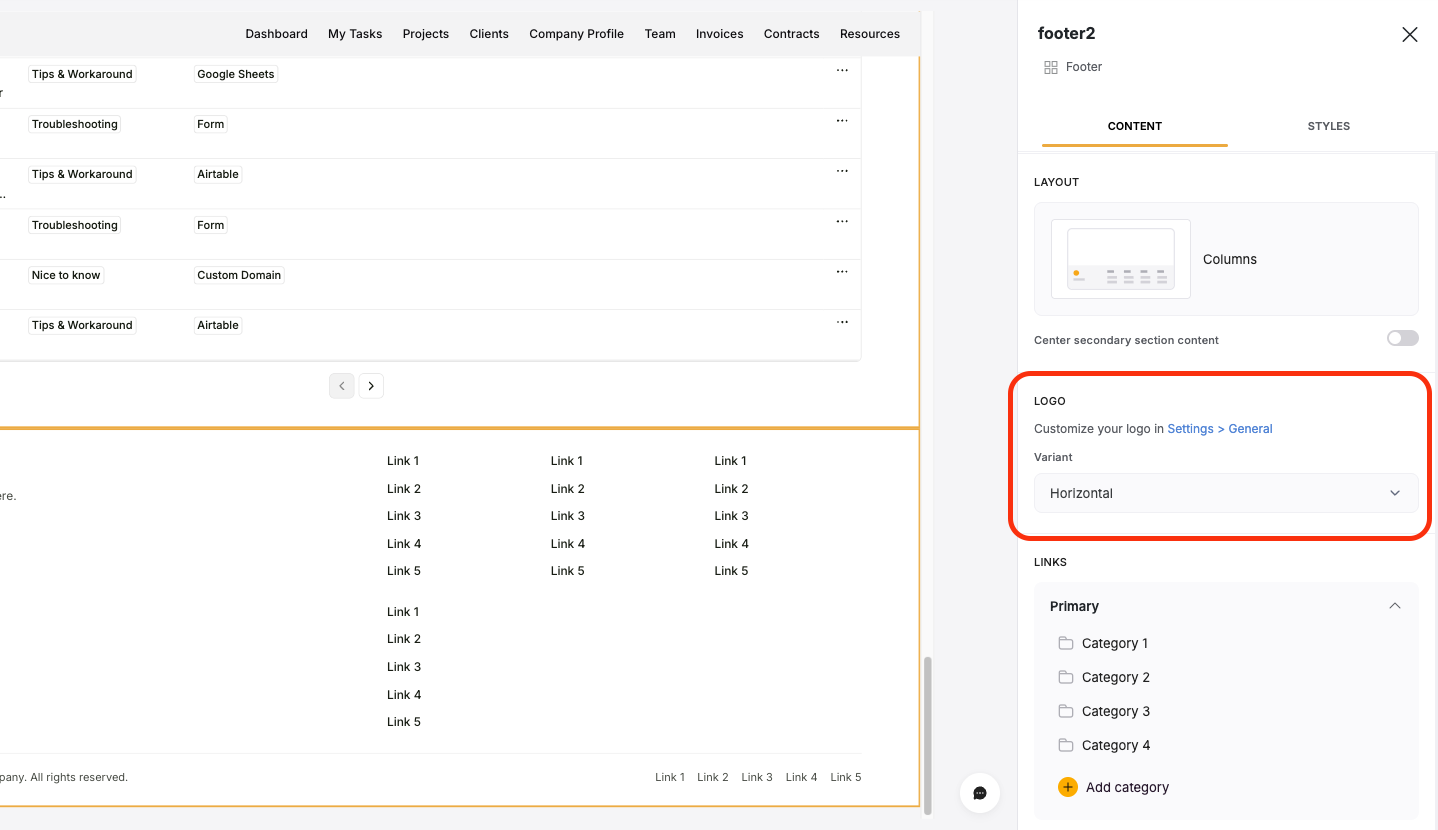
 **Logo**
Here you can change which version of your logo you want to display in the footer, either horizontal or square. You can set the logo for your app in the [General Settings](/application-settings/n3K2UEfpC9BpHgakMzUU5Y/general-settings/7YdGy1J8X2tjJSv8BGvWQU) of your app.
**Logo**
Here you can change which version of your logo you want to display in the footer, either horizontal or square. You can set the logo for your app in the [General Settings](/application-settings/n3K2UEfpC9BpHgakMzUU5Y/general-settings/7YdGy1J8X2tjJSv8BGvWQU) of your app.
 **Links**
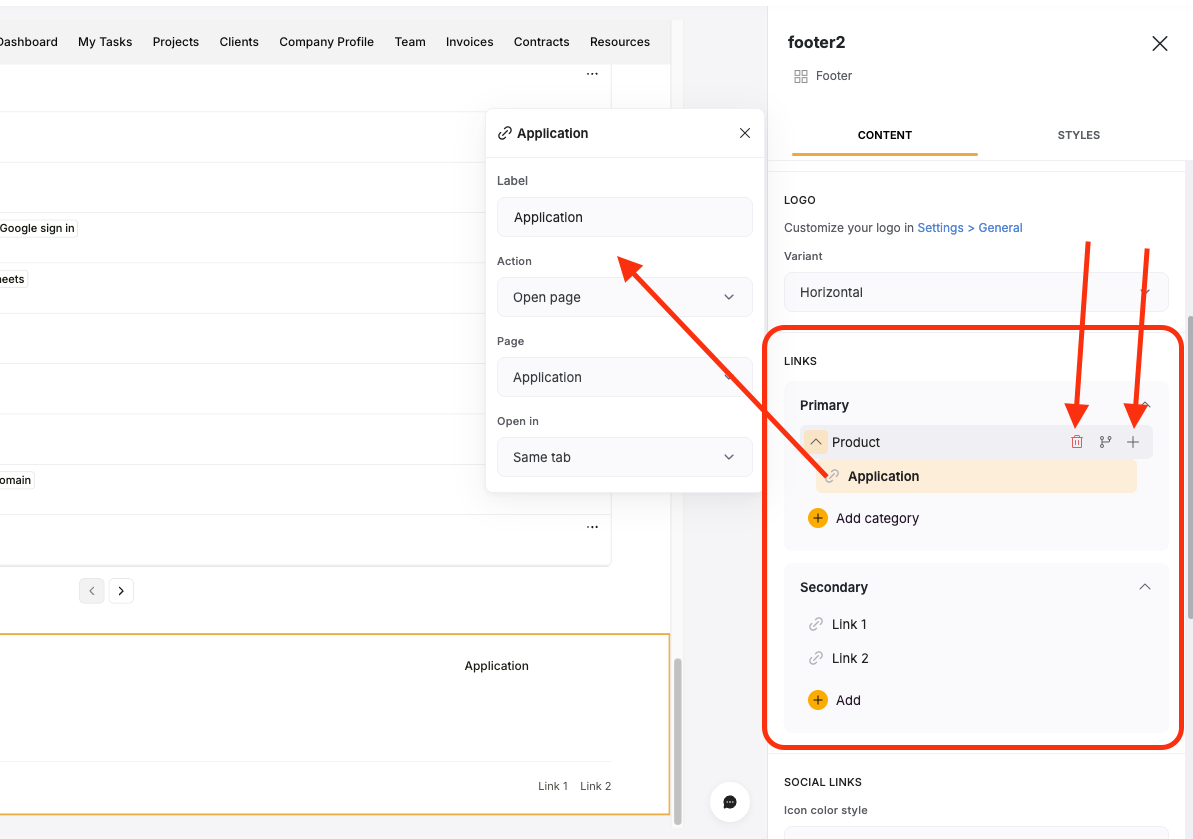
In the Links section, you can add links to pages, external URLs, and create categories of links if using the Columns Layout. Whether or not you see a Secondary section will depend on the Layout you’ve chosen. To add a Category, click on the **Add Category** button. To add a link, select a category and click the **plus button** on the right side of the category. You can delete and rename links and categories by selecting them
For Simple layout and the secondary section on Column layout, you can add just links by clicking **Add Link**.
**Links**
In the Links section, you can add links to pages, external URLs, and create categories of links if using the Columns Layout. Whether or not you see a Secondary section will depend on the Layout you’ve chosen. To add a Category, click on the **Add Category** button. To add a link, select a category and click the **plus button** on the right side of the category. You can delete and rename links and categories by selecting them
For Simple layout and the secondary section on Column layout, you can add just links by clicking **Add Link**.
 **Social Links**
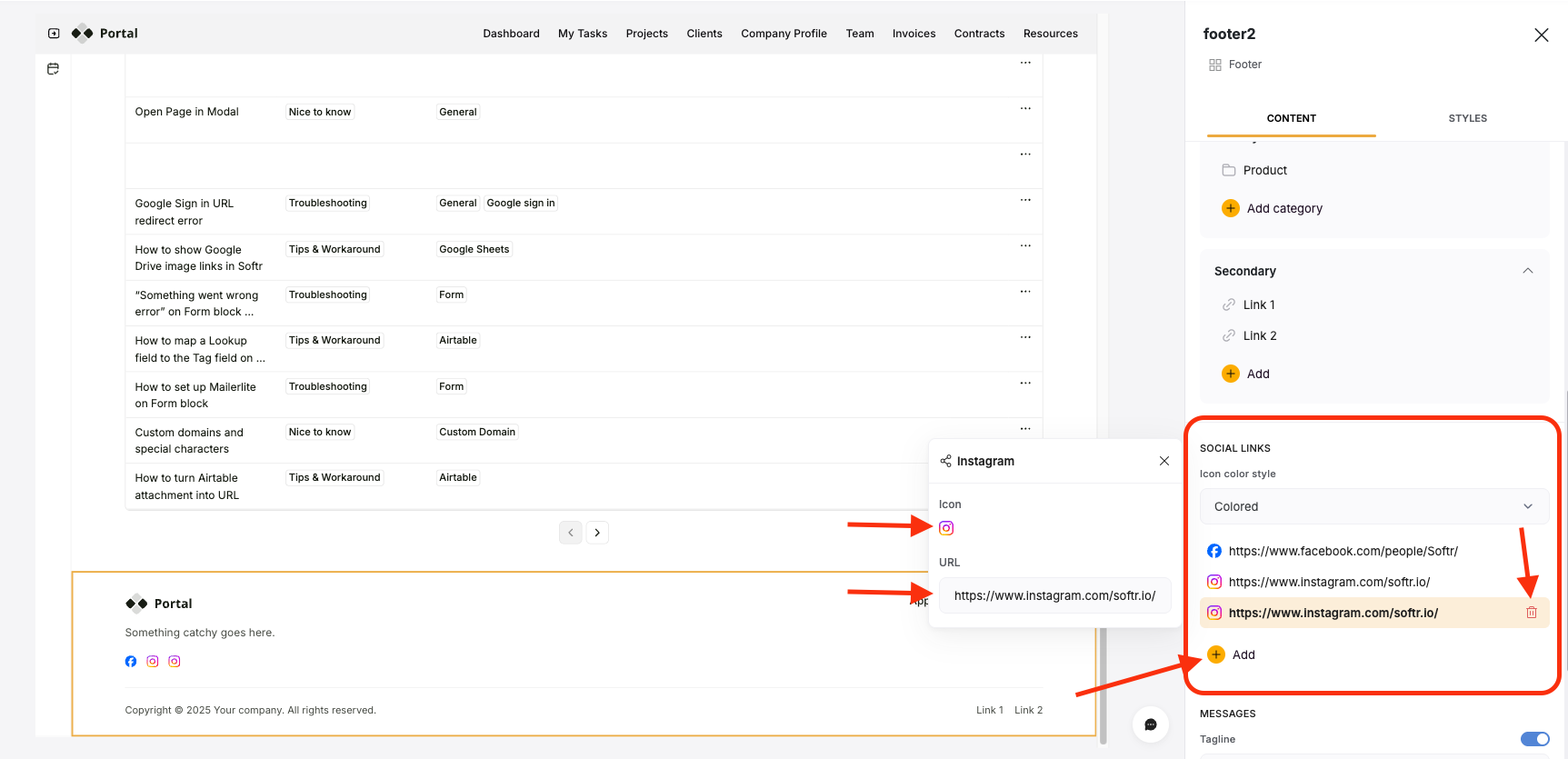
Softr also makes is super easy to add social links to your footer. First, select whether you want monochrome coloring or colored icons. Then click on **+ Add** to add a new Social Link. Select a link to edit it’s icon and the URL it should link to. You can even upload your own icons if you like. To delete a social link, just hover over it and click the Trash can icon. You can reorder social links by clicking and dragging it up and down the stack of social links.
**Social Links**
Softr also makes is super easy to add social links to your footer. First, select whether you want monochrome coloring or colored icons. Then click on **+ Add** to add a new Social Link. Select a link to edit it’s icon and the URL it should link to. You can even upload your own icons if you like. To delete a social link, just hover over it and click the Trash can icon. You can reorder social links by clicking and dragging it up and down the stack of social links.
 **Messages**
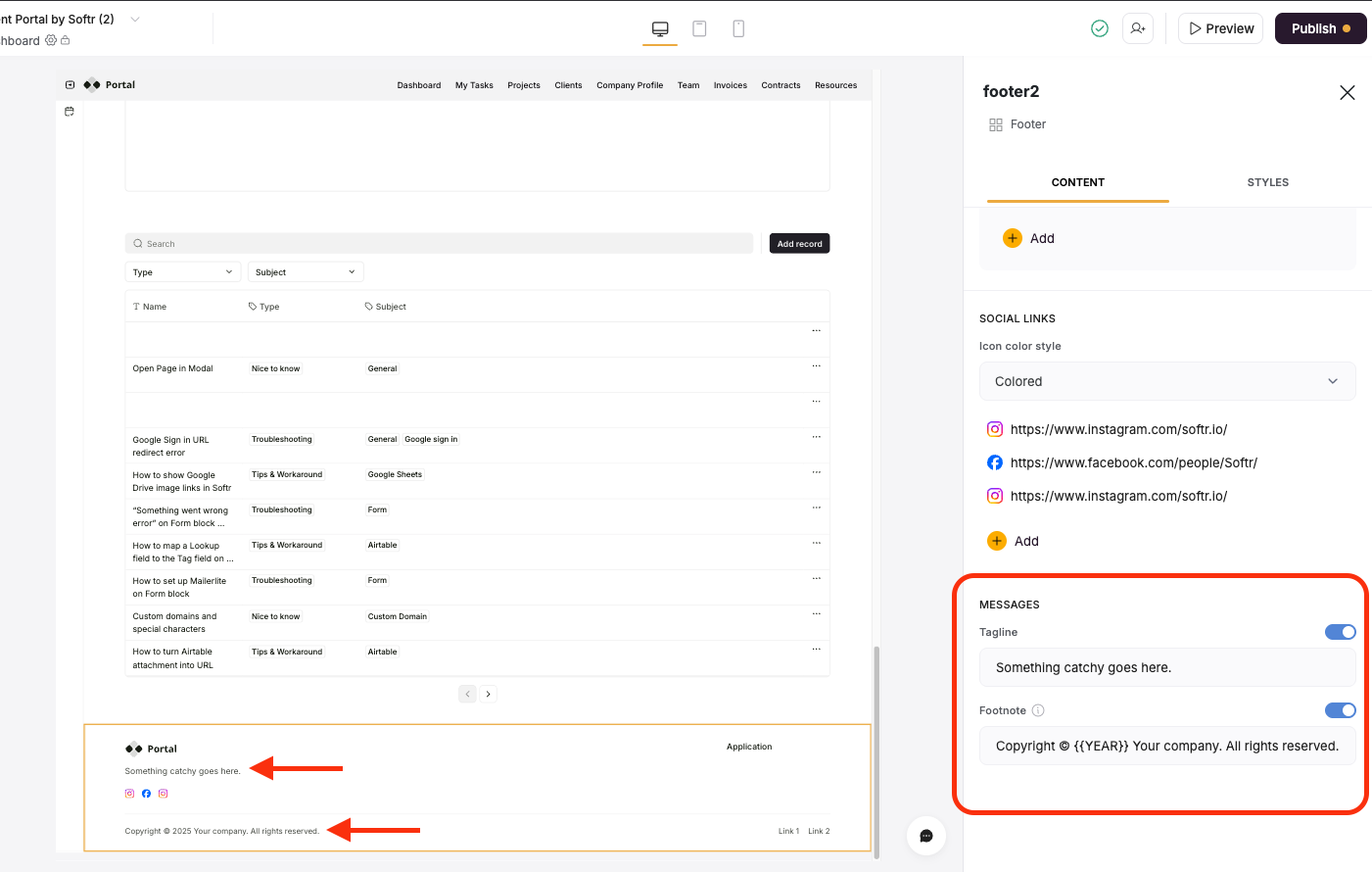
In the messages section, you can customize some text to be shown in the footer such as a tagline or copyright information. These can be turned on/off with the toggle and you can also use a handy placeholder `{{YEAR}}` to always display the current year in either field.
**Messages**
In the messages section, you can customize some text to be shown in the footer such as a tagline or copyright information. These can be turned on/off with the toggle and you can also use a handy placeholder `{{YEAR}}` to always display the current year in either field.
 **Styles**
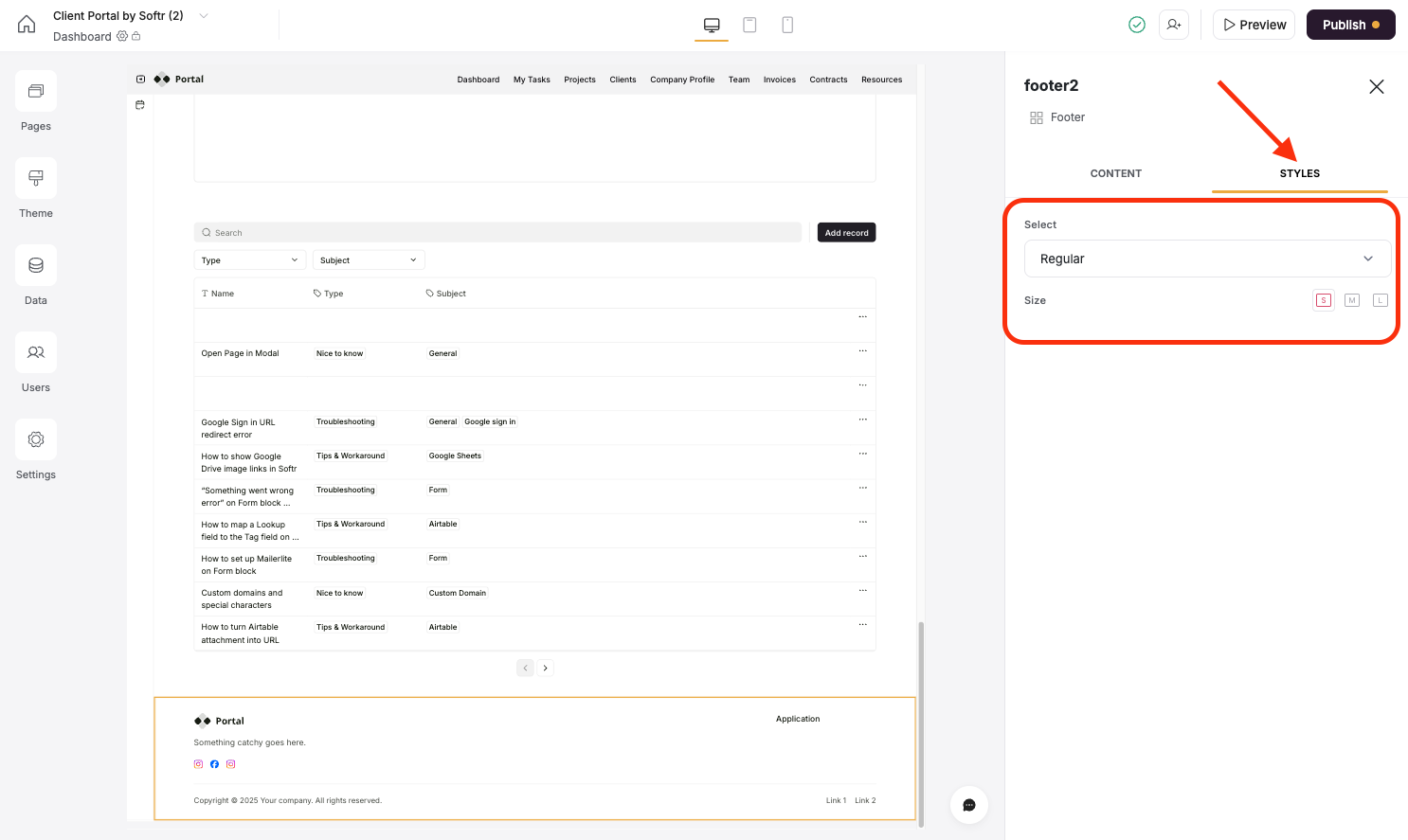
Click on the Styles tab to adjust the colors to be used in the footer. These are derived from the [Theme](/styling/7qXYEkNvWQamR6vcLXzZnF/application-theme/91YGSL2aDJajXdbPBhitbc) panel of your app.
Adjusting the sizing affects font size, logo size, margins, and other aspects of the footer.
If you need more customization you can always use [custom code](/custom-code/3idxDhKqz1qPdqBuWbs61G) as well.
**Styles**
Click on the Styles tab to adjust the colors to be used in the footer. These are derived from the [Theme](/styling/7qXYEkNvWQamR6vcLXzZnF/application-theme/91YGSL2aDJajXdbPBhitbc) panel of your app.
Adjusting the sizing affects font size, logo size, margins, and other aspects of the footer.
If you need more customization you can always use [custom code](/custom-code/3idxDhKqz1qPdqBuWbs61G) as well.
 ## Adjusting the visibility of footer links
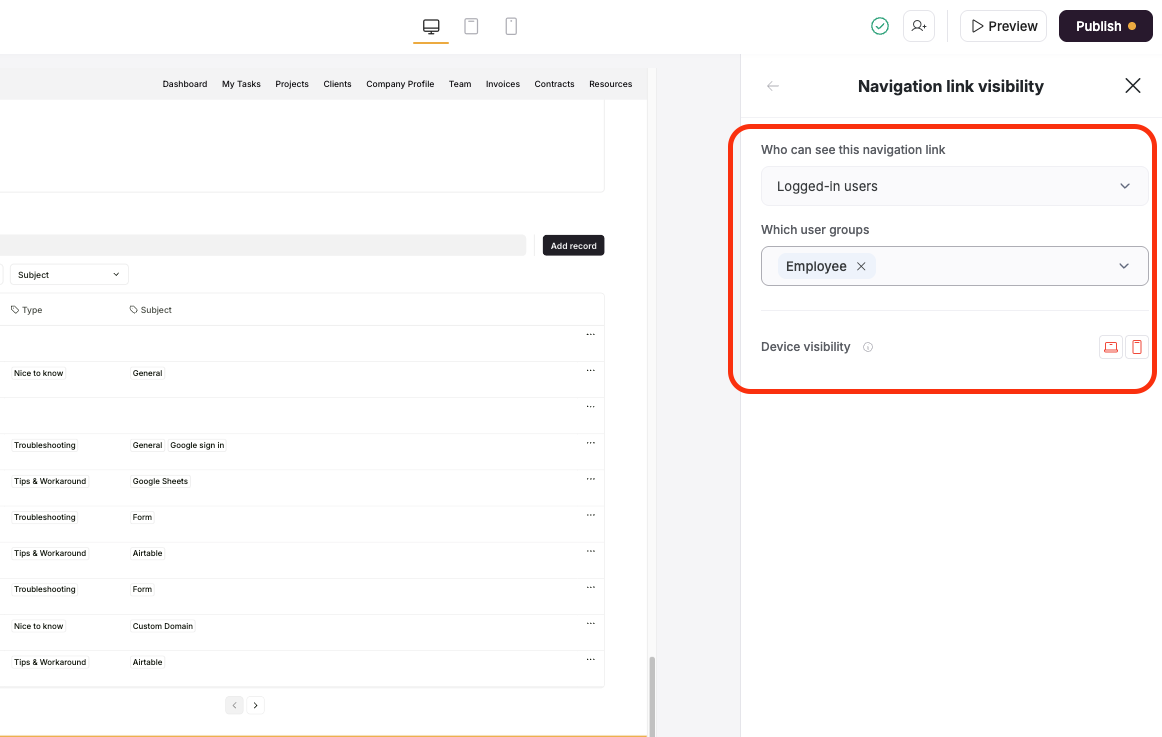
You can adjust which links and link categories are visible to different users based on their [User Group](/user-groups-and-permissions/3oA6AaFzUiePs2sW2TpYrF/user-groups/6XQfKMeKHUvBcAjKvLs3g3). To do this, click on the Content tab, hover over a footer link or link category and select the branching icon.
## Adjusting the visibility of footer links
You can adjust which links and link categories are visible to different users based on their [User Group](/user-groups-and-permissions/3oA6AaFzUiePs2sW2TpYrF/user-groups/6XQfKMeKHUvBcAjKvLs3g3). To do this, click on the Content tab, hover over a footer link or link category and select the branching icon.
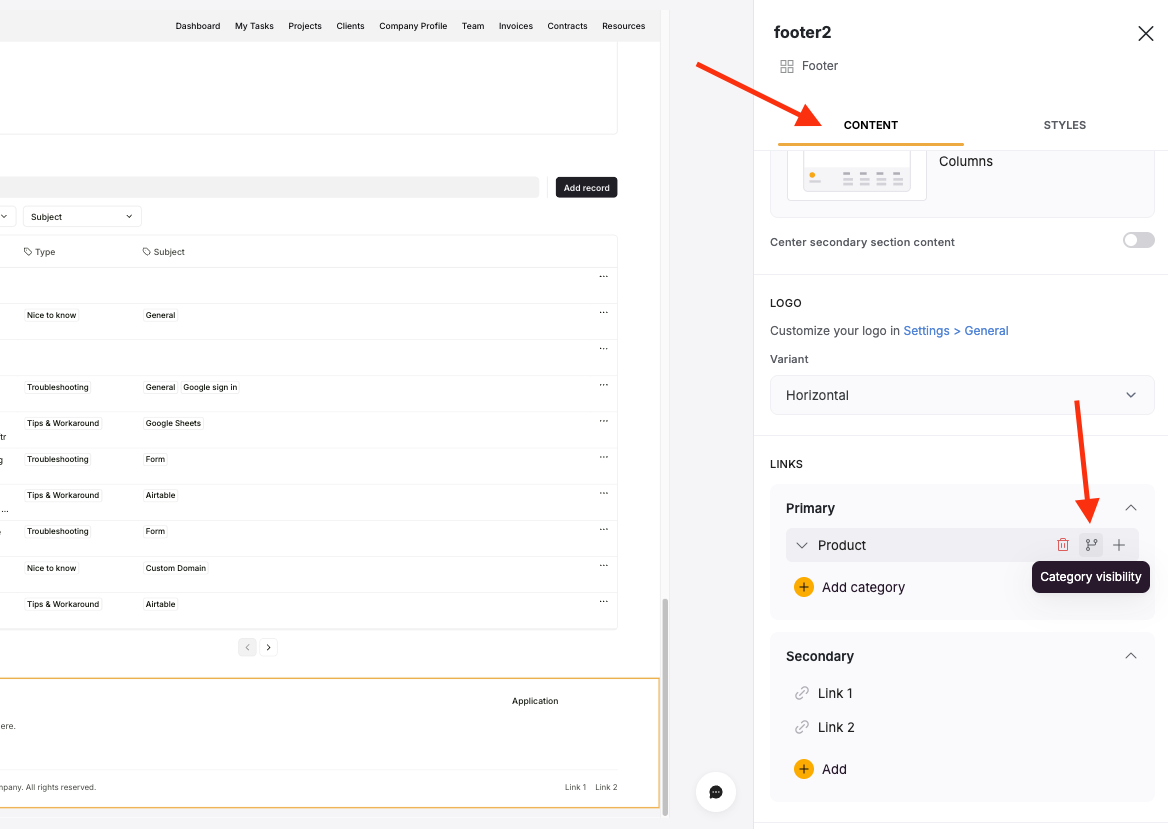 Here you can adjust which users the link or category is visible to as well as which devices the link should be shown on. For example, Logged-in users may not need to see a link to Sign up or login since they are already logged in.