> ## Documentation Index
> Fetch the complete documentation index at: https://docs.softr.io/llms.txt
> Use this file to discover all available pages before exploring further.
# Signin with Email Code
> Allow users to sign in with a one-time code.
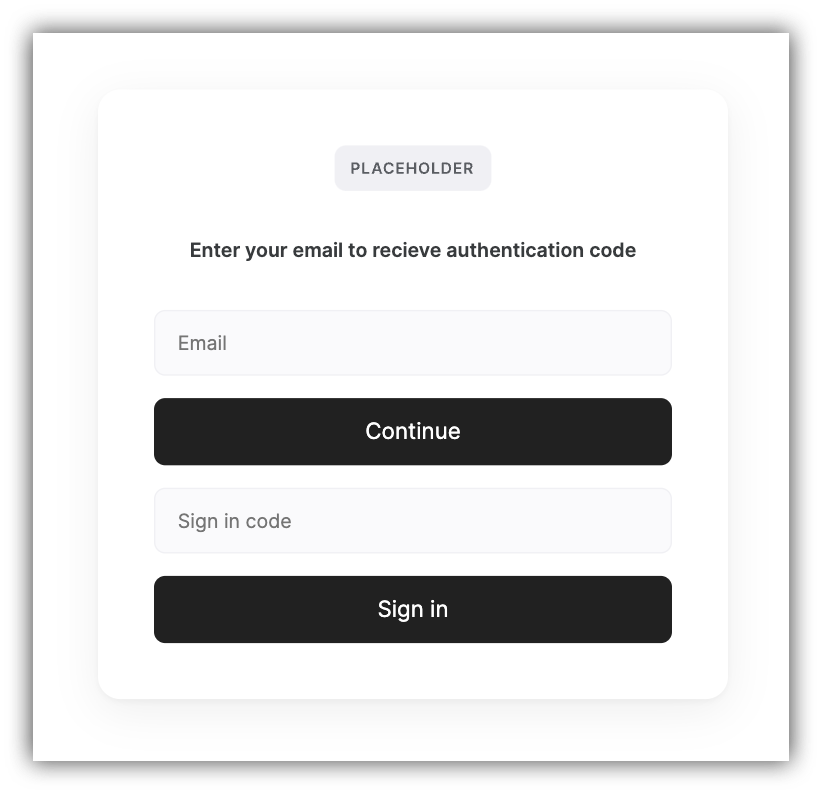 This feature is only available to **Professional** and **Business** users.
Using this sign-in block, you can allow your users to log in using a random code sent to their email instead of entering a password. Let's quickly review the block settings.
The code will be valid **for 5 minutes** after being sent.
## **Signin Form**
If the **Only registered users can sign in** toggle is enabled, only the users that already have an account in your Softr app will be able to sign in using this block.
The Domain-based signup option works similar to that of the [Signup Form](/add-and-manage-users/pxnkp9H3qyEVMF6XUceqnj/signup-form/tPe3uxmdcUNeFYuaLTR1o9).
Here, you can customize the Email field placeholder text as well as the text on the send button.
The code field placeholder text and Signin button text can also be customized.
## **On Signin**
Finally, you need to choose the page the the users will be taken to after signin.
## Testing
Now, let's see how the block works from the user's standpoint. In the first step, the user needs to enter his/her email address as shown below.
This feature is only available to **Professional** and **Business** users.
Using this sign-in block, you can allow your users to log in using a random code sent to their email instead of entering a password. Let's quickly review the block settings.
The code will be valid **for 5 minutes** after being sent.
## **Signin Form**
If the **Only registered users can sign in** toggle is enabled, only the users that already have an account in your Softr app will be able to sign in using this block.
The Domain-based signup option works similar to that of the [Signup Form](/add-and-manage-users/pxnkp9H3qyEVMF6XUceqnj/signup-form/tPe3uxmdcUNeFYuaLTR1o9).
Here, you can customize the Email field placeholder text as well as the text on the send button.
The code field placeholder text and Signin button text can also be customized.
## **On Signin**
Finally, you need to choose the page the the users will be taken to after signin.
## Testing
Now, let's see how the block works from the user's standpoint. In the first step, the user needs to enter his/her email address as shown below.
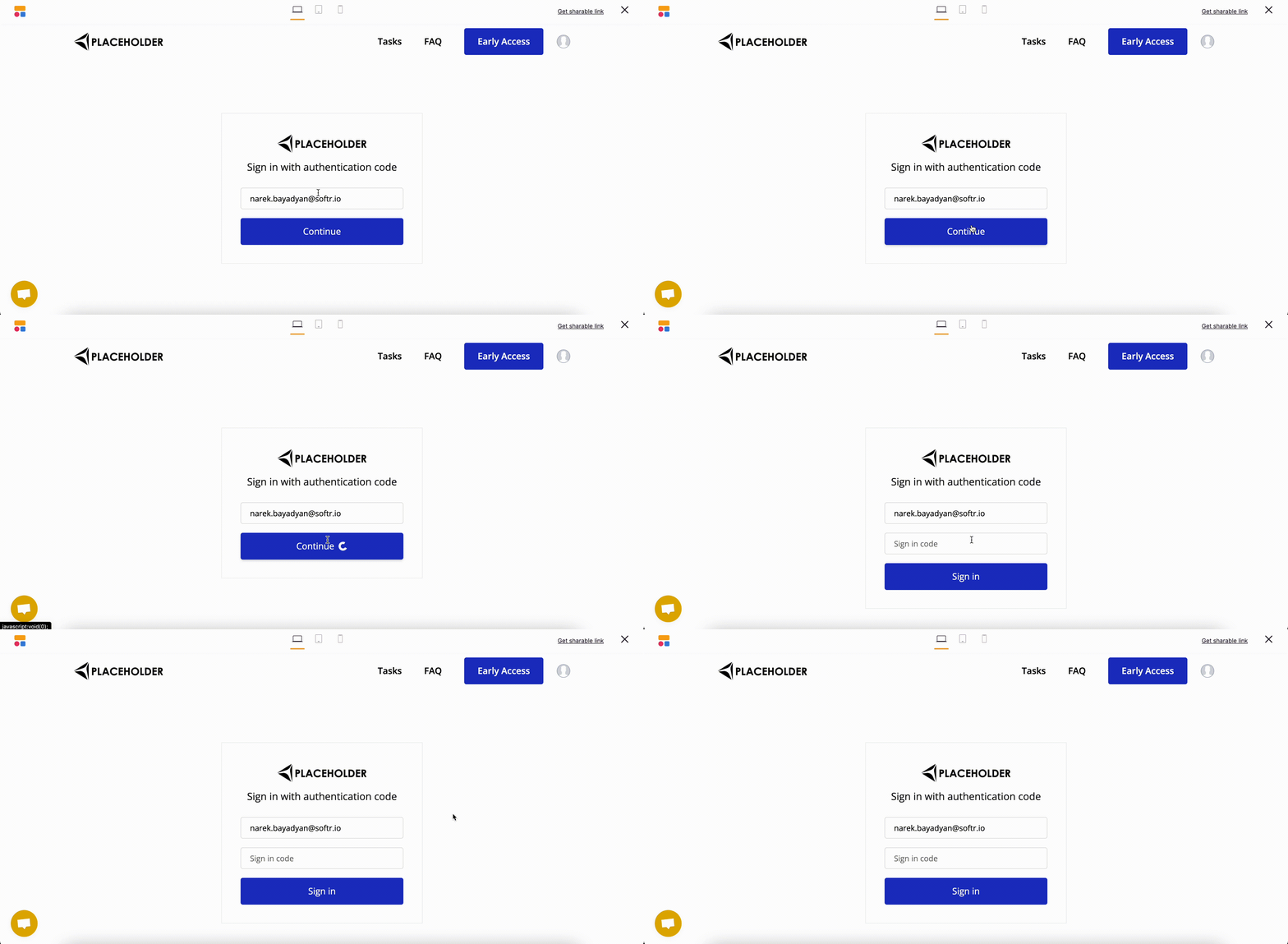 Next, a random code will be send to user's mailbox, which he/she should use in the **Sign in code**
field to log in. See below.
Next, a random code will be send to user's mailbox, which he/she should use in the **Sign in code**
field to log in. See below.
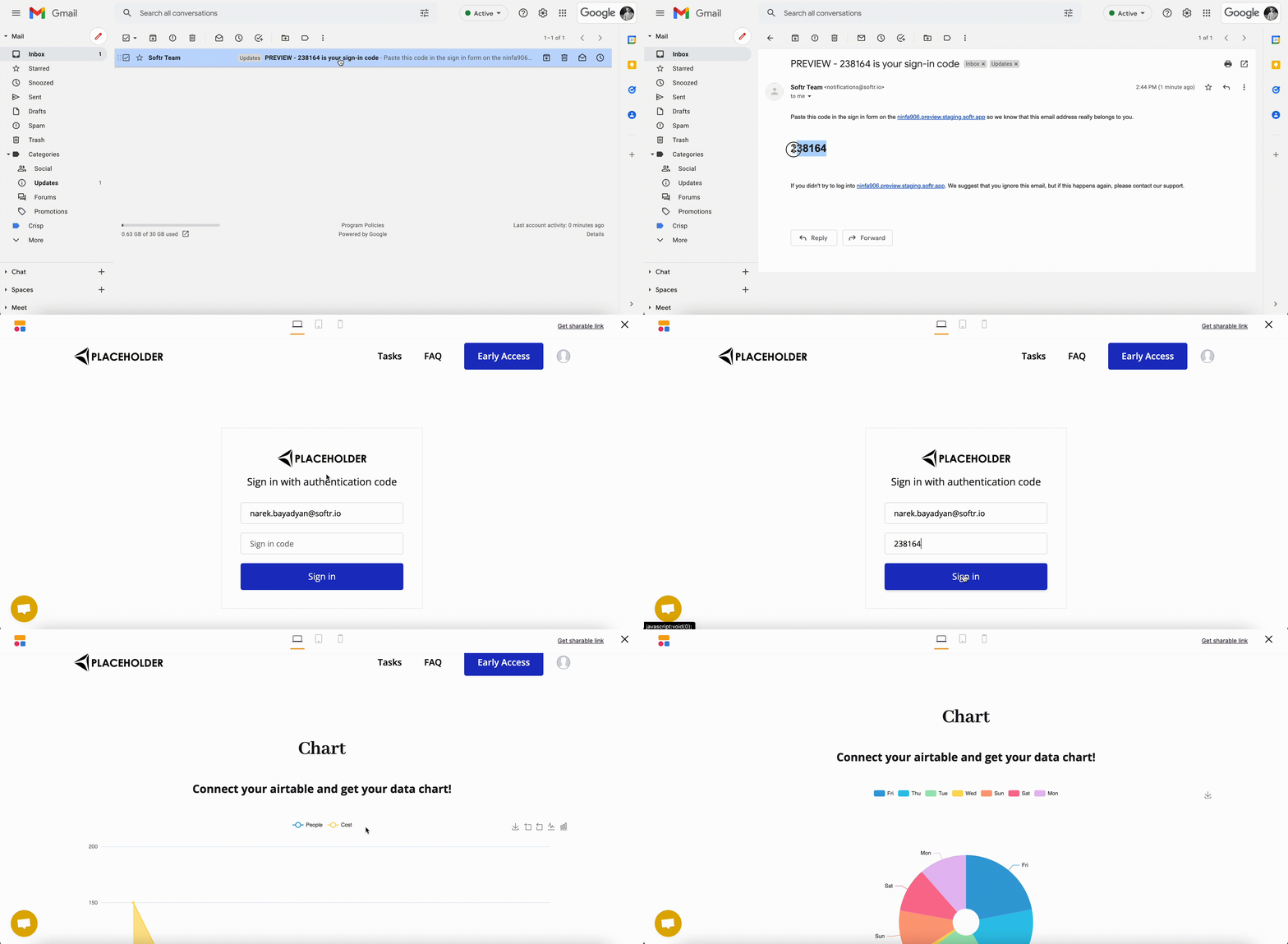 That's. It only takes a few seconds to get the code and enter the site.