> ## Documentation Index
> Fetch the complete documentation index at: https://docs.softr.io/llms.txt
> Use this file to discover all available pages before exploring further.
# Sign in with SMS Code (deprecated)
> Allow users to sign in with their mobile phone number.
On 13th June 2024, we discontinued SMS code as a sign-in method in Softr apps. Don’t worry, **if your apps have SMS sign-in, they’ll continue to work for your users. No action is needed.**
We introduced SMS as sign-in method two years ago. Our product has evolved rapidly since, and we’ve realized that the unique nature of SMS sign-in + our specific implementation created technical debts that prevent us from introducing bigger improvements around user management. Therefore, we made the tough decision to discontinue it.
For the foreseeable future, we will continue to support your existing apps with SMS sign-in. In the long term, we might either:
1. Sunset it completely
2. Offer a new, better version
In either case, you’ll be notified way beforehand and offered an easy way to migrate, so it won’t create disruption for your users or too much admin burden on you.
## Overview
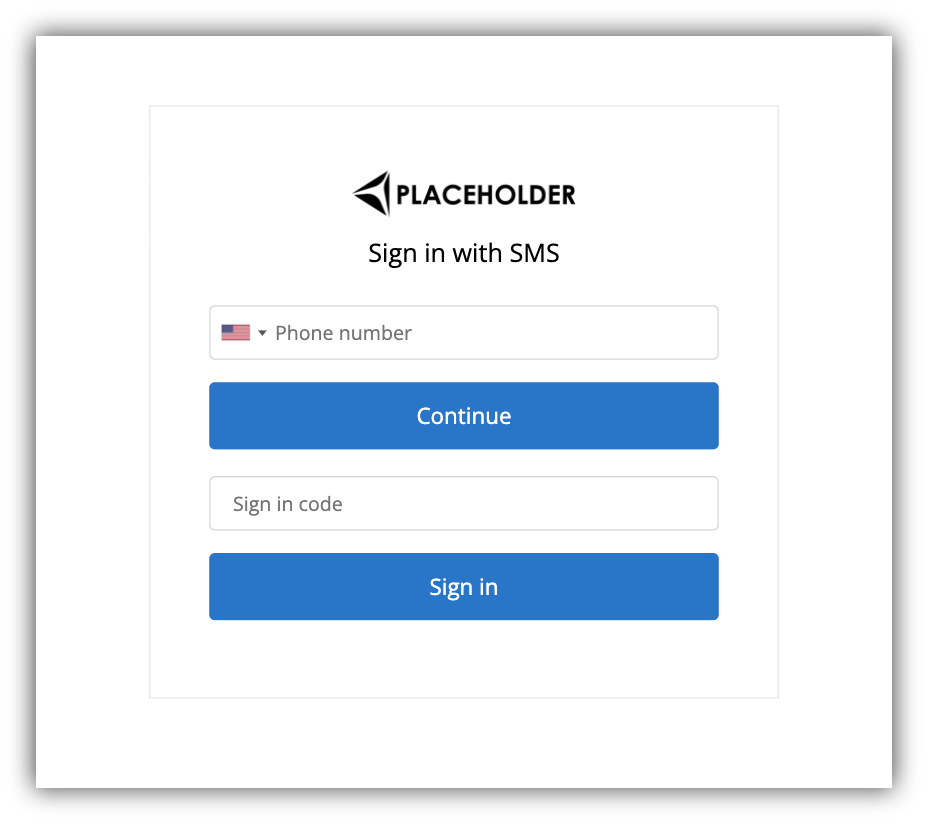 This feature is only available to **Business** users.
Using this sign-in block, you can allow your users to log in using their phone number (i.e. receive a verification code via SMS and use that code to sign in). So, let's first review the block settings.
The sms code will be valid **for 5 minutes** after being sent.
This feature is only available to **Business** users.
Using this sign-in block, you can allow your users to log in using their phone number (i.e. receive a verification code via SMS and use that code to sign in). So, let's first review the block settings.
The sms code will be valid **for 5 minutes** after being sent.
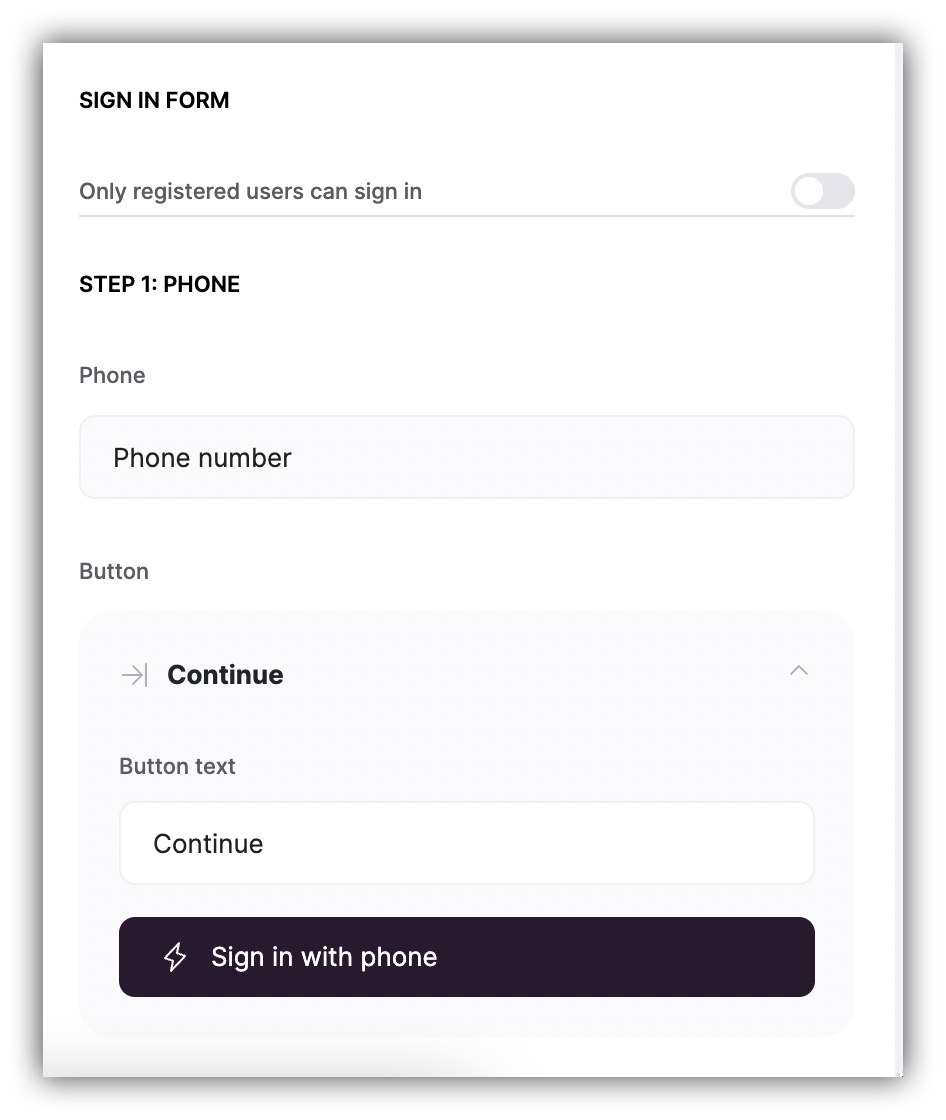 First of all, you can choose if the sign-in should be available **just for registered users** or for anyone. If the toggle is not enabled, any visitor can enter his/her phone number, receive the code, and log into your Softr app.
Further on, you can change the placeholder text of the two fields (**Phone** and **Sign in Code**) and also the **button labels**.
## **Sign-in process**
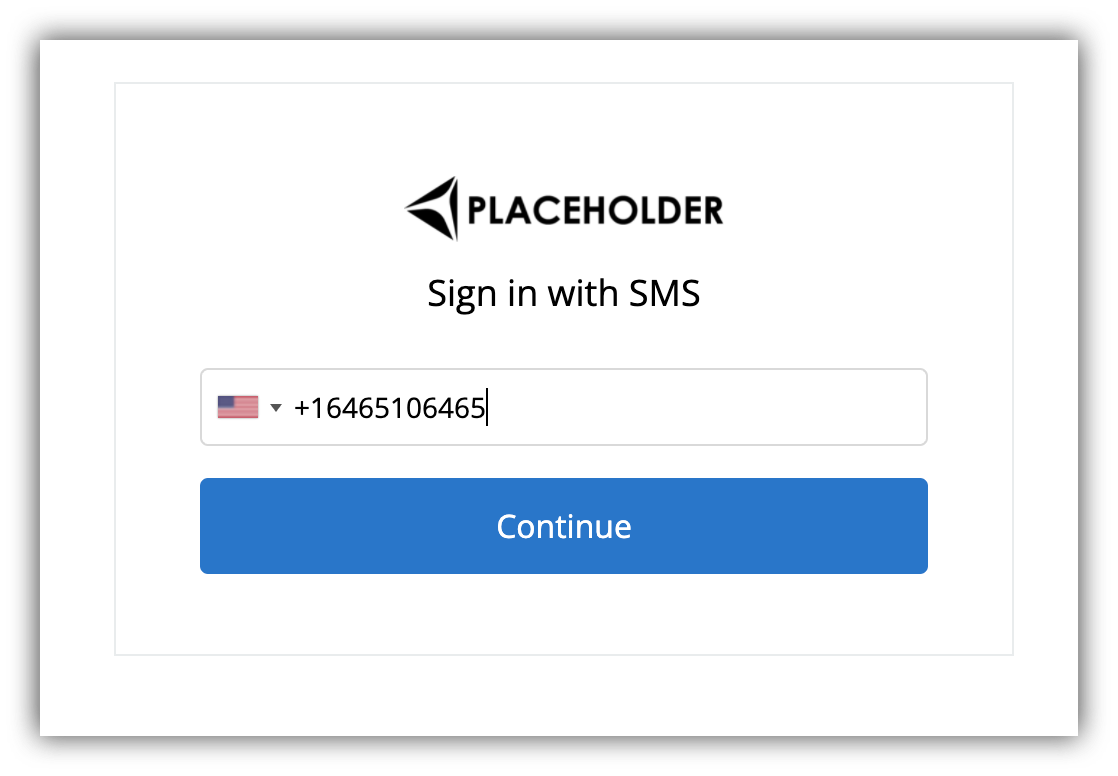
Now, let's see how the block works from the user's standpoint. In the first step, the user needs to enter his/her phone number as shown below.
Please, note that the block only support phone numbers starting with a \*\*valid country code (\*\*e.g. "+49" for German phone numbers).
First of all, you can choose if the sign-in should be available **just for registered users** or for anyone. If the toggle is not enabled, any visitor can enter his/her phone number, receive the code, and log into your Softr app.
Further on, you can change the placeholder text of the two fields (**Phone** and **Sign in Code**) and also the **button labels**.
## **Sign-in process**
Now, let's see how the block works from the user's standpoint. In the first step, the user needs to enter his/her phone number as shown below.
Please, note that the block only support phone numbers starting with a \*\*valid country code (\*\*e.g. "+49" for German phone numbers).
 After submitting the phone number, the user will receive a 6-digit code to his/her mobile phone via SMS and needs to provide that code in the next step to verify his/her account.
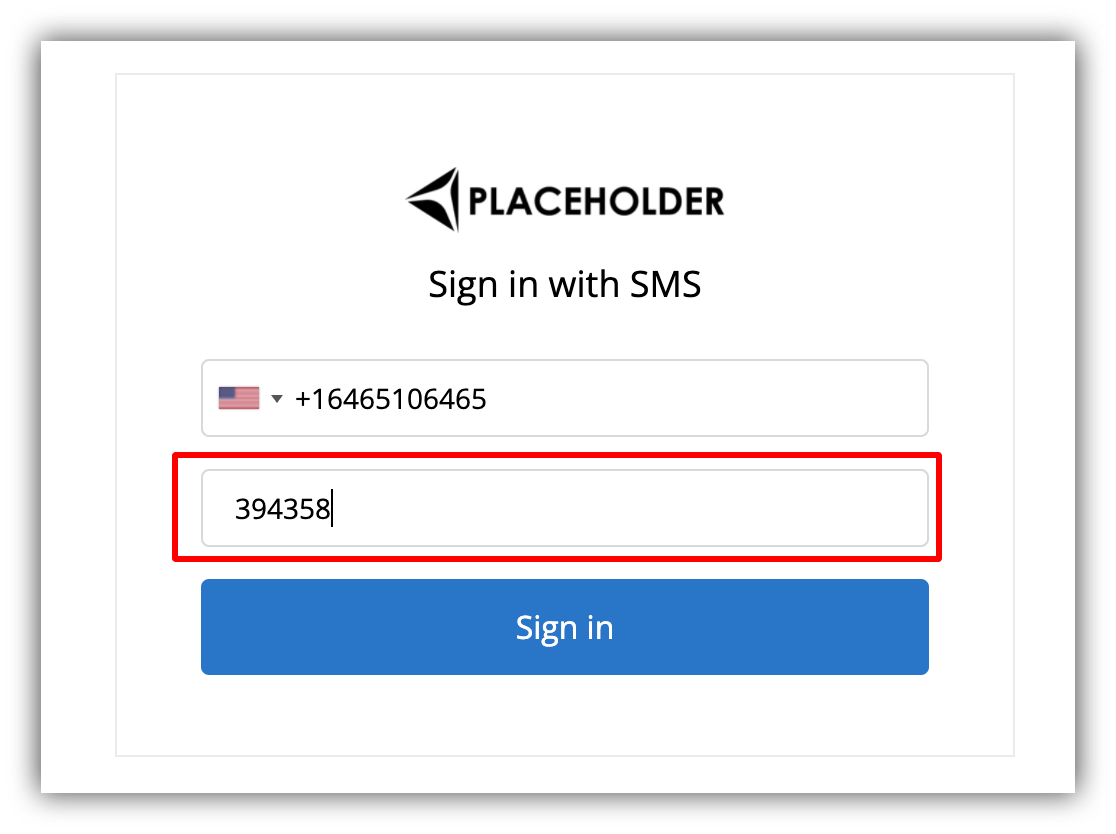 That's it. As soon as the user submits the verification code, he/she will log in to your Softr app, becoming a verified user.
## **User Creation**
Although, when signing in through this block, the user doesn't provide an email address, the email field is still mandatory and needs to be assigned to the user account. Therefore, every time a user signs in using a phone number, an email address is generated automatically for him/her in the following format:
**[+xxxxxxxx@softr-applicationID.app](mailto:+xxxxxxxx@softr-applicationID.app)**
Here, the **"+xxxxxxxx"** represents the user's phone number, and the **"applicationID"** is replaced by the actual application ID of your Softr app.
## **Syncing with Airtable**
**If you have your users base** [connected to Airtable or any other data source](/add-and-manage-users/pxnkp9H3qyEVMF6XUceqnj/syncing-users-with-a-data-source/hshRGygHr4T33EnaLntGf9)**, the users created via sms verification will be synced to the data source without issues (using the email that was generated automatically upon signin).**
However, let's consider the case when you have a particular user on Airtable but don't have that user in your Softr app and want to sync those two entries as soon as the given user signs in through your Softr app. To make it possible, both entries need to have the exact same email address.
Therefore, on Airtable, your **Email** field should be a **formula** that combines user's phone number and your **application ID** using the format discussed above (**[+xxxxxxxx@softr-applicationID.ap](mailto:+xxxxxxxx@softr-applicationID.ap)**p), so that the result matches exactly the email generated automatically when the user signs in through the Softr app.
[Google Sheets](/data-sources/1YYStCJukT15Lh2j93qo9A/google-sheets/jznC9Jr3Jri224AVmHVn4a) doesn’t have an option to use formulas, therefore syncing users this way **will be possible only with Airtable**.
In order to set up the formula on Airtable, you first need to get your **Softr Applciation ID**. It can be copied from the URL of your Softr app studio.Below, we show how you can copy it and paste into your Airtable users base.
That's it. As soon as the user submits the verification code, he/she will log in to your Softr app, becoming a verified user.
## **User Creation**
Although, when signing in through this block, the user doesn't provide an email address, the email field is still mandatory and needs to be assigned to the user account. Therefore, every time a user signs in using a phone number, an email address is generated automatically for him/her in the following format:
**[+xxxxxxxx@softr-applicationID.app](mailto:+xxxxxxxx@softr-applicationID.app)**
Here, the **"+xxxxxxxx"** represents the user's phone number, and the **"applicationID"** is replaced by the actual application ID of your Softr app.
## **Syncing with Airtable**
**If you have your users base** [connected to Airtable or any other data source](/add-and-manage-users/pxnkp9H3qyEVMF6XUceqnj/syncing-users-with-a-data-source/hshRGygHr4T33EnaLntGf9)**, the users created via sms verification will be synced to the data source without issues (using the email that was generated automatically upon signin).**
However, let's consider the case when you have a particular user on Airtable but don't have that user in your Softr app and want to sync those two entries as soon as the given user signs in through your Softr app. To make it possible, both entries need to have the exact same email address.
Therefore, on Airtable, your **Email** field should be a **formula** that combines user's phone number and your **application ID** using the format discussed above (**[+xxxxxxxx@softr-applicationID.ap](mailto:+xxxxxxxx@softr-applicationID.ap)**p), so that the result matches exactly the email generated automatically when the user signs in through the Softr app.
[Google Sheets](/data-sources/1YYStCJukT15Lh2j93qo9A/google-sheets/jznC9Jr3Jri224AVmHVn4a) doesn’t have an option to use formulas, therefore syncing users this way **will be possible only with Airtable**.
In order to set up the formula on Airtable, you first need to get your **Softr Applciation ID**. It can be copied from the URL of your Softr app studio.Below, we show how you can copy it and paste into your Airtable users base.
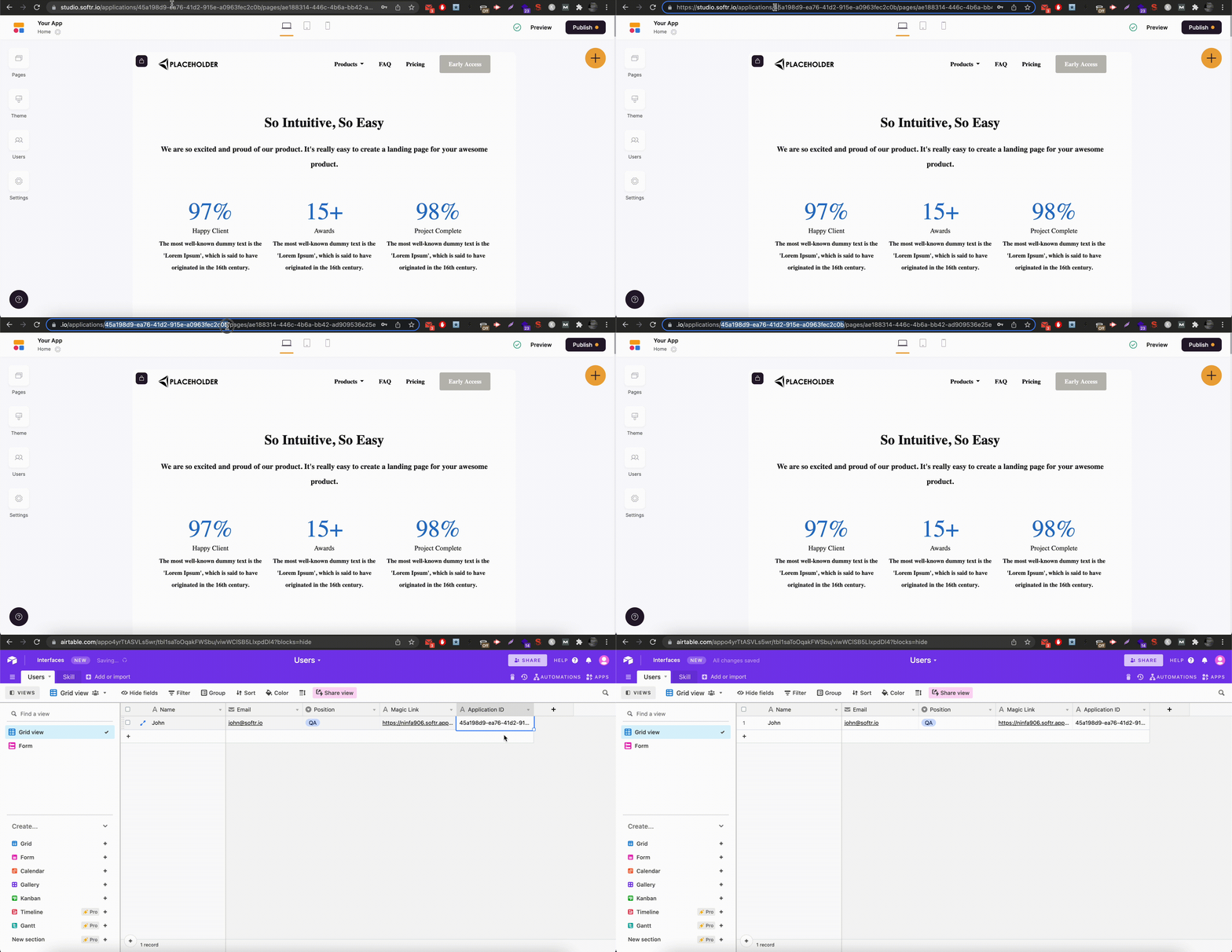 Further on, let's create the formula that will concatenate user's phone number and Application ID into the required expression. Below, you can see what the formula looks like.
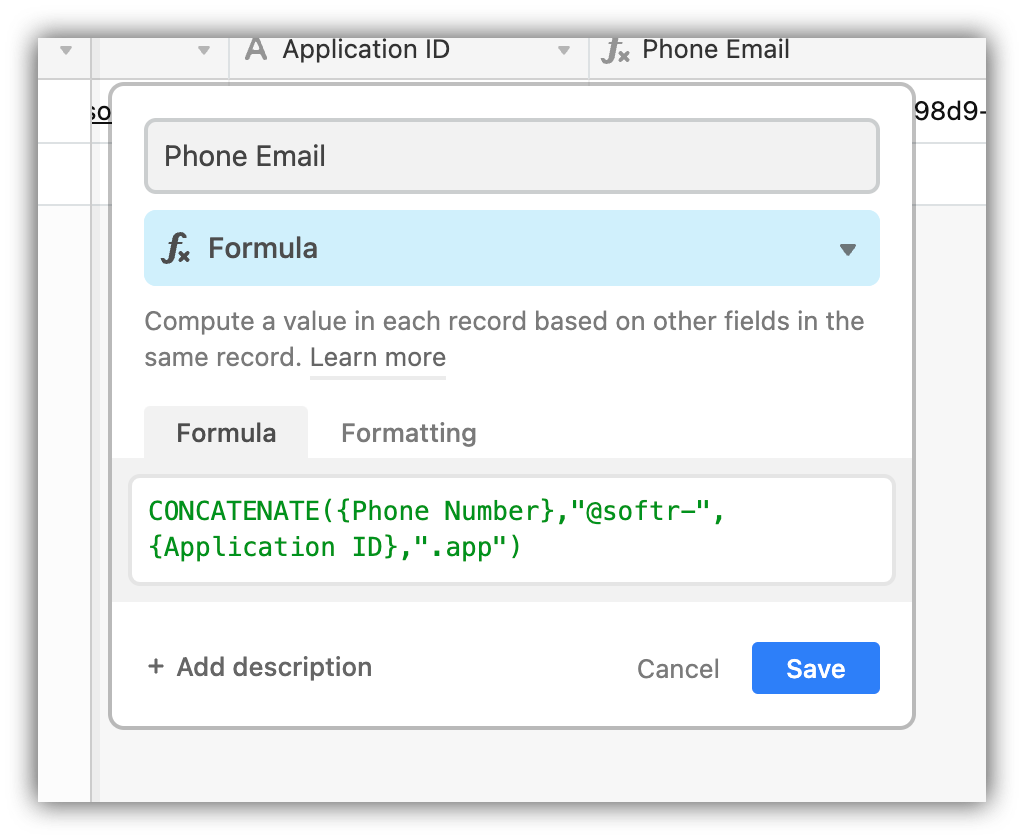 So, you need to use a **CONCATENATE()** formula, where **\{Phone Number}** is the field where user's phone number is stored and **\{Application ID}** is your Application ID field on Airtable.