> ## Documentation Index
> Fetch the complete documentation index at: https://docs.softr.io/llms.txt
> Use this file to discover all available pages before exploring further.
# Microsoft Azure SAML Single Sign-on
> Setting up SAML single sign-on for Softr with Microsoft Azure.
[Microsoft Azure](https://azure.microsoft.com/en-us/) is a popular cloud computing platform that can be used to set up [SAML single sign-on](/add-and-manage-users/pxnkp9H3qyEVMF6XUceqnj/saml-single-sign-on/j9hELMUfGtAGqoNzejgoif) using its directory service called **Active Directory**. Let’s see how you can do that for your Softr app to let your users sign in with their Azure credentials.
## Creating an application
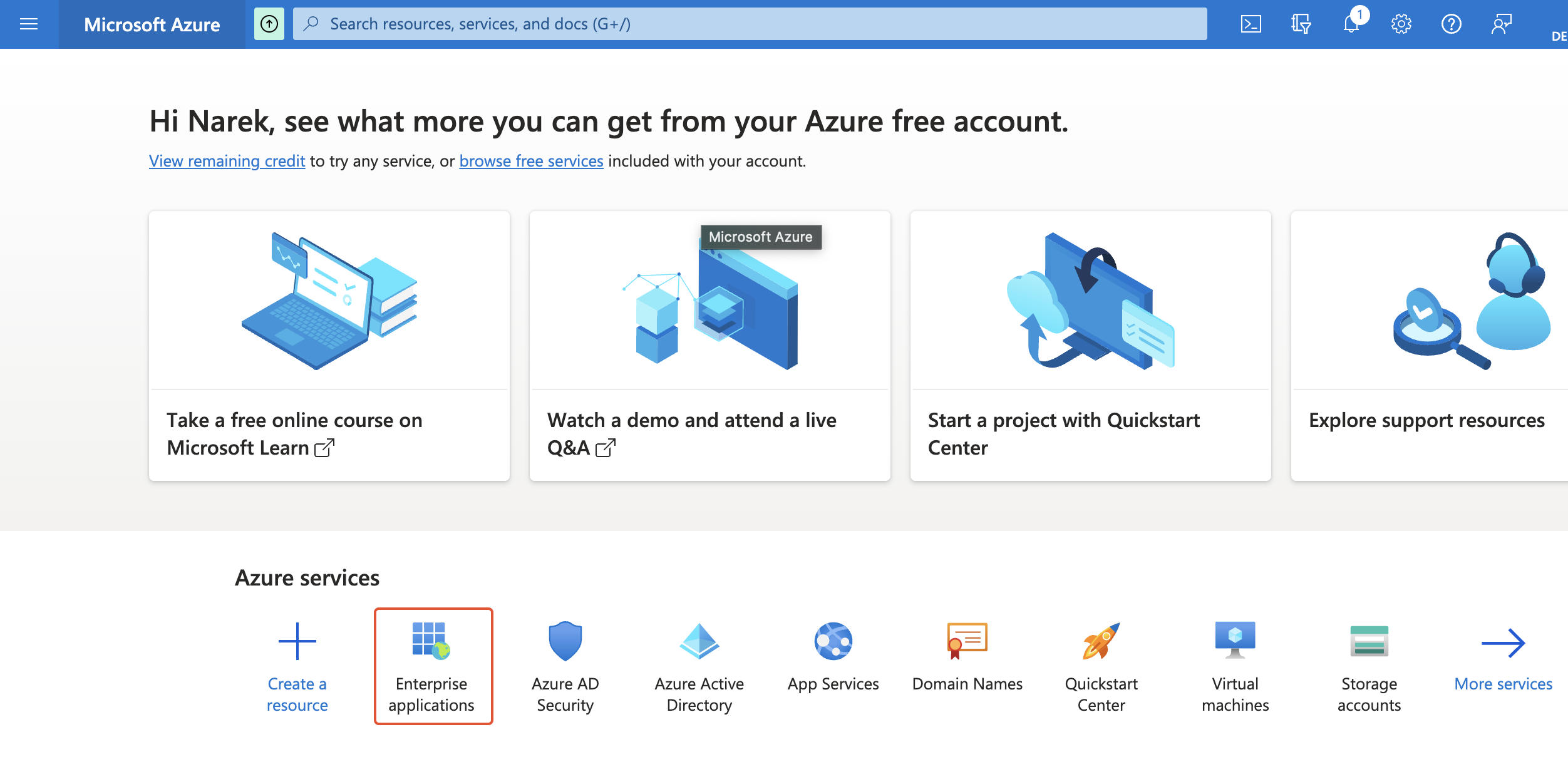
First of all, you need to create an application. To do that, navigate to **Enterprise Applications** on your Azure dashboard.
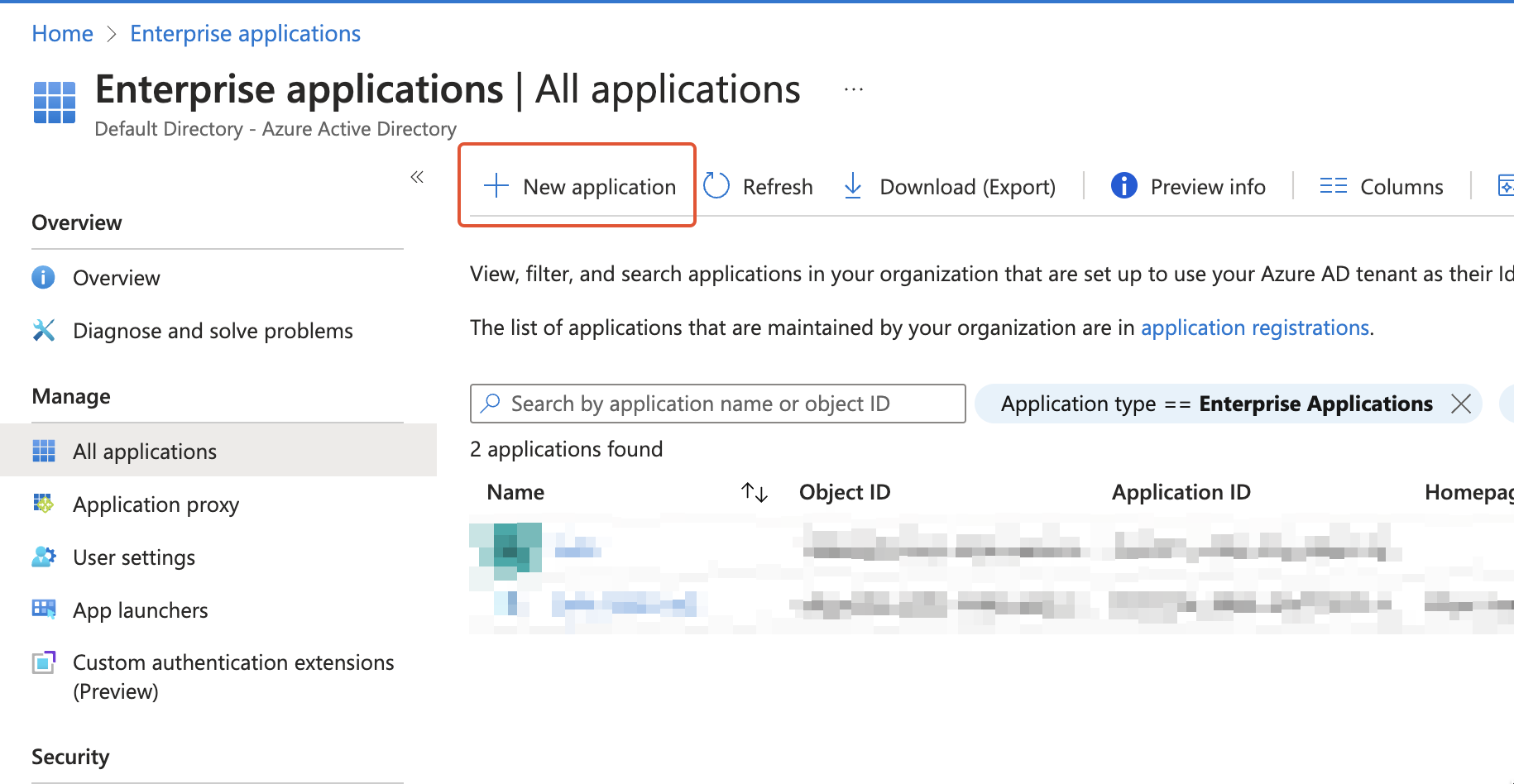
 Then, hit **New Application**.
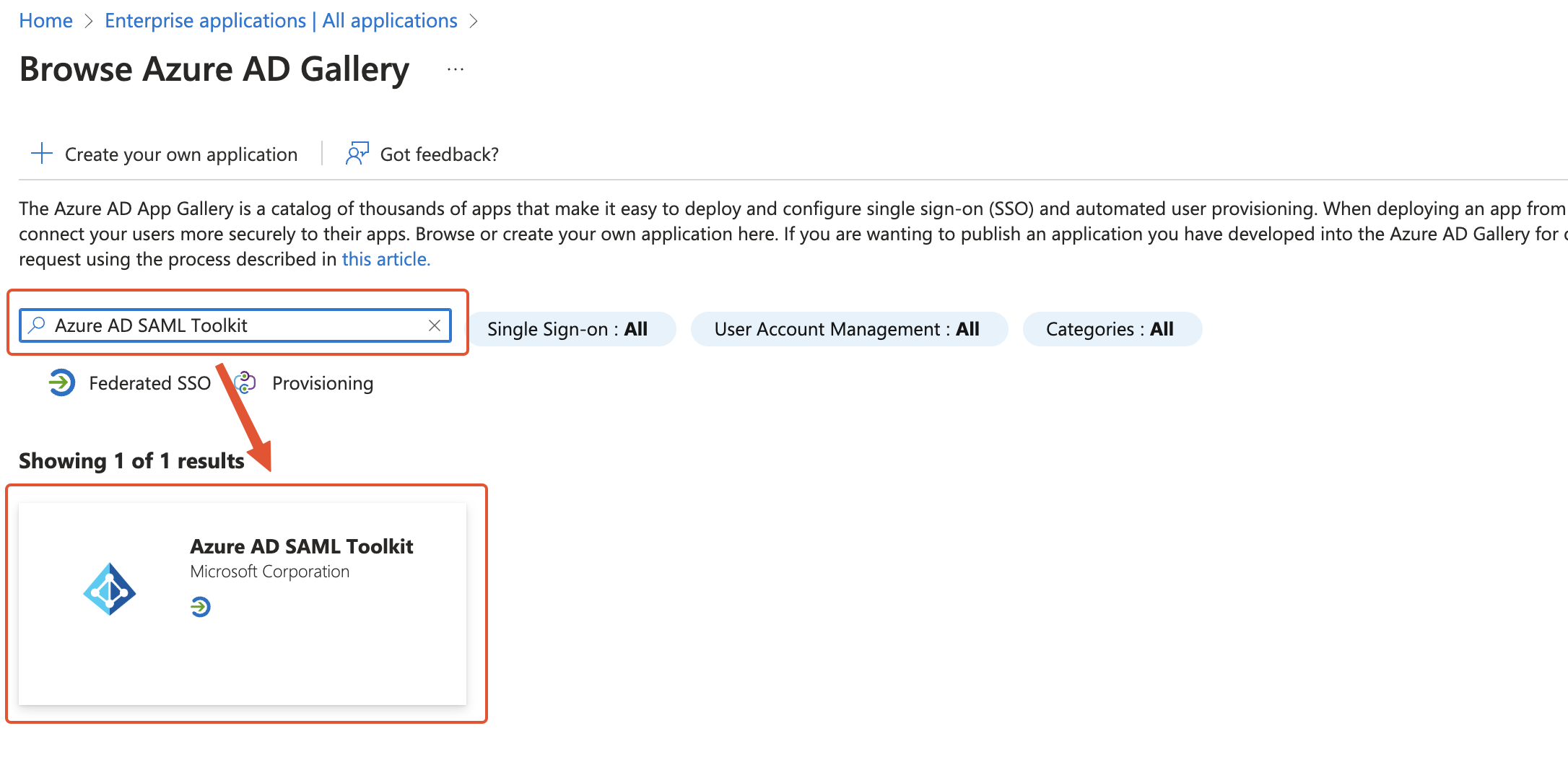
 Next, in the app gallery, search for **Azure AD SAML Toolkit** and select the app.
 In the sidebar that opens next, specify a name for your app and hit **Create**.
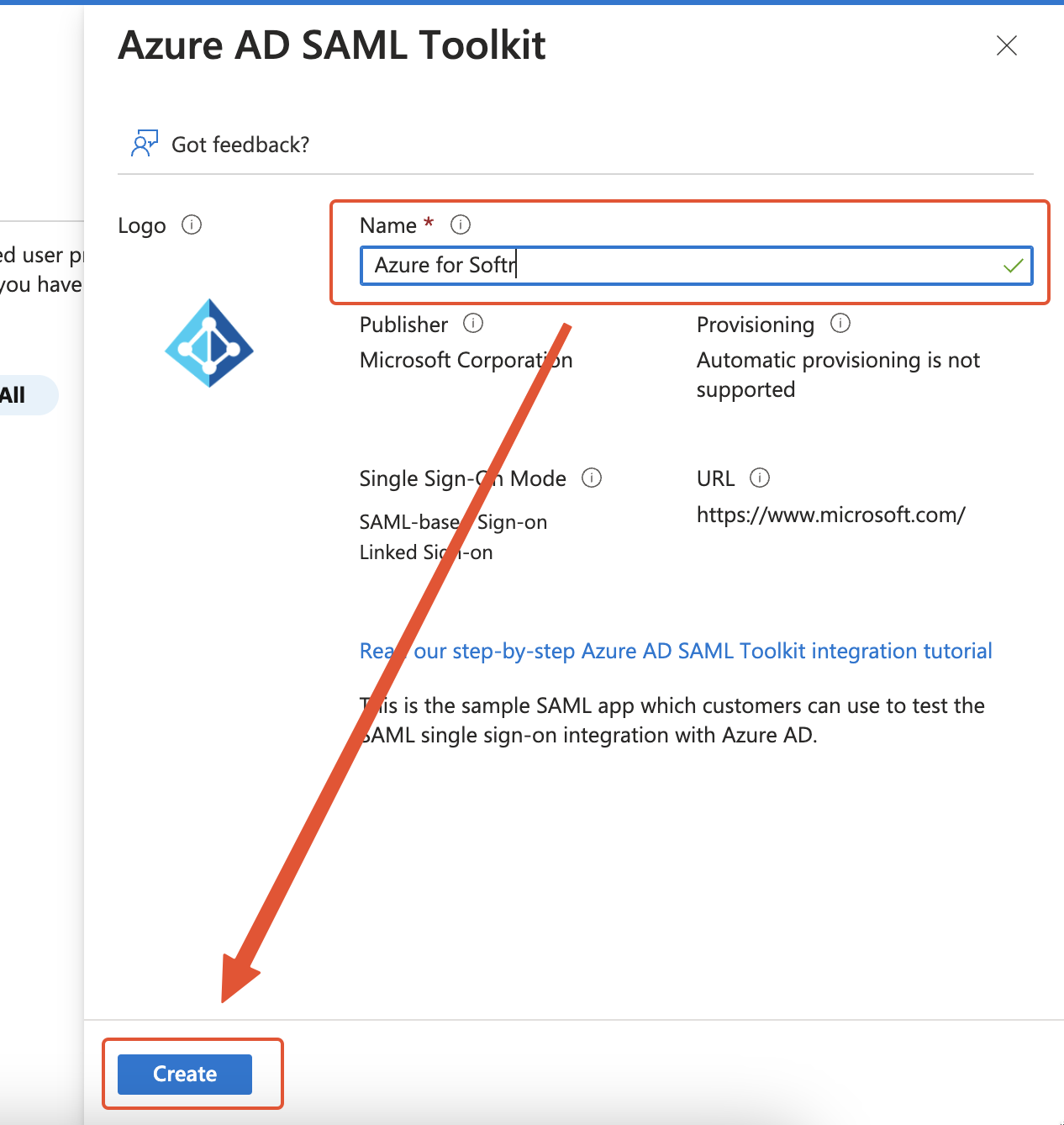 Now that you have your application, you need to set up single sign-on for it, which we’ll discuss next.
## Getting started with single sign-on setup
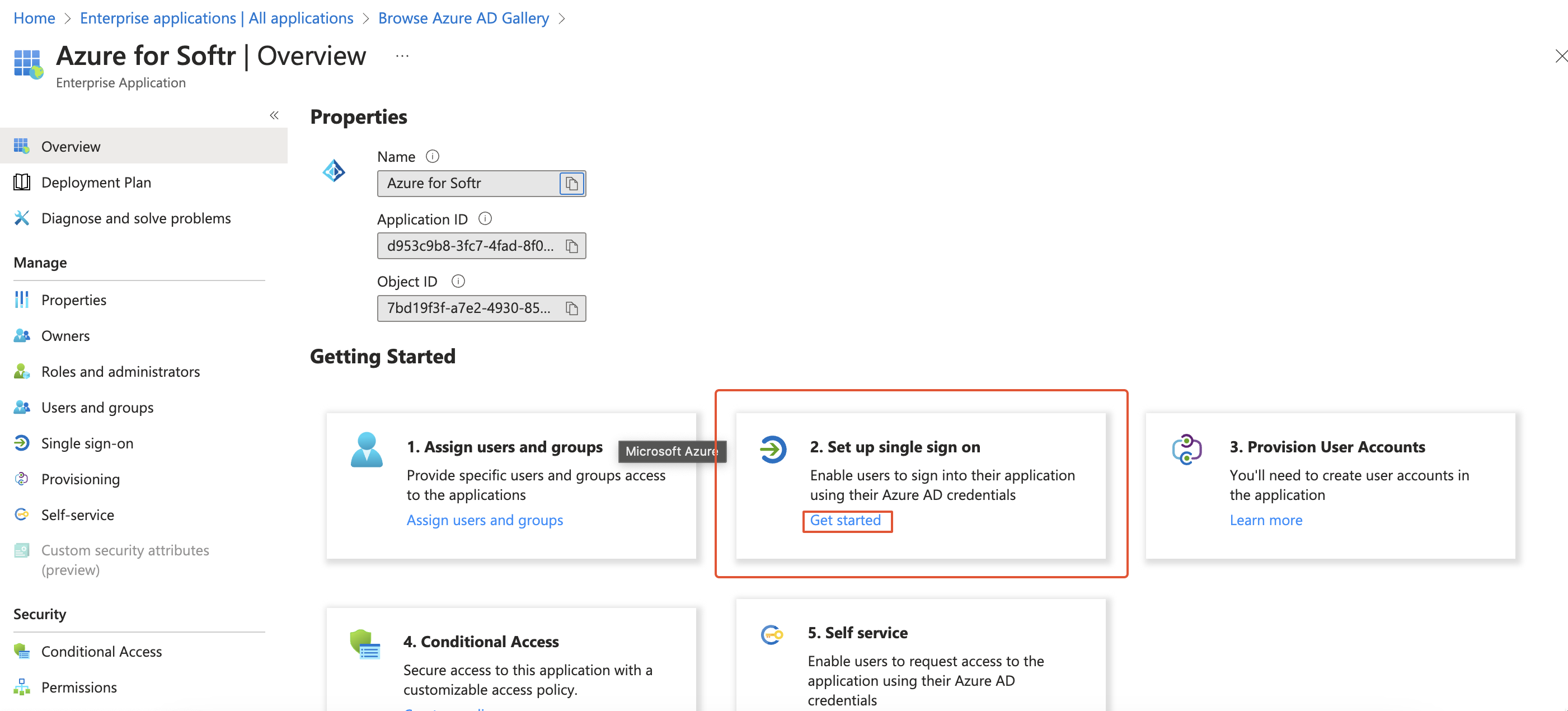
On the **Overview** screen of the application that you just created, click **Get started** under **Set up single sign on**.
Now that you have your application, you need to set up single sign-on for it, which we’ll discuss next.
## Getting started with single sign-on setup
On the **Overview** screen of the application that you just created, click **Get started** under **Set up single sign on**.
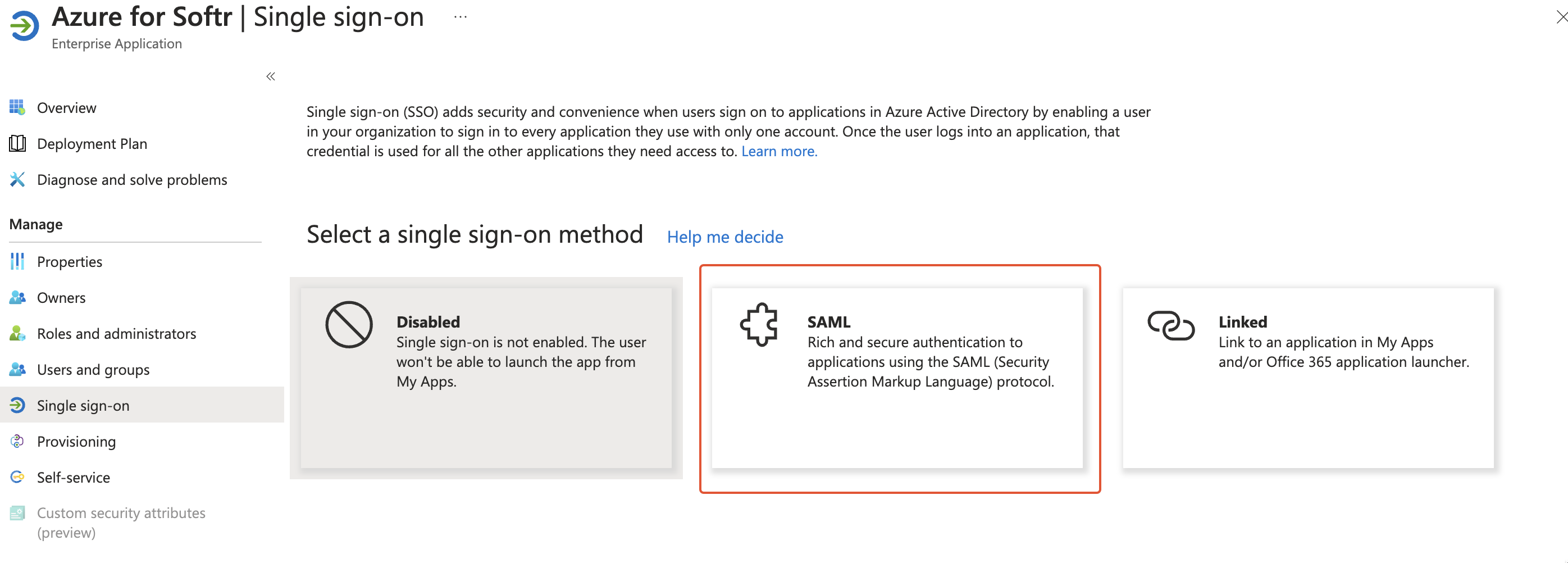
 In the next screen, select the **SAML** method.
 You’ll be taken to the configuration page, where you need to set up the required parameters in order to integrate the single sign-on with your Softr app.
## Basic SAML configuration
The first step of the setup is **Basic SAML Configuration**. Click **Edit** in the upper right corner to enter the configuration screen.
You’ll be taken to the configuration page, where you need to set up the required parameters in order to integrate the single sign-on with your Softr app.
## Basic SAML configuration
The first step of the setup is **Basic SAML Configuration**. Click **Edit** in the upper right corner to enter the configuration screen.
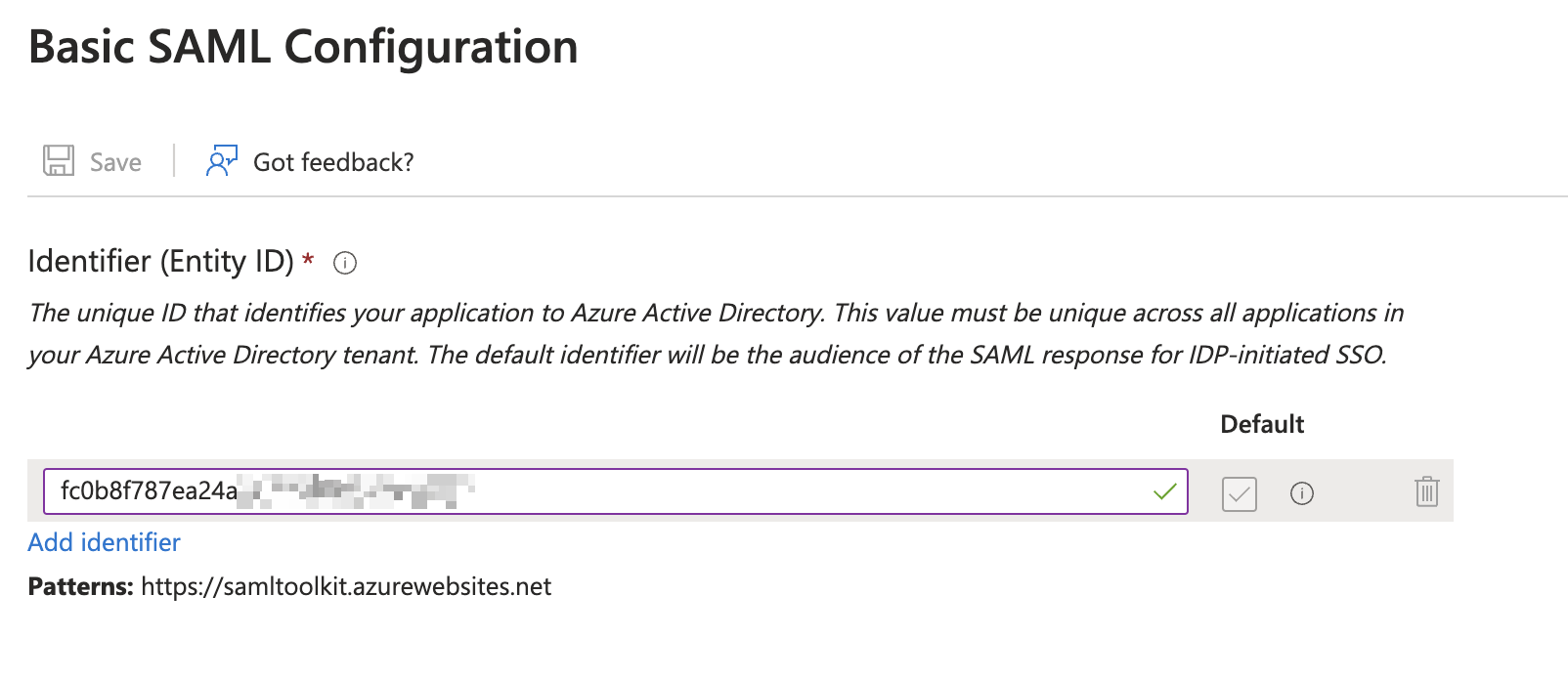
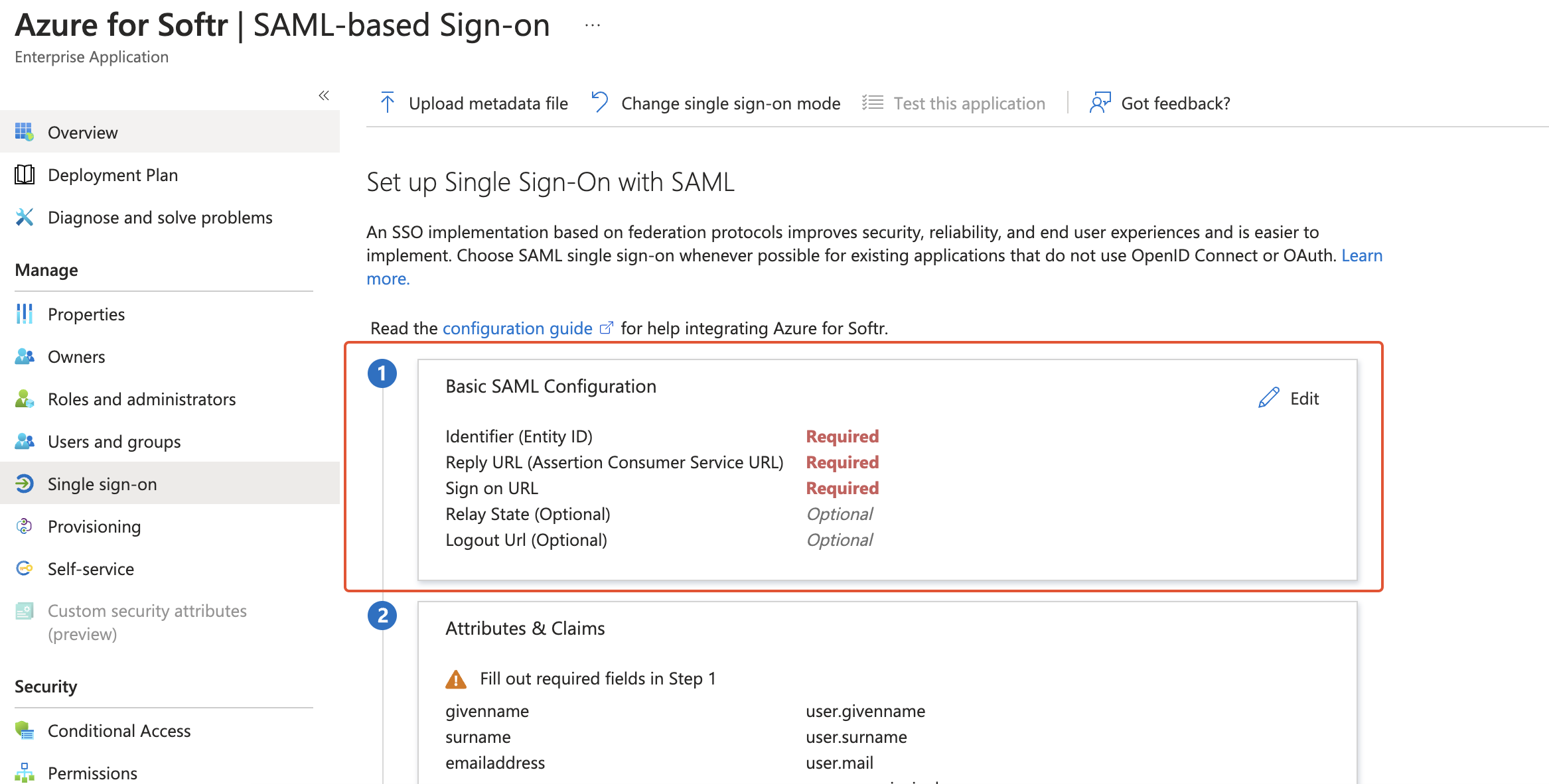 First comes the **Identifier (Entity ID)** property, which can be found under **Audience URL** in your Softr app’s **Settings ⇒ SAML Settings**. Just copy the value and paste it in Azure.
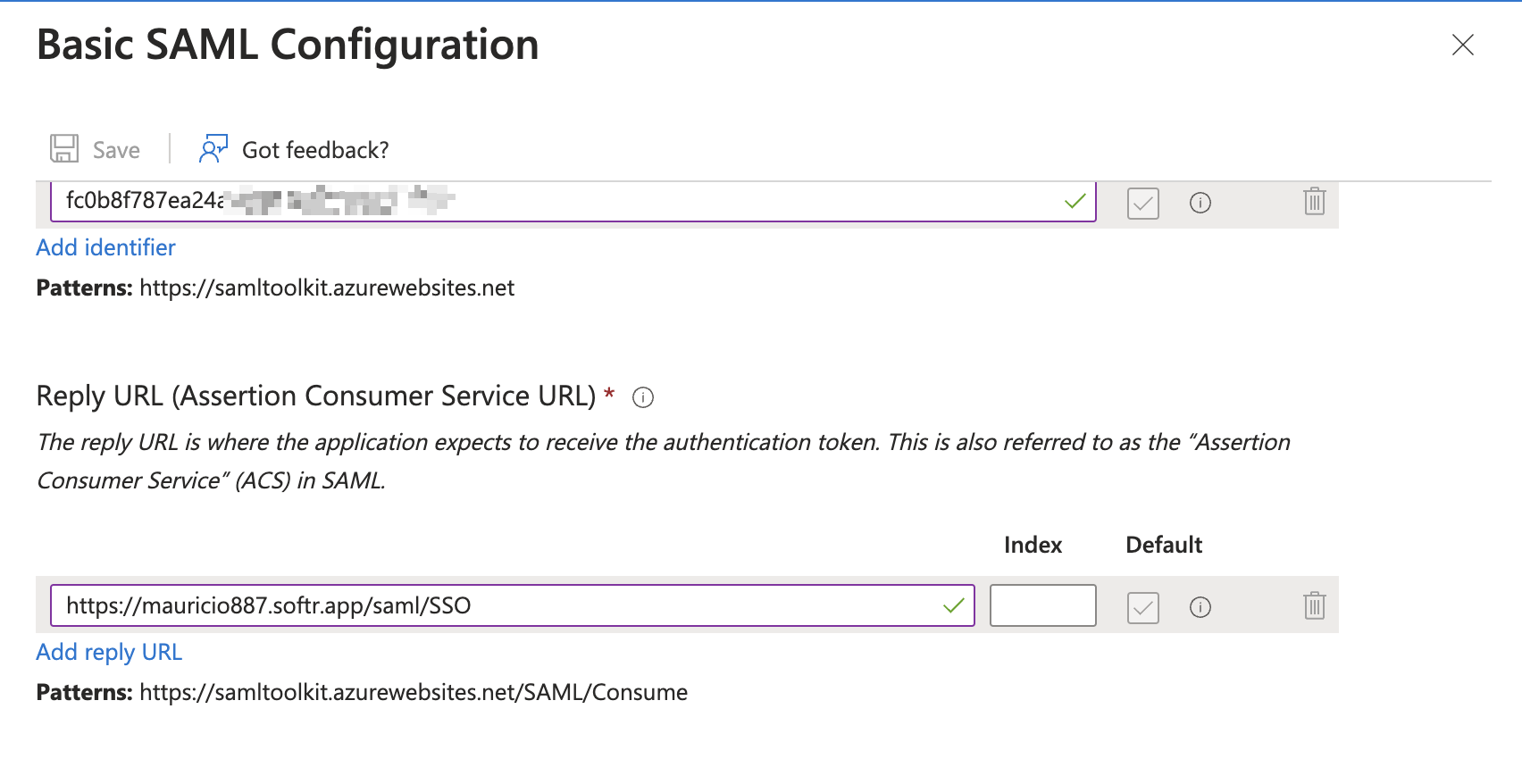
 Next, you need to add the **Reply URL (ACS URL)**, which can be located under **ACS URL** in your Softr app’s SAML settings. **The Index** field can be left empty.
 Lastly, you have the **Sign on URL**, which should have the URL of the page where your SSO login form is located.
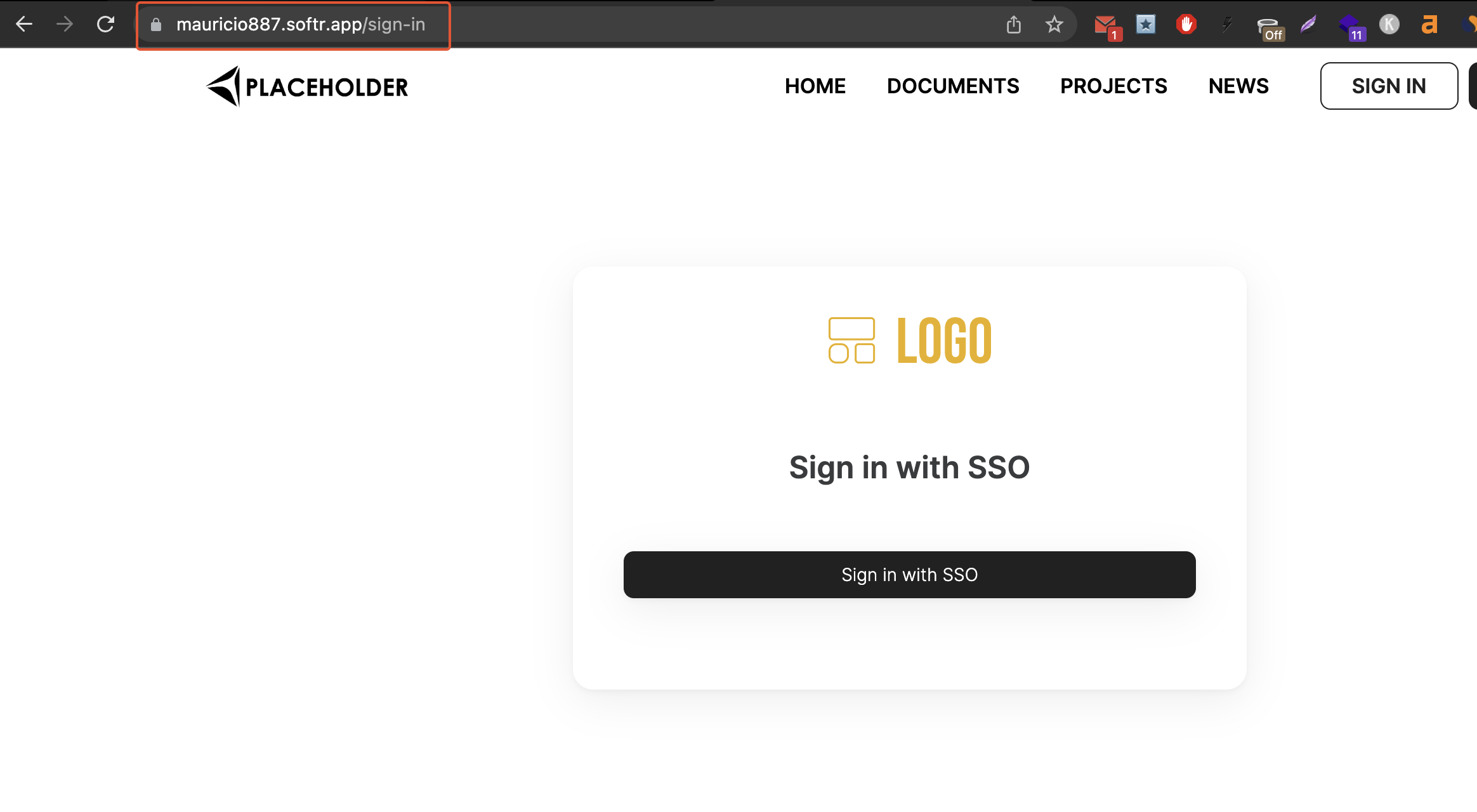 You need to copy the URL and paste it under **Sign on URL** in Azure.
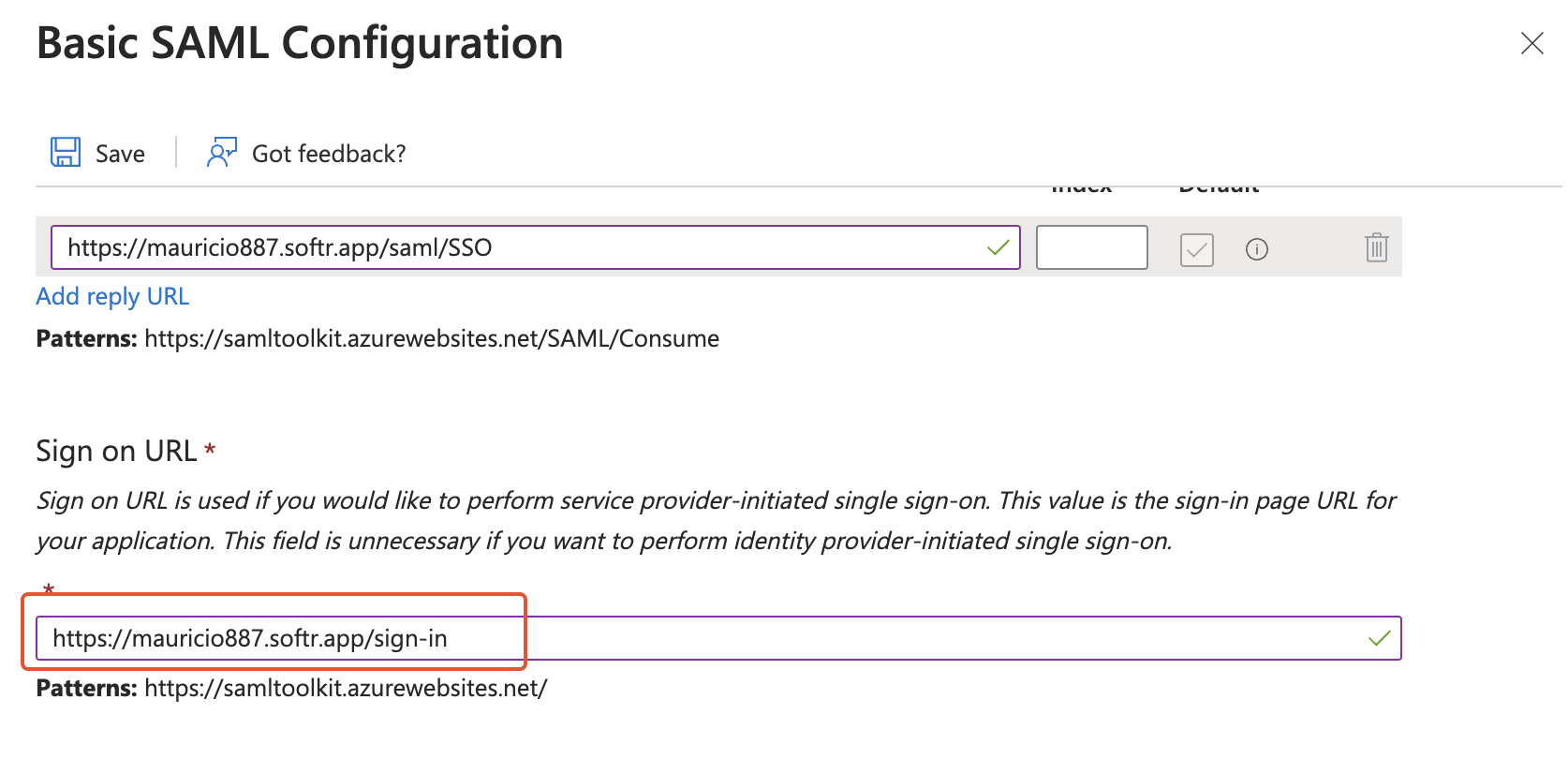 To finalize the setup, hit **Save** and close the sidebar.
## Attributes & Claims
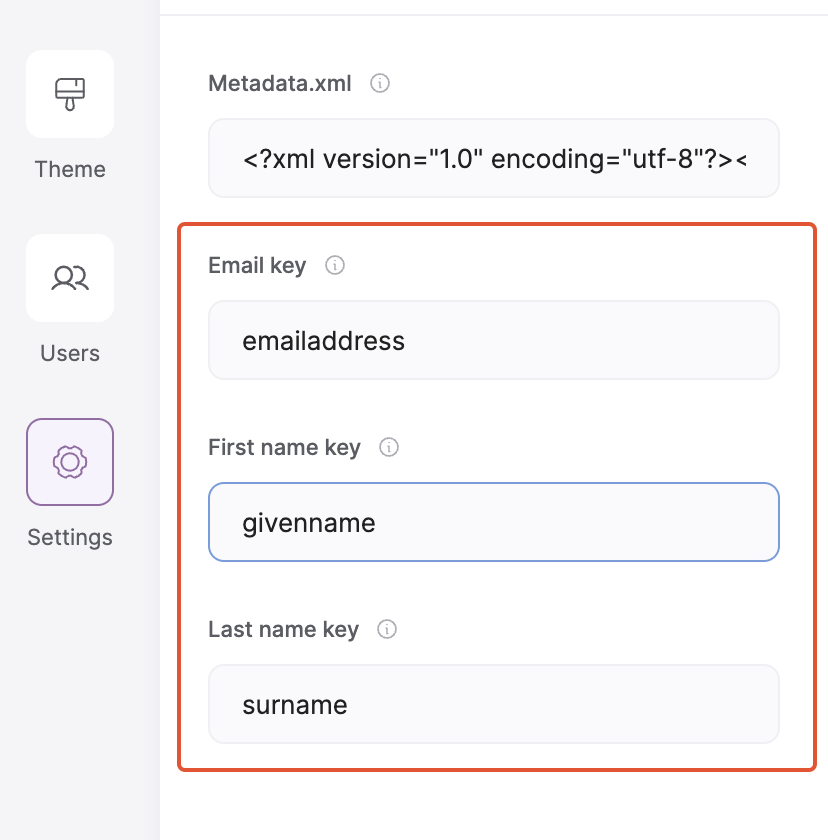
In this step, you need to copy the **First Name**, **Last Name**, and **Email** keys from Azure and add them into your Softr app’s single sign-on settings.
To finalize the setup, hit **Save** and close the sidebar.
## Attributes & Claims
In this step, you need to copy the **First Name**, **Last Name**, and **Email** keys from Azure and add them into your Softr app’s single sign-on settings.
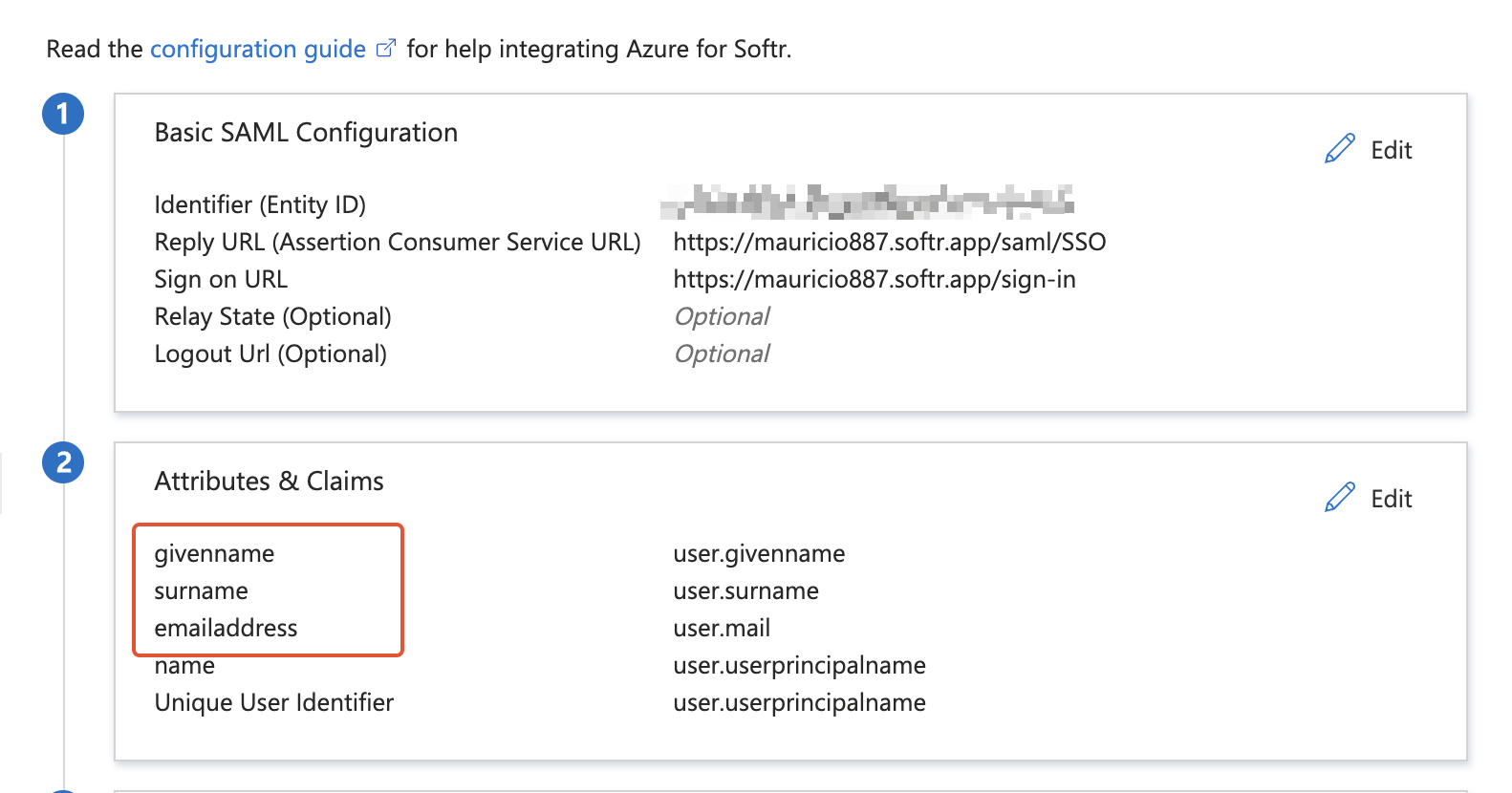 The keys should be applied as shown in the following screenshot.
 ## SAML Certificates
In this step, you need to download the **Metadata XML file** in Azure.
## SAML Certificates
In this step, you need to download the **Metadata XML file** in Azure.
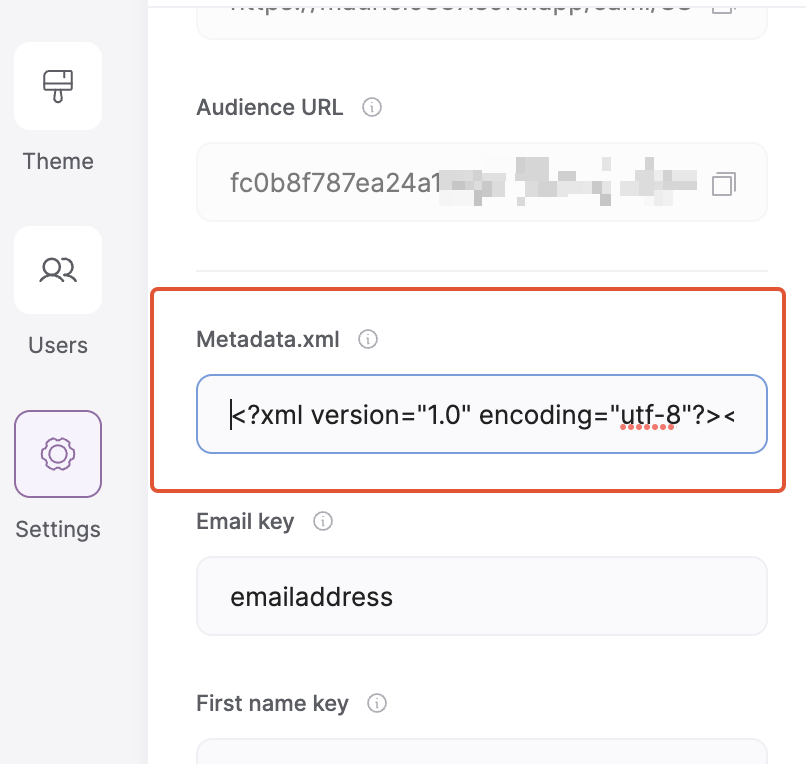
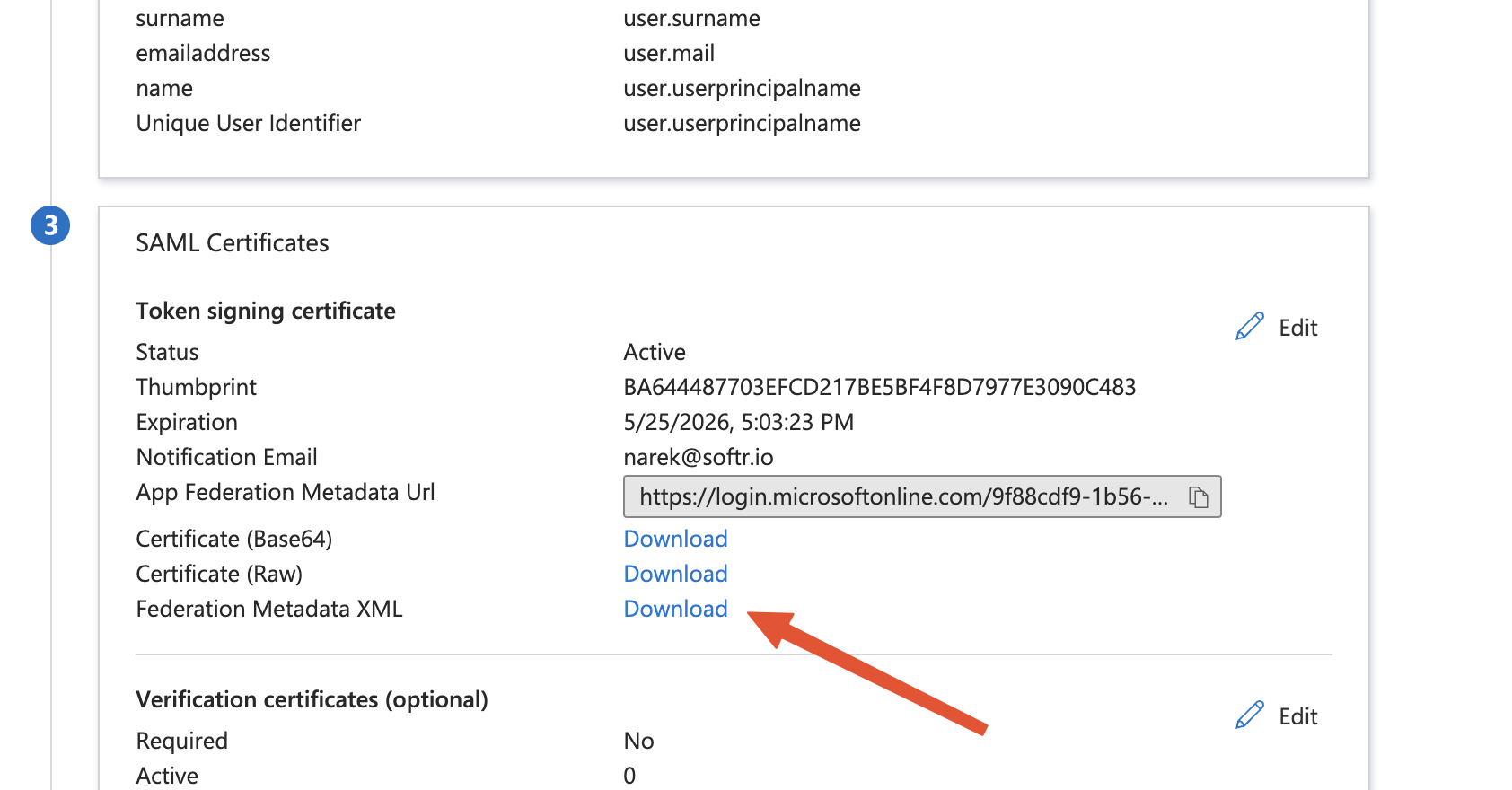 Next, open the file with any suitable editor, copy the entire content of the file, and add it to your Softr app under **SAML Settings**.
 And you’re almost done. There’s one last step remaining, which we’ll discuss next.
## Assigning users to an application and testing
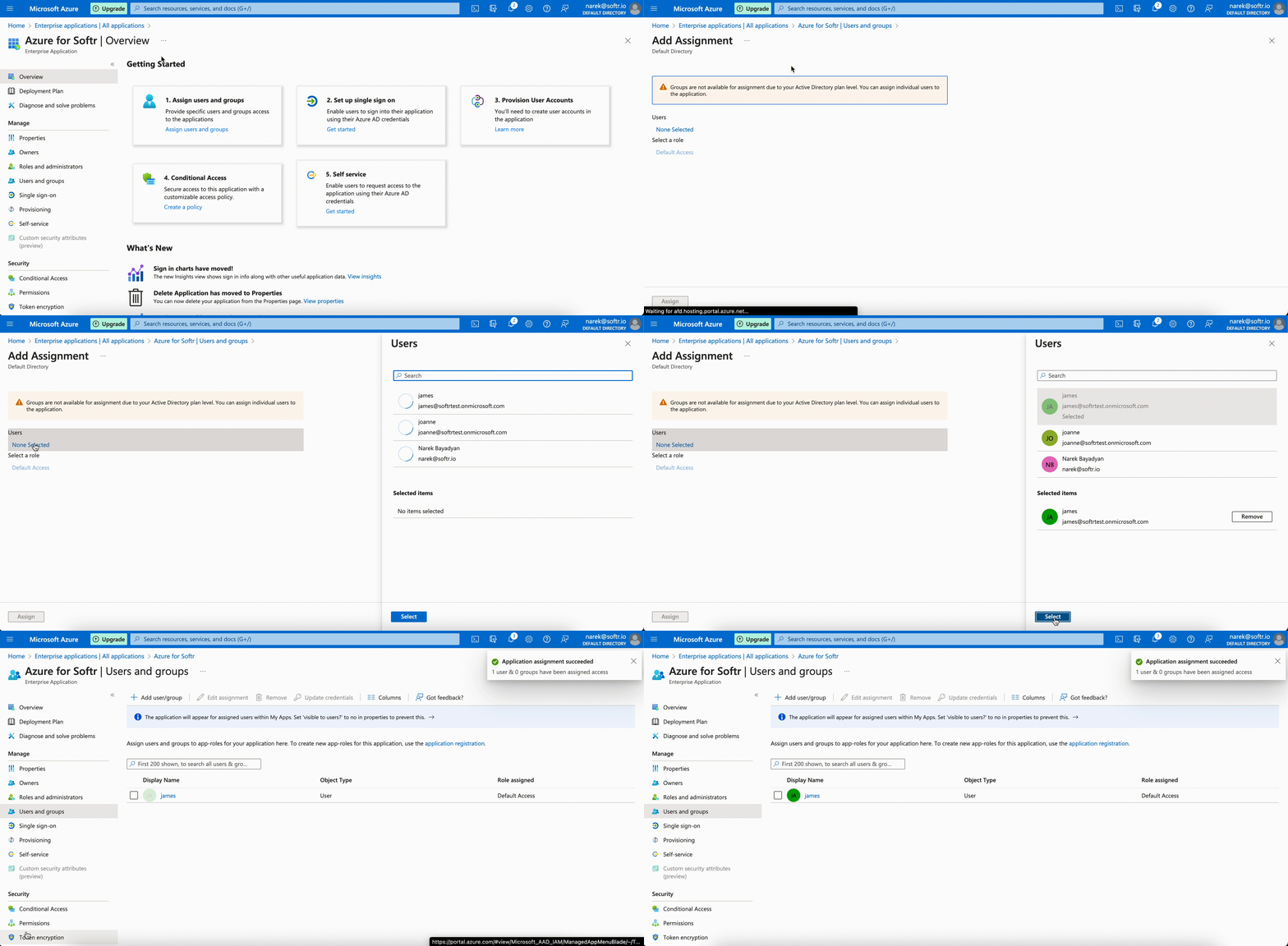
Now, your users should be able to log into your Softr app with their Active Directory credentials. **Note, that the user needs to be assigned to your Azure application to be able to access it.** To assign a user, you need to navigate to the **Users and groups** sections of your application and add that user.
The following gif shows the process of assigning a user to an application.
And you’re almost done. There’s one last step remaining, which we’ll discuss next.
## Assigning users to an application and testing
Now, your users should be able to log into your Softr app with their Active Directory credentials. **Note, that the user needs to be assigned to your Azure application to be able to access it.** To assign a user, you need to navigate to the **Users and groups** sections of your application and add that user.
The following gif shows the process of assigning a user to an application.
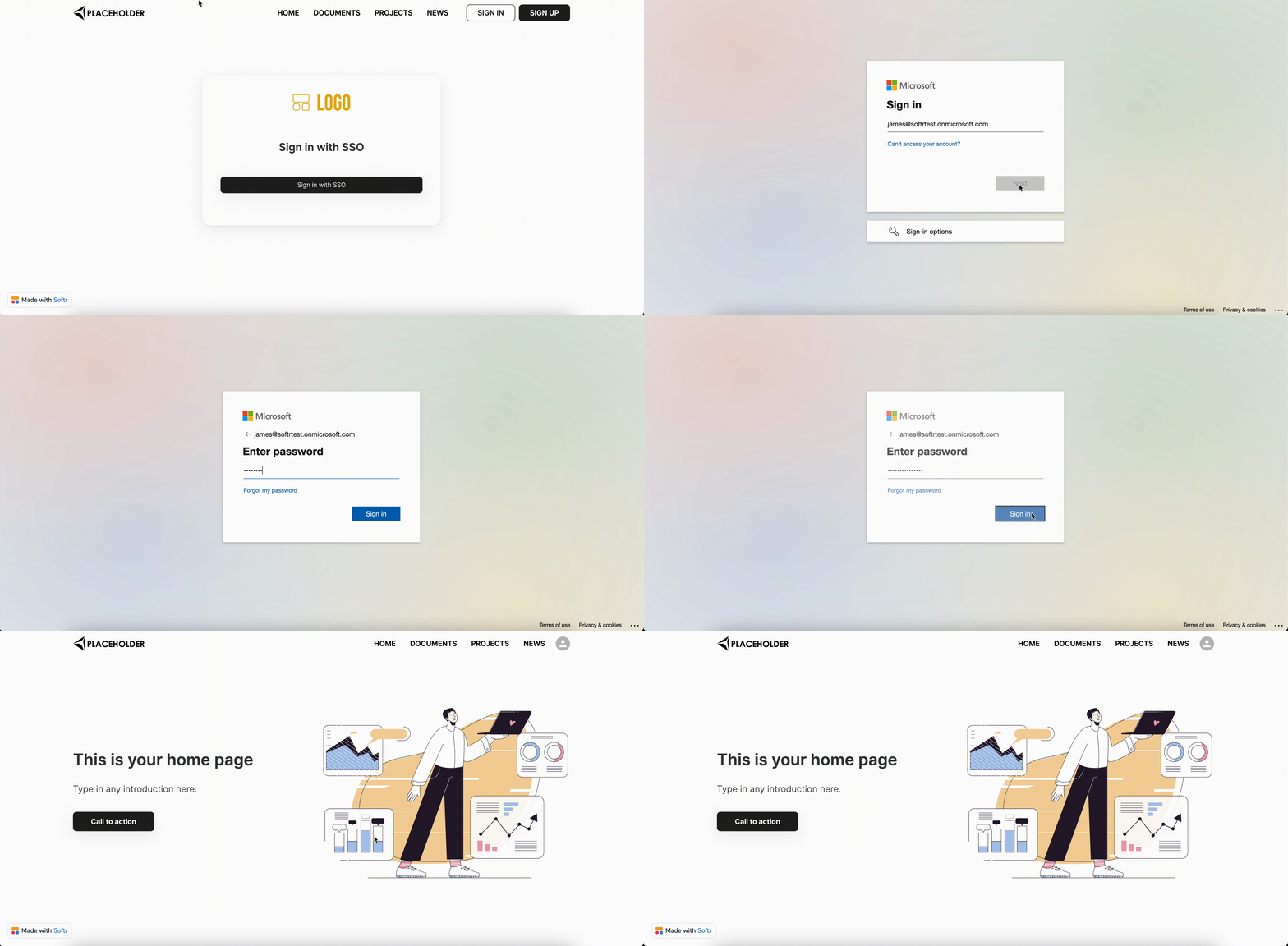
 The assigned user should now be able to log into your Softr app through single sign-on.