> ## Documentation Index
> Fetch the complete documentation index at: https://docs.softr.io/llms.txt
> Use this file to discover all available pages before exploring further.
# Forgot Password Form
> Forgot password functionality overview.
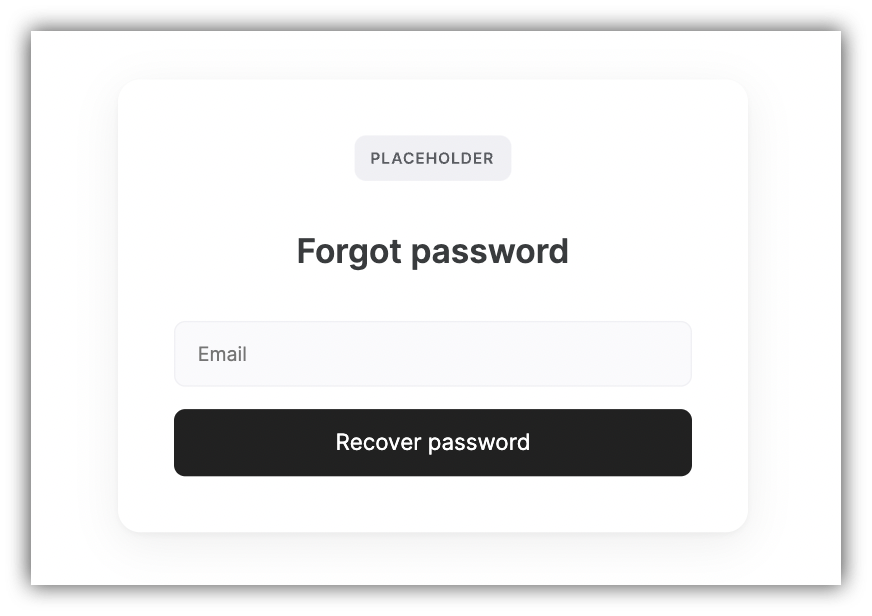
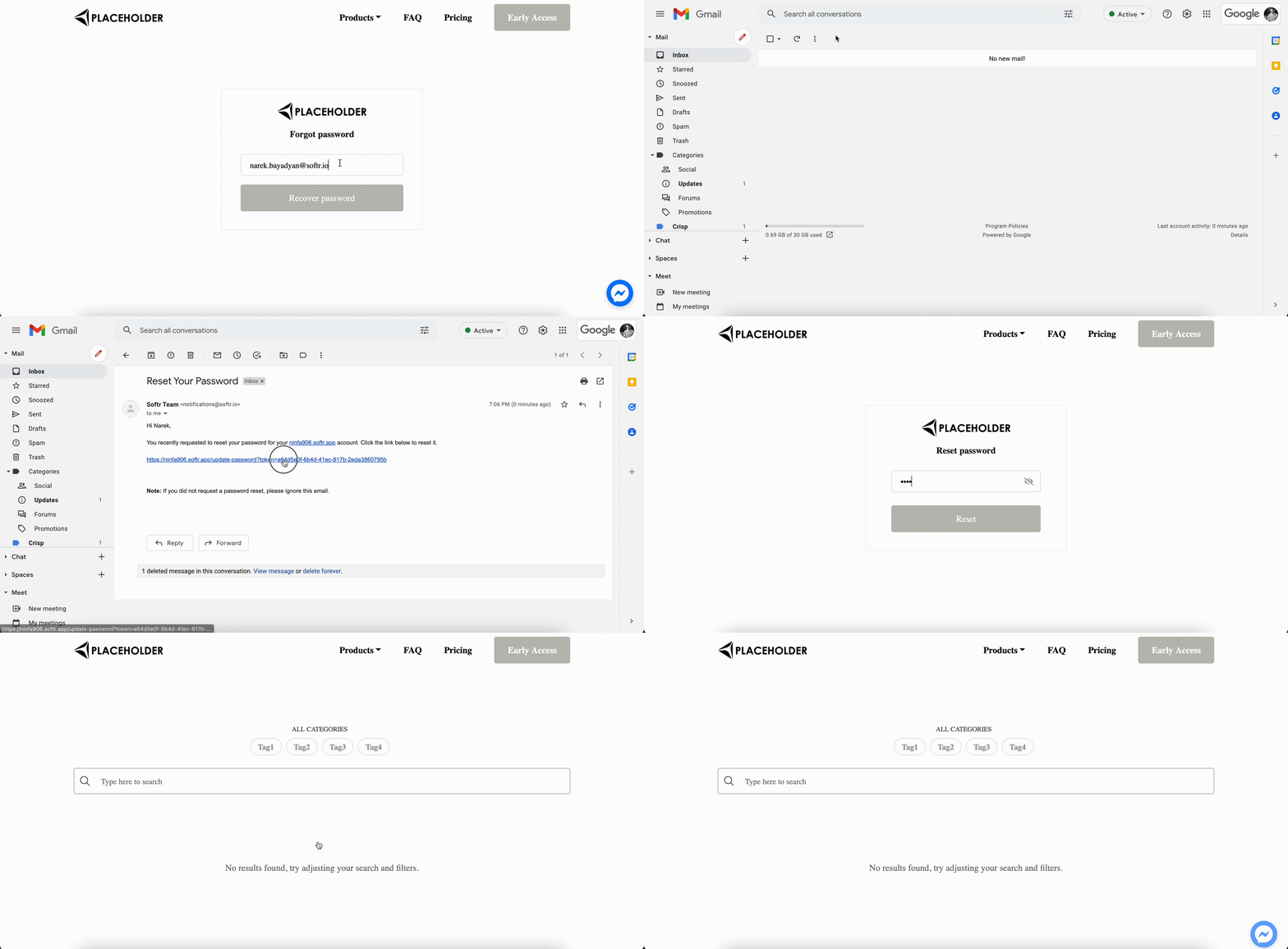
In this form, users can enter their email to recover their password. As soon as you also set up a [Reset Password Form](/add-and-manage-users/pxnkp9H3qyEVMF6XUceqnj/reset-password-form/1Z48Ai2XvMX3JwuSq9ZU38), the user will enter the email address here, receive a recovery link on his/her email, and go to the **Reset Password** page via the link to provide a new password.
The animation below shows how that works.
Check out how to change the sender email and name [here](/application-settings/n3K2UEfpC9BpHgakMzUU5Y/general-settings/7YdGy1J8X2tjJSv8BGvWQU).
Now, let's see how the block can be customized.
## Logo, Title, and Background Image
This section is configured similar to that of the [Signup Form](/add-and-manage-users/pxnkp9H3qyEVMF6XUceqnj/signup-form/tPe3uxmdcUNeFYuaLTR1o9).
## Forgot Password form
Here, you can configure the placeholder text for the **Email** field and the **Recove**r button. The **Action** is fixed and cannot be changed.
## Confirmation Message
The **Confirmation Message** is the text that's shown after the user hits **Recover Password**. You can modify the text here.
See below how it works.
 The animation below shows how that works.
 Now, let's see how the block can be customized.
## Logo, Title, and Background Image
This section is configured similar to that of the [Signup Form](/add-and-manage-users/pxnkp9H3qyEVMF6XUceqnj/signup-form/tPe3uxmdcUNeFYuaLTR1o9).
## Forgot Password form
Now, let's see how the block can be customized.
## Logo, Title, and Background Image
This section is configured similar to that of the [Signup Form](/add-and-manage-users/pxnkp9H3qyEVMF6XUceqnj/signup-form/tPe3uxmdcUNeFYuaLTR1o9).
## Forgot Password form
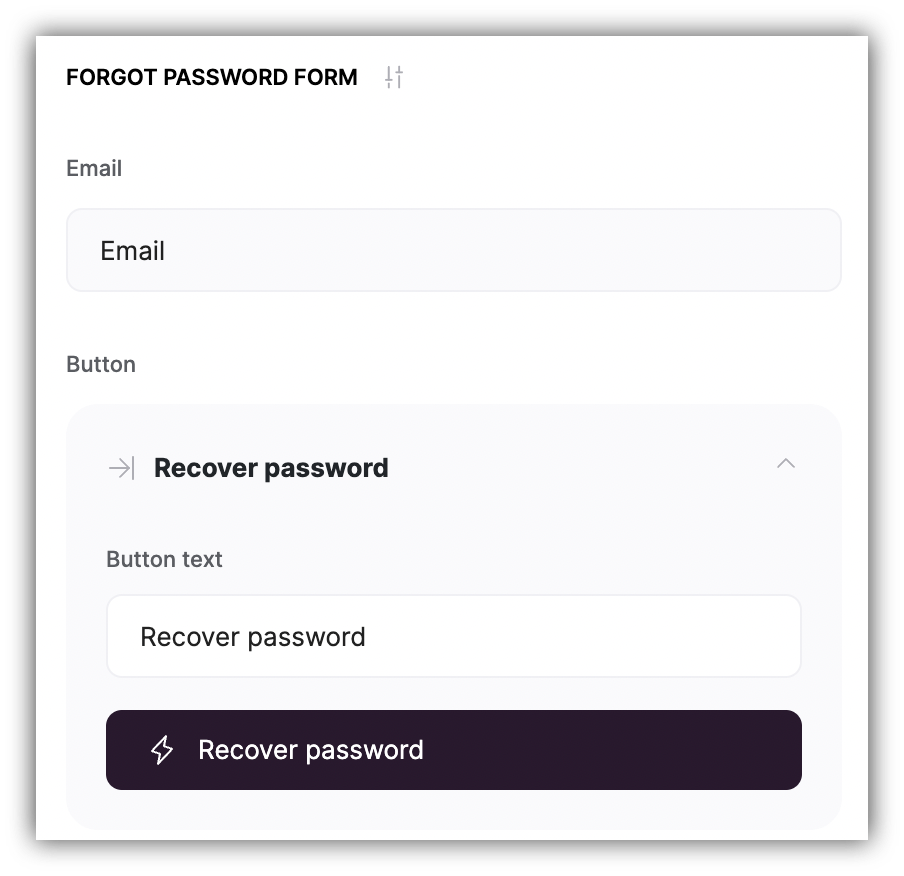 Here, you can configure the placeholder text for the **Email** field and the **Recove**r button. The **Action** is fixed and cannot be changed.
## Confirmation Message
The **Confirmation Message** is the text that's shown after the user hits **Recover Password**. You can modify the text here.
Here, you can configure the placeholder text for the **Email** field and the **Recove**r button. The **Action** is fixed and cannot be changed.
## Confirmation Message
The **Confirmation Message** is the text that's shown after the user hits **Recover Password**. You can modify the text here.
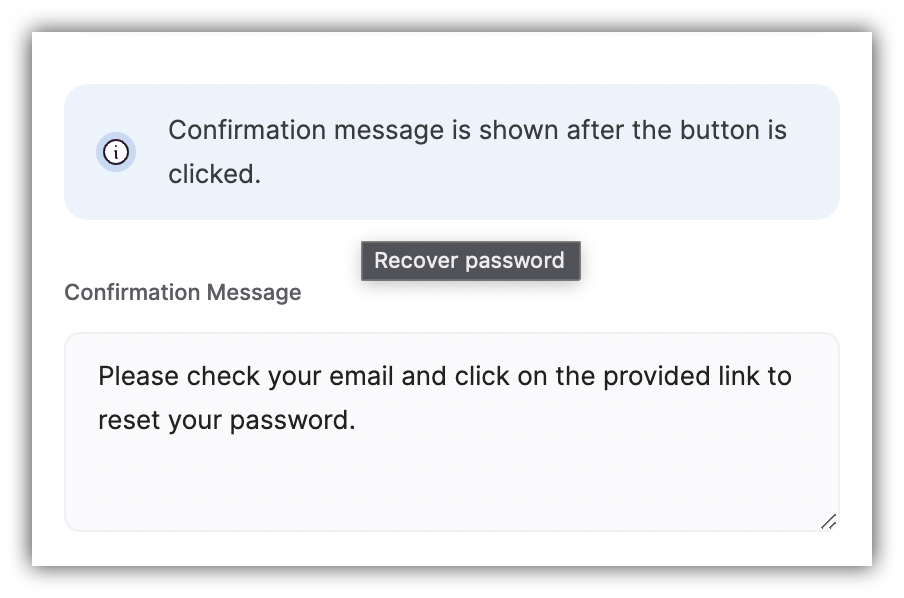 See below how it works.