> ## Documentation Index
> Fetch the complete documentation index at: https://docs.softr.io/llms.txt
> Use this file to discover all available pages before exploring further.
# Automated user invitations
> Automatically send user invitations when a new user is added
## Overview
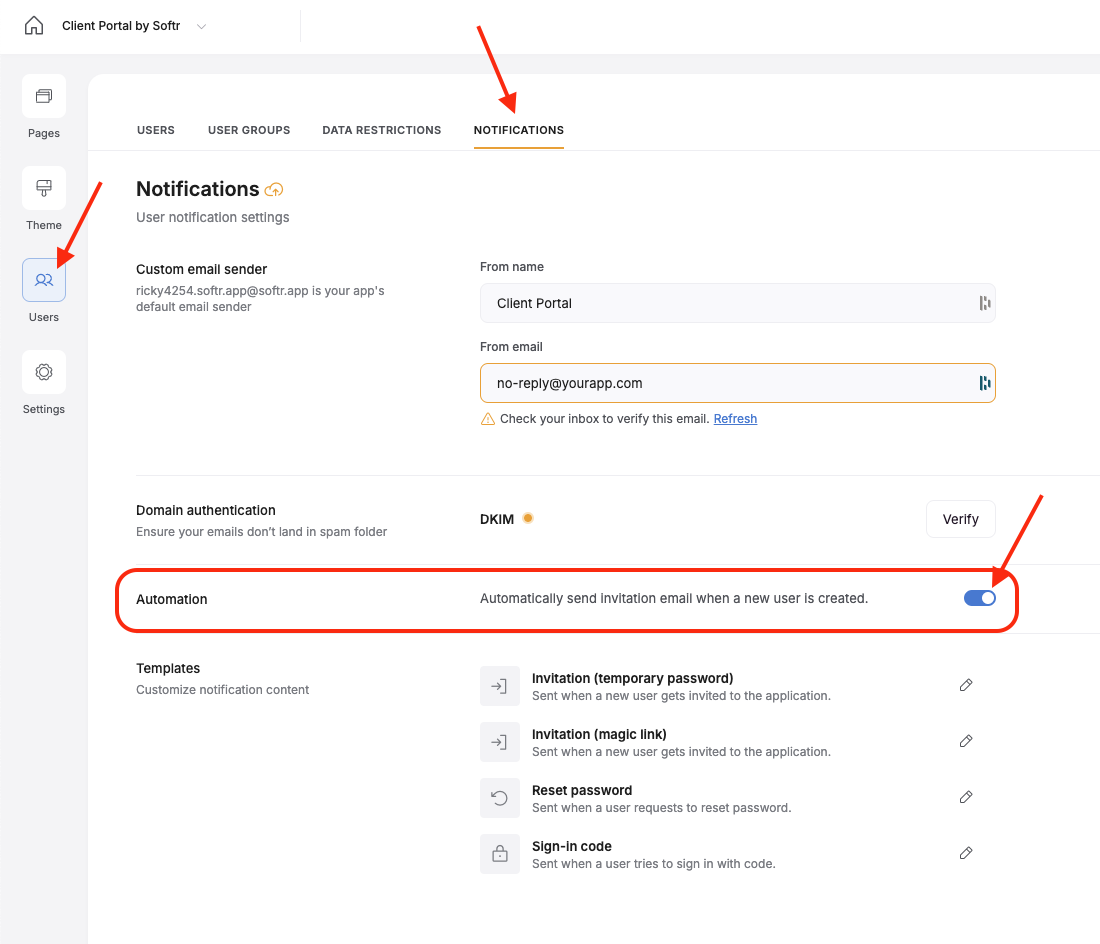
You can automatically send users a custom invitation to join and login to your app for the first time after they’ve been added as a user. This applies to users added in Softr Studio and users added directly to the data source side. To turn these on, go to the Users menu panel, click on the Notifications tab, then turn on the toggle in the Automation section.
 ## Customizing the Invitation Email
If no [Sender Details](/add-and-manage-users/pxnkp9H3qyEVMF6XUceqnj/user-email-notifications/sZRpewgUkBFFvhKSsQrBx7#sender-details) are setup, the invitation email will be sent from a Softr email domain.
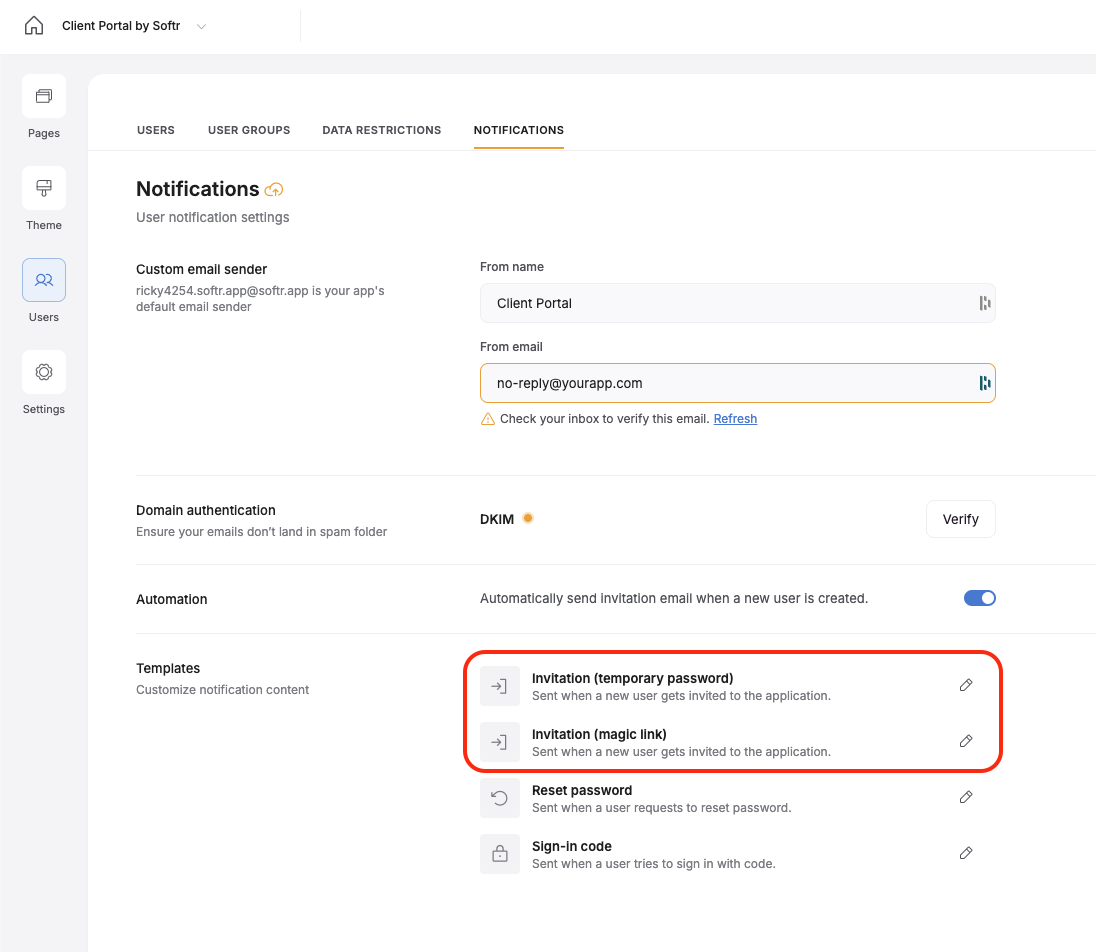
To customize the actual email that is sent, you can click on the Invitation email templates in the Templates section below. Find all the details about editing Email Templates [here](/add-and-manage-users/pxnkp9H3qyEVMF6XUceqnj/user-email-notifications/sZRpewgUkBFFvhKSsQrBx7#invite-email-via-password).
## Customizing the Invitation Email
If no [Sender Details](/add-and-manage-users/pxnkp9H3qyEVMF6XUceqnj/user-email-notifications/sZRpewgUkBFFvhKSsQrBx7#sender-details) are setup, the invitation email will be sent from a Softr email domain.
To customize the actual email that is sent, you can click on the Invitation email templates in the Templates section below. Find all the details about editing Email Templates [here](/add-and-manage-users/pxnkp9H3qyEVMF6XUceqnj/user-email-notifications/sZRpewgUkBFFvhKSsQrBx7#invite-email-via-password).