> ## Documentation Index
> Fetch the complete documentation index at: https://docs.softr.io/llms.txt
> Use this file to discover all available pages before exploring further.
# Item on Click Actions
> Setting actions on item click.
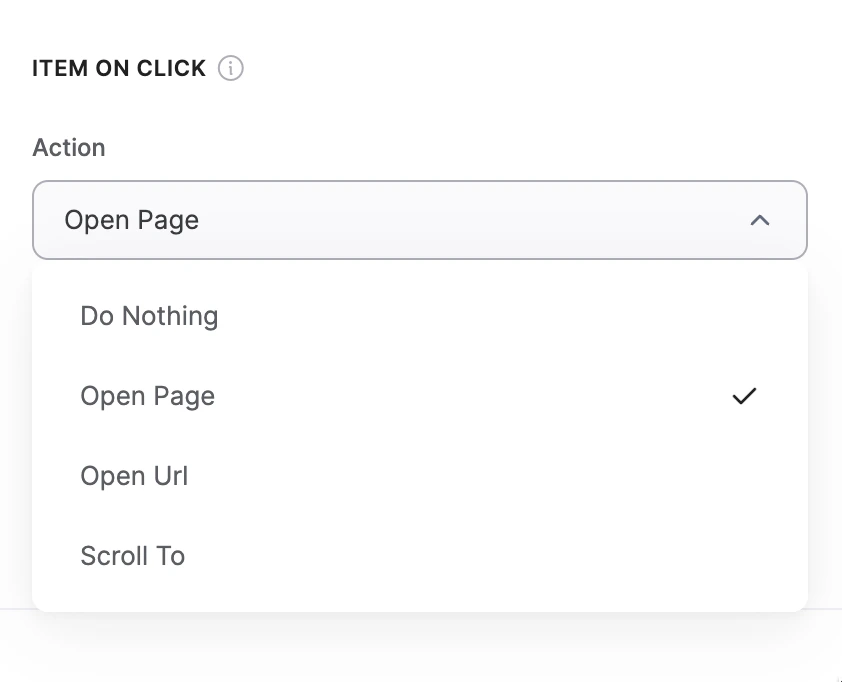
This category in the **Actions** tab of block settings lets you specify what happens when a user clicks on an item in your data representation ([List](/building-blocks/vikC2AWEpQGkZd4jGyoVxo/list-block/pQhPYuA28VXr5tLLFBcbCU), [Calendar](/building-blocks/vikC2AWEpQGkZd4jGyoVxo/calendar/rdfXqxaPkTFioEbjBBAZai), and other blocks).
Apart from the default **Do Nothing** option, there are the following three options:
* **Open Page**. Opens another page within your Softr app.
* **Open Url**. Opens any given Url.
* **Scroll To**. Scrolls to a specific section on the same or on any other page.
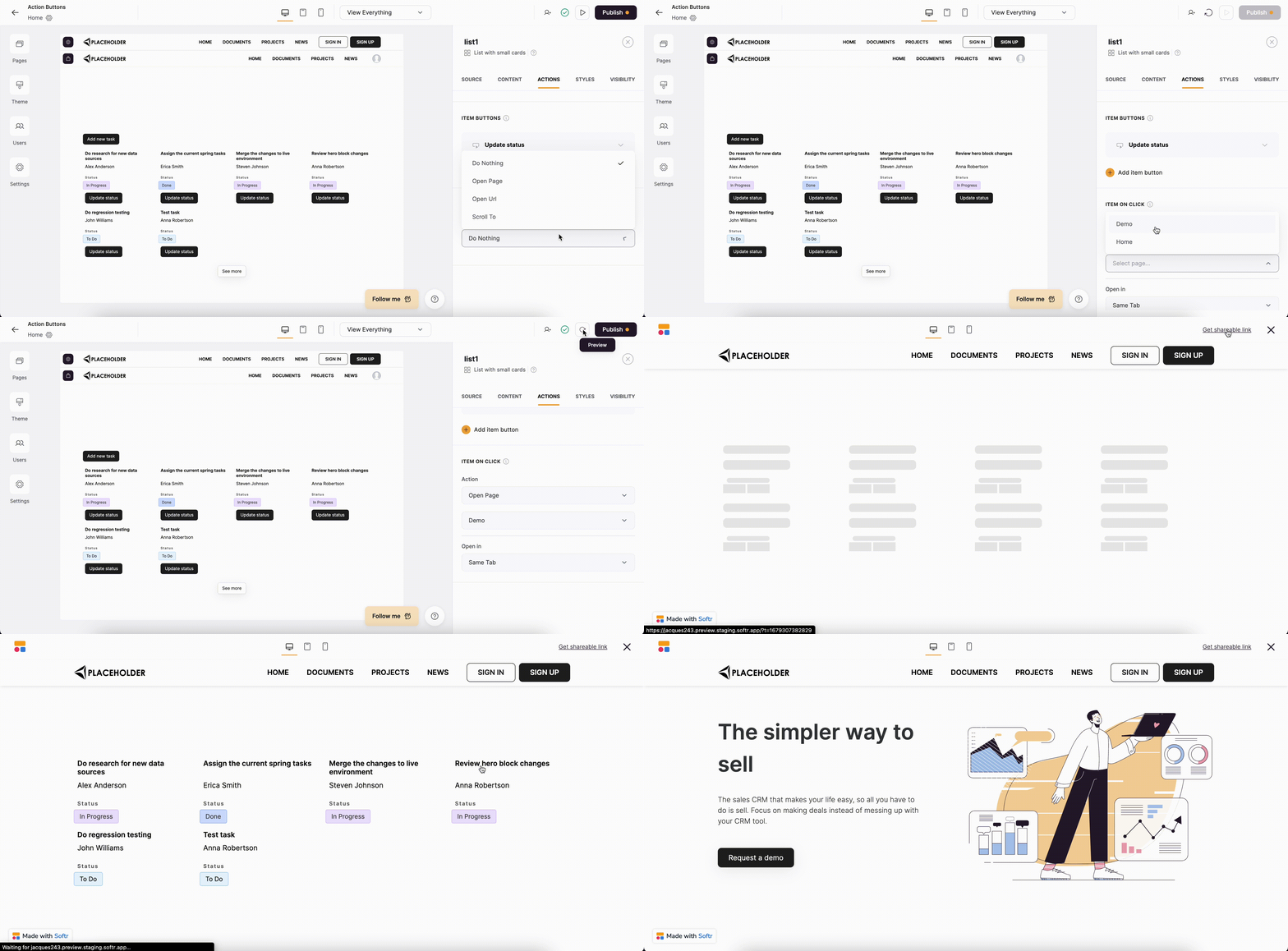
 The following gif illustrates how that works from the user’s perspective.
 ## Open in
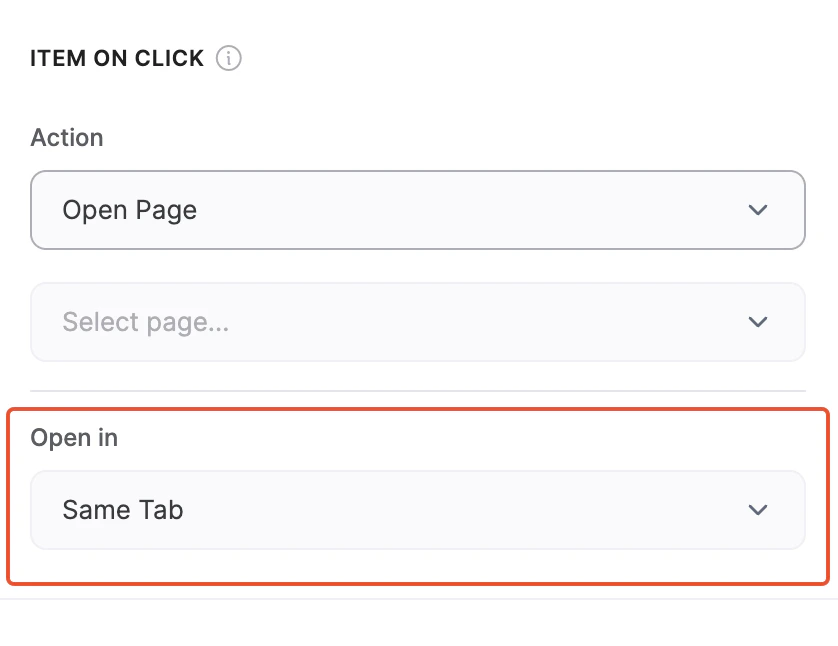
Further on, when you select one of these options, an **Open in** dropdown will appear below, where you can specify if the new destination should open in the **Same Tab**, in a **New Tab**, or inside a **Modal** (not available for the **Scroll to** option).
## Open in
Further on, when you select one of these options, an **Open in** dropdown will appear below, where you can specify if the new destination should open in the **Same Tab**, in a **New Tab**, or inside a **Modal** (not available for the **Scroll to** option).
 The **Modal** option has some additional settings, so let’s check those out.
### Modal
The **Modal** option has some additional settings, so let’s check those out.
### Modal
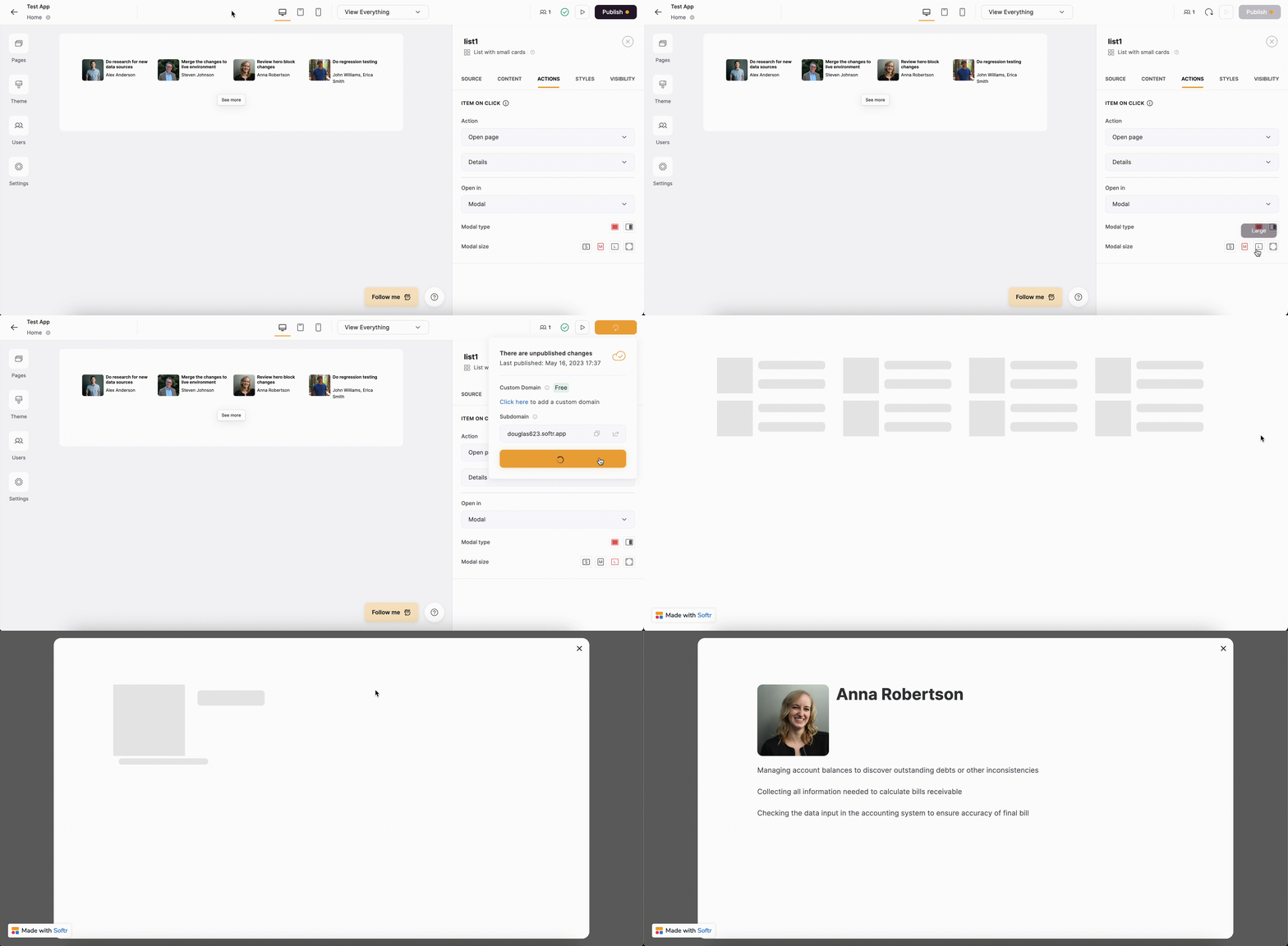
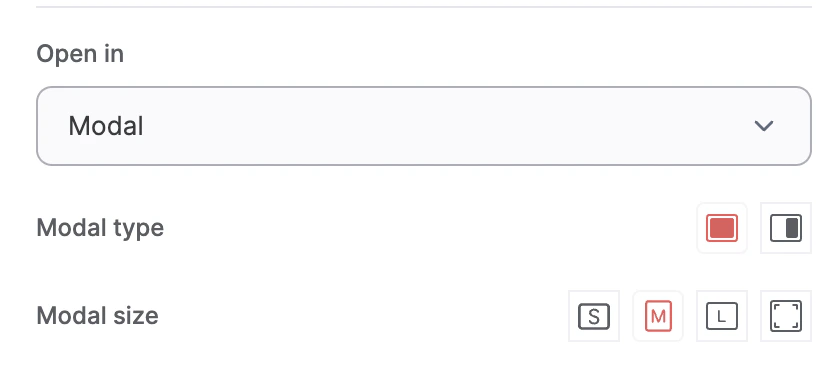 A modal is basically a pop-up that opens on the same page the user’s on. It has two types: **Centered** and **Sliding**.
The **Centered** **modal** opens a pop-up in the center of the page, and you can also select a **size** for it.
A modal is basically a pop-up that opens on the same page the user’s on. It has two types: **Centered** and **Sliding**.
The **Centered** **modal** opens a pop-up in the center of the page, and you can also select a **size** for it.
 The **Sliding modal** open a sidebar from the right side of the page.