> ## Documentation Index
> Fetch the complete documentation index at: https://docs.softr.io/llms.txt
> Use this file to discover all available pages before exploring further.
# Export
> Export the data, a block, or entire page from your Softr app.
## Export PDF
On certain newer list details blocks you can add a button to Export the block itself or even the entire page.
Currently the Export PDF action is only available on the new “Item Details” block.
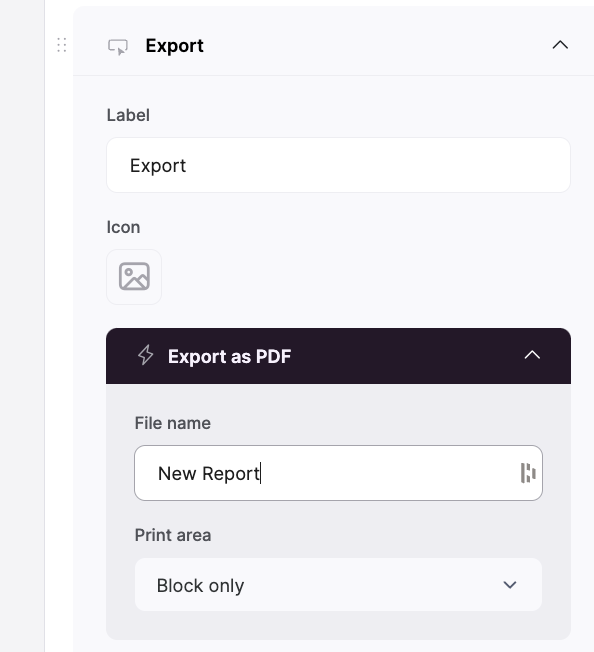
To add an Export PDF action, add a button to your Item Details block, then click on Export as the button action. Then set the default file name and whether you want to export just the block or the entire page.
 ## Export or Download CSV or XLSX
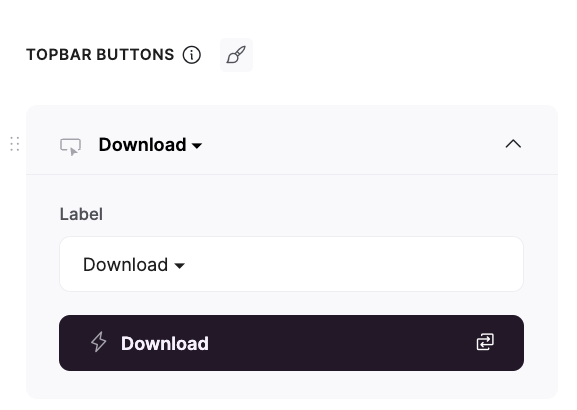
On the Table block, you can export the table data as either a CSV file or an Excel spreadsheet file. On a table block, add a topbar button and choose Download as the action type. For more info, see our article on the [Table Block](/building-blocks/vikC2AWEpQGkZd4jGyoVxo/table-block-/j7rGwu7J7zuU69h3bZ7HFe).
## Export or Download CSV or XLSX
On the Table block, you can export the table data as either a CSV file or an Excel spreadsheet file. On a table block, add a topbar button and choose Download as the action type. For more info, see our article on the [Table Block](/building-blocks/vikC2AWEpQGkZd4jGyoVxo/table-block-/j7rGwu7J7zuU69h3bZ7HFe).