> ## Documentation Index
> Fetch the complete documentation index at: https://docs.softr.io/llms.txt
> Use this file to discover all available pages before exploring further.
# Download File
> Download a file with one click
## What can it do?
Let your users download a file attached to an item in a list or on a list details block. Previously you could do this using the “File” field in a list or list details’ Item Fields section, however now you can also let users do this through a button as well.
## How do I use it?
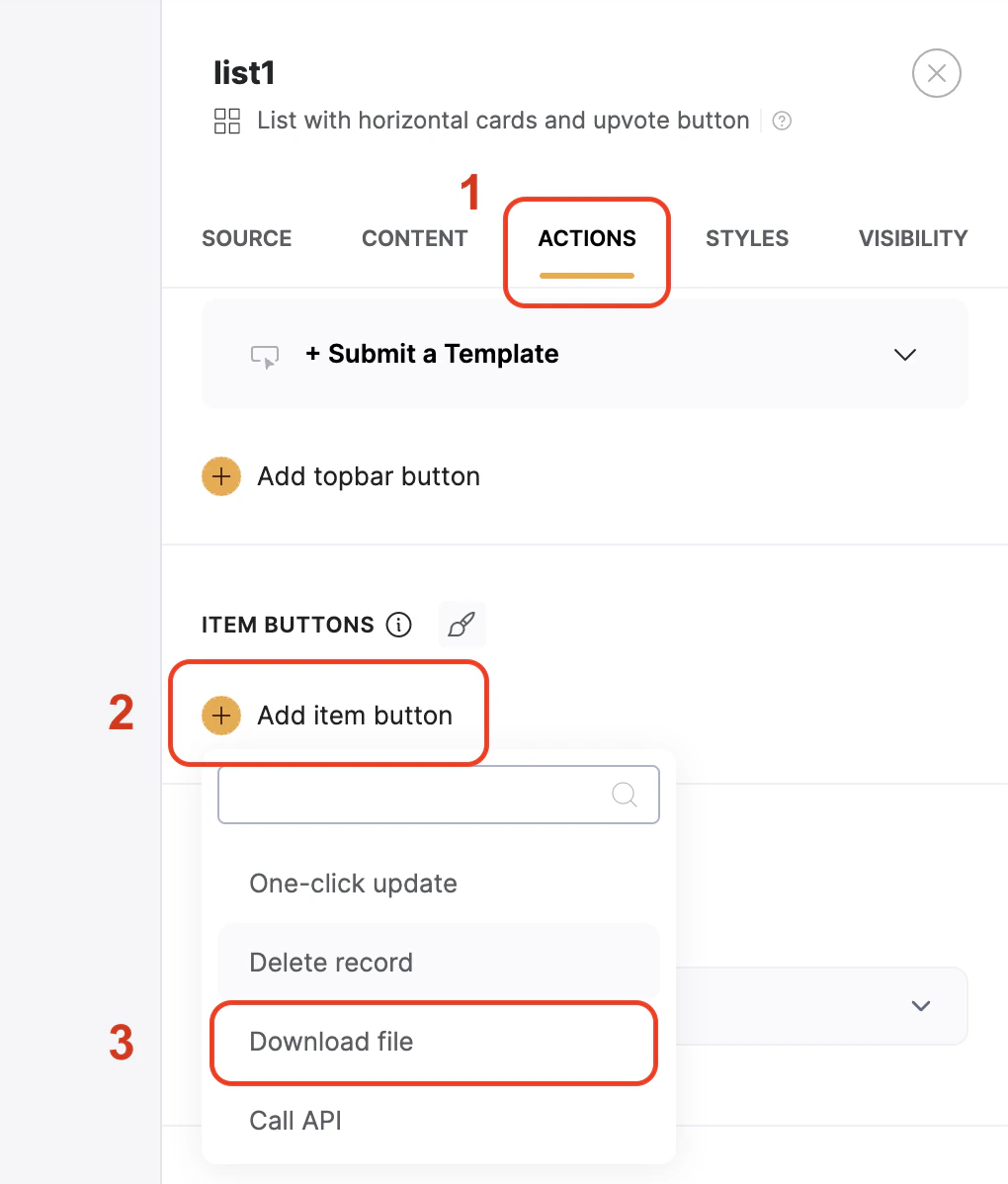
First, you’ll need to make sure you have an attachment field or a public URL in your datasource that holds the file you want to download. Click on the list or list block that you want users to download from. Then:
1. Click on the Action tab in the topbar of the block’s settings panel
2. Click **Add Item Button**
3. Scroll down in the list of action options to find and click **Download File**
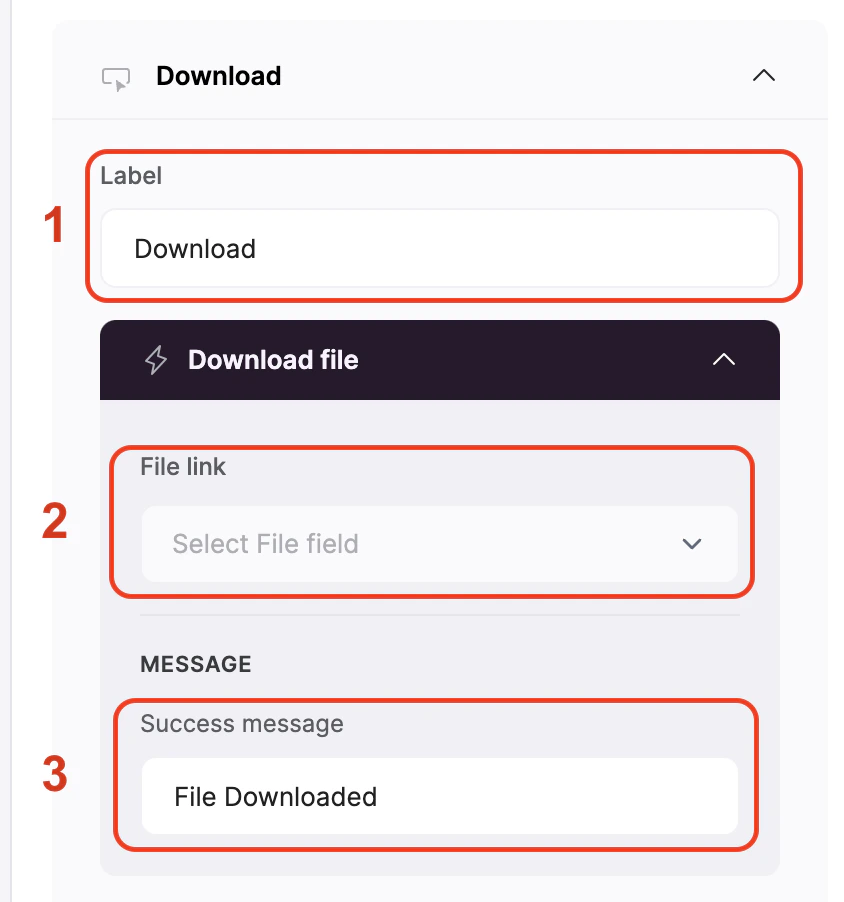
 In the settings for the action, you have several things to setup as well:
1. Customize what the button label says
2. Choose the field in your datasource that holds the URL or attachment that the user should be able to download.
3. Customize the message that is displayed to the user when the download is completed.
In the settings for the action, you have several things to setup as well:
1. Customize what the button label says
2. Choose the field in your datasource that holds the URL or attachment that the user should be able to download.
3. Customize the message that is displayed to the user when the download is completed.