> ## Documentation Index
> Fetch the complete documentation index at: https://docs.softr.io/llms.txt
> Use this file to discover all available pages before exploring further.
# Delete Record
> Letting users delete records in your data.
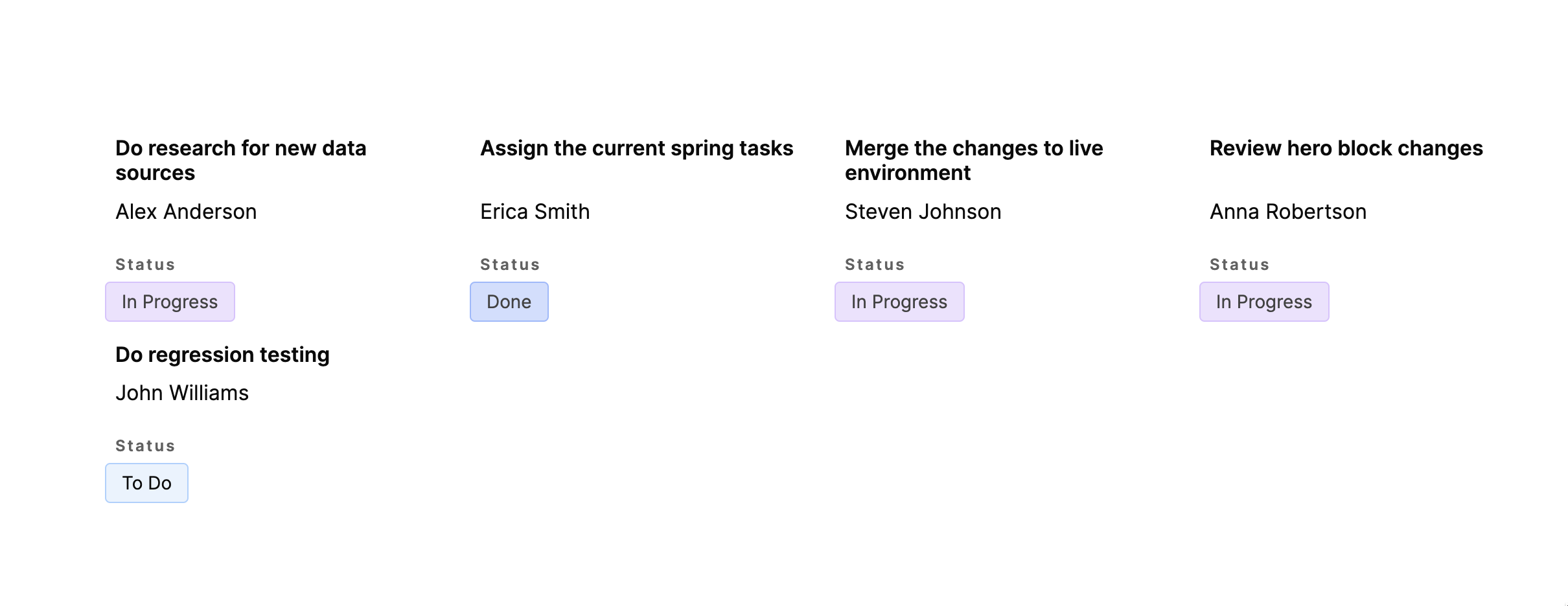
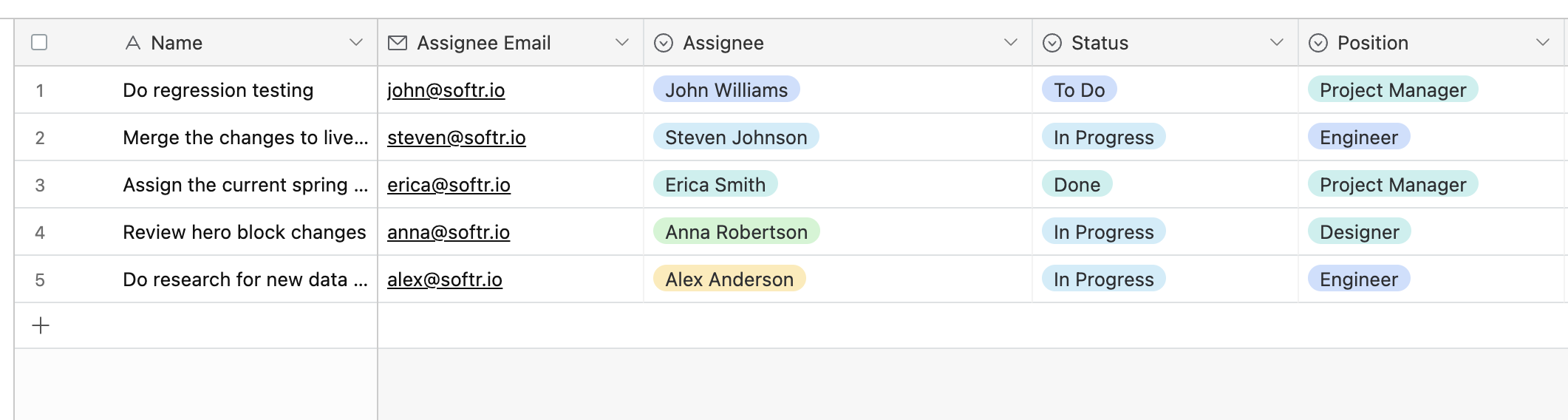
This [Action Button](/actions/ntEfT9zSJk6aY54G6W5KGU/action-buttons-overview/idg8Fqf2kjFwcx6kyP3jNq) lets you delete records in your [data source](https://www.notion.so/4230abecf813402aa2926466c313290a). To demonstrate how the **Delete Record** button works, we’re going to use a [List block](/building-blocks/vikC2AWEpQGkZd4jGyoVxo/list-block/pQhPYuA28VXr5tLLFBcbCU) connected to an [Airtable](/data-sources/1YYStCJukT15Lh2j93qo9A/airtable/jHX7kfH7QvkVcELQvS3VoX) data source, which shows a list of tasks for a hypothetical product development team and has three fields: **Name** (the name of the task), **Assignee** (who it is assigned to), and **Status** (the current progress status of the task). We want to enable a “Delete task status” button to allow project managers to delete tasks.
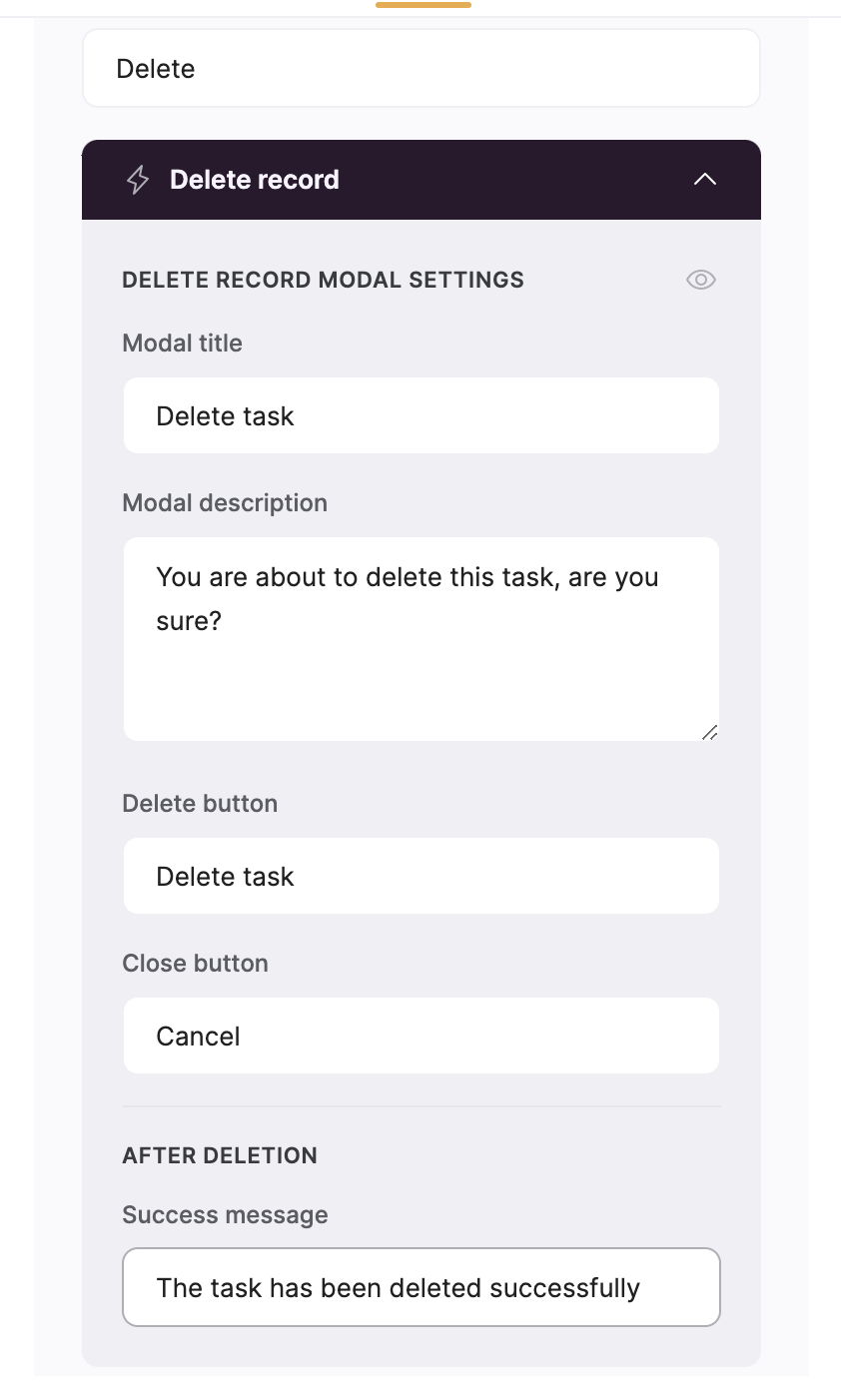
 First, we are going to configure the button label and that texts that are going to be shown in the pop-up (or modal) opened by the delete button.
 ## Button Visibility
Now, let’s configure the [button visibility](/user-groups-and-permissions/3oA6AaFzUiePs2sW2TpYrF/action-button-visibility/tqpb8TkUD4U4DCAUA2hjKo) to specify who the button is going to be visible to. The users of our task list are the same people who are working on those tasks, so we are going to [connect the same Airtable base](/add-and-manage-users/pxnkp9H3qyEVMF6XUceqnj/syncing-users-with-a-data-source/hshRGygHr4T33EnaLntGf9) with tasks and assignees to Softr as a user database.
## Button Visibility
Now, let’s configure the [button visibility](/user-groups-and-permissions/3oA6AaFzUiePs2sW2TpYrF/action-button-visibility/tqpb8TkUD4U4DCAUA2hjKo) to specify who the button is going to be visible to. The users of our task list are the same people who are working on those tasks, so we are going to [connect the same Airtable base](/add-and-manage-users/pxnkp9H3qyEVMF6XUceqnj/syncing-users-with-a-data-source/hshRGygHr4T33EnaLntGf9) with tasks and assignees to Softr as a user database.
 The users sync between Softr and data source is one-way (from Softr to data source), so, if you connect a data source with users without having them [in Softr](/add-and-manage-users/pxnkp9H3qyEVMF6XUceqnj/users-menu/5JTzjtbvp8Skemd26A9ho9) first, you’ll need to create the same users in Softr as well to establish the connection.
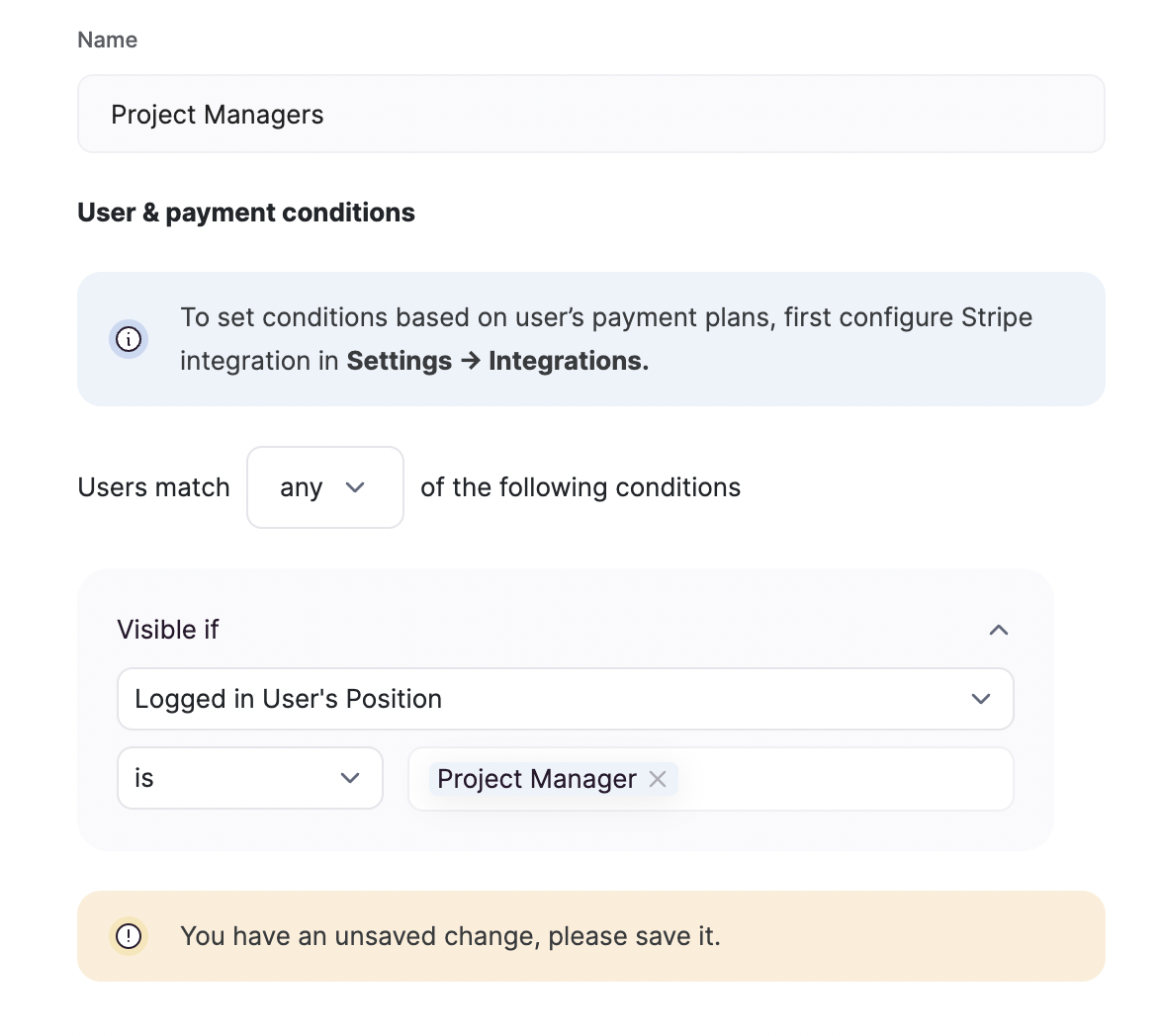
Now, let’s configure the actual button visibility settings. We need to allow only Project Managers to delete tasks, so, first of all, we need to create a [User Group](/user-groups-and-permissions/3oA6AaFzUiePs2sW2TpYrF/user-groups/6XQfKMeKHUvBcAjKvLs3g3) that includes only the users whose **Position** is **Project Manager**.
The users sync between Softr and data source is one-way (from Softr to data source), so, if you connect a data source with users without having them [in Softr](/add-and-manage-users/pxnkp9H3qyEVMF6XUceqnj/users-menu/5JTzjtbvp8Skemd26A9ho9) first, you’ll need to create the same users in Softr as well to establish the connection.
Now, let’s configure the actual button visibility settings. We need to allow only Project Managers to delete tasks, so, first of all, we need to create a [User Group](/user-groups-and-permissions/3oA6AaFzUiePs2sW2TpYrF/user-groups/6XQfKMeKHUvBcAjKvLs3g3) that includes only the users whose **Position** is **Project Manager**.
 Next, we need to navigate to our delete button’s visibility settings and select the user group that is going to be able to view the button.
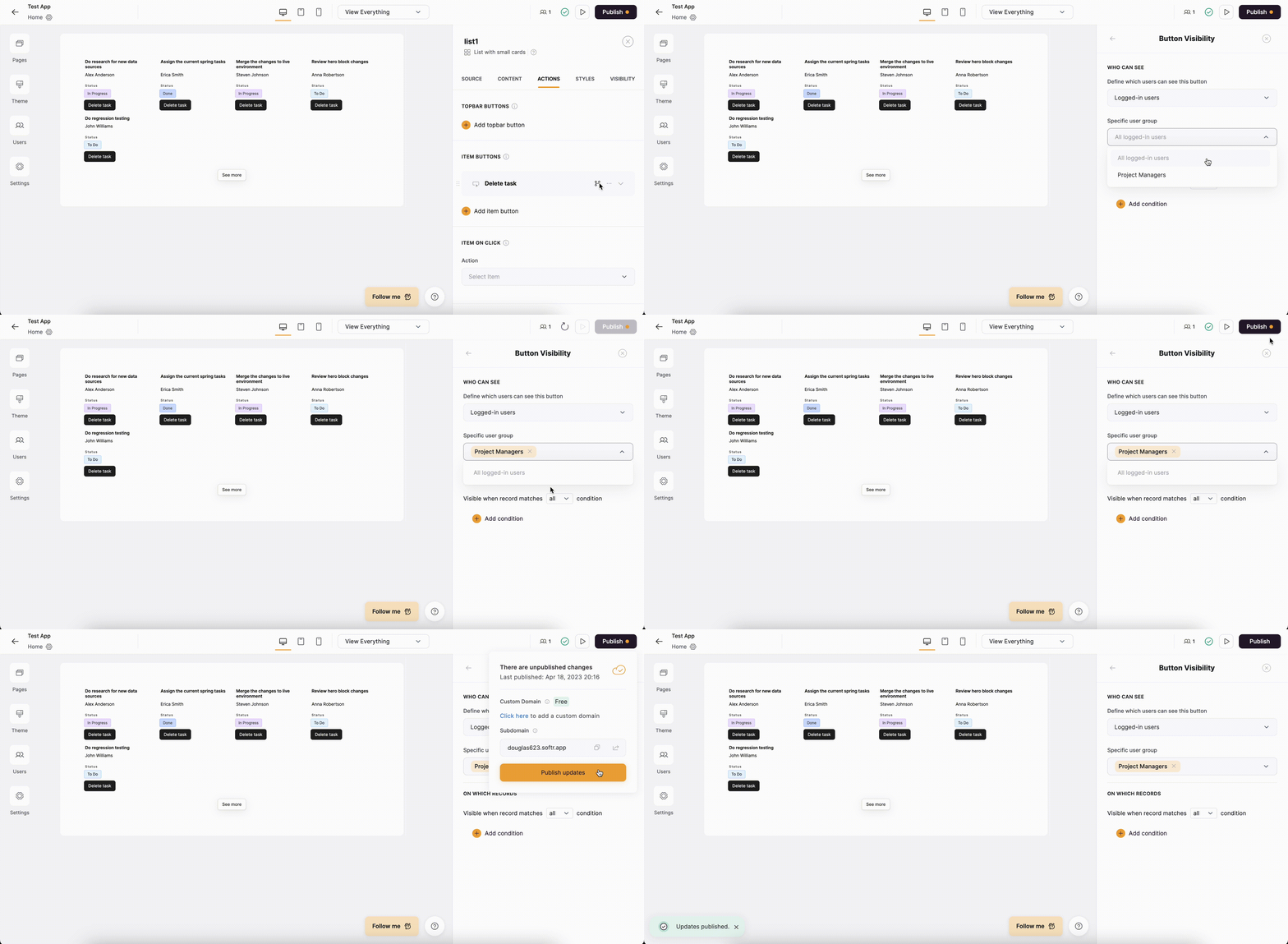 That’s it. The next and last step is to make sure everything’s working as expected.
In **Button Visibility** settings, apart from selecting user groups under **WHO CAN SEE**, you can also set conditional visibility under **ON WHICH RECORDS.** This works similar to [list conditional filters](/user-groups-and-permissions/3oA6AaFzUiePs2sW2TpYrF/conditional-filters/mDnn7jnpPiYmJcT99jpt7m).
## Testing task deletion
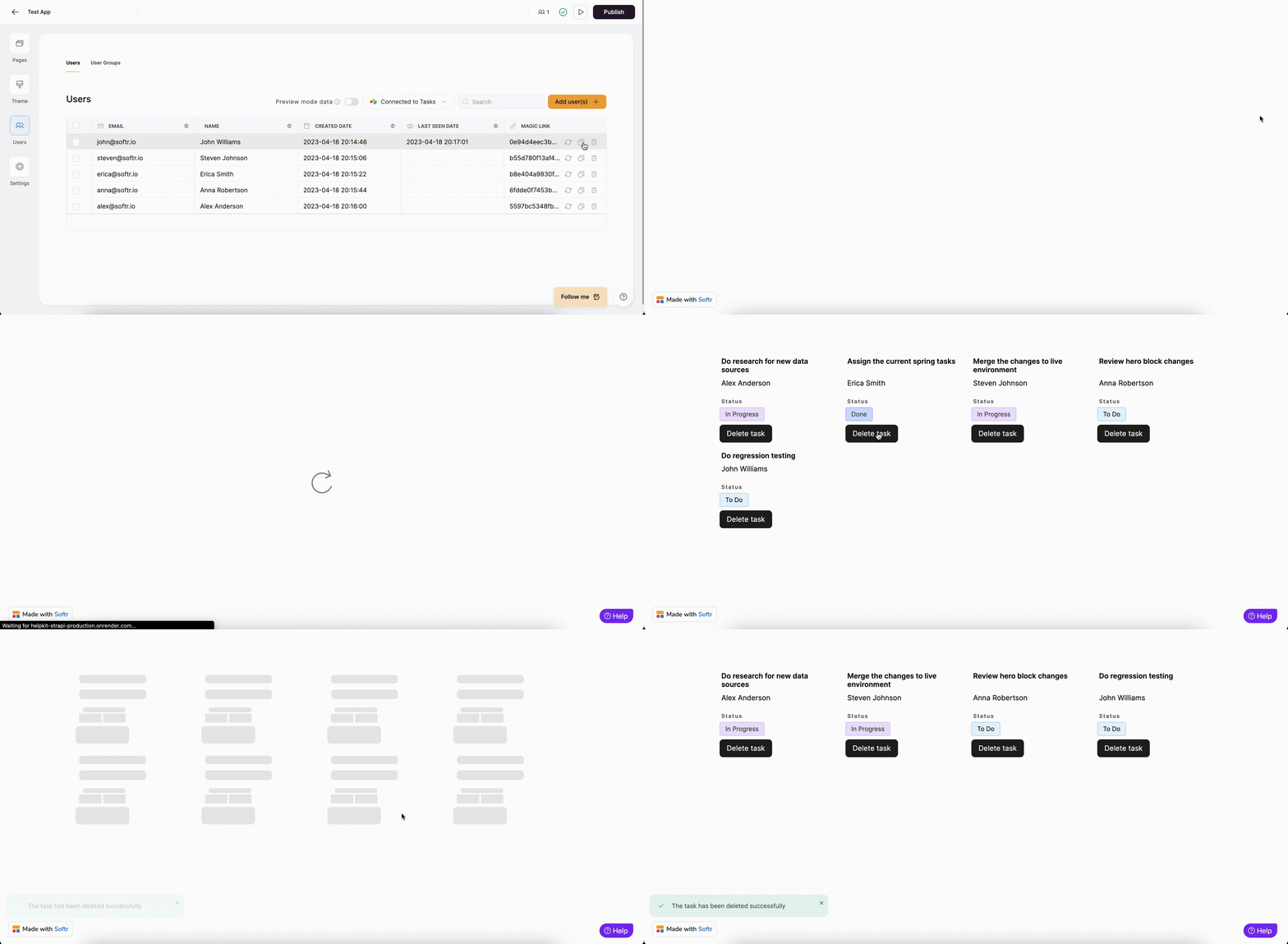
To test our setup, we are going to log into our application with a user whose position is Project Manager and attempt to delete one of the tasks. The following gif illustrates that.
That’s it. The next and last step is to make sure everything’s working as expected.
In **Button Visibility** settings, apart from selecting user groups under **WHO CAN SEE**, you can also set conditional visibility under **ON WHICH RECORDS.** This works similar to [list conditional filters](/user-groups-and-permissions/3oA6AaFzUiePs2sW2TpYrF/conditional-filters/mDnn7jnpPiYmJcT99jpt7m).
## Testing task deletion
To test our setup, we are going to log into our application with a user whose position is Project Manager and attempt to delete one of the tasks. The following gif illustrates that.