> ## Documentation Index
> Fetch the complete documentation index at: https://docs.softr.io/llms.txt
> Use this file to discover all available pages before exploring further.
# Action Buttons Overview
> What Action Buttons are and where you can use them.
**Action Buttons** are available to all the subscription plans. Button Visibility options depend on the subscription plan. See [plan comparison](https://www.softr.io/pricing).
**Action Buttons** are buttons that you can add to [List](/building-blocks/vikC2AWEpQGkZd4jGyoVxo/list-block/pQhPYuA28VXr5tLLFBcbCU), [List Details](https://www.notion.so/19c85b4352da4f79bef36e82d78fc650), [Kanban](https://www.notion.so/3513ac5b44034e1093cf96231dde3997), [Table](https://www.notion.so/92aacbbfe80e41af8f43119403c2ffe7), or [Calendar](https://www.notion.so/cc2a9bc28a5a45a0be6385c5ba1b2dff) blocks to allow your application users to update the [data connected to the block](https://www.notion.so/4230abecf813402aa2926466c313290a), add new data, navigate to other sections in your app, and more. In particular, **Action Buttons** let your users perform all of the [CRUD](https://developer.mozilla.org/en-US/docs/Glossary/CRUD) (Create, Read, Update, Delete) operations on your application’s data.
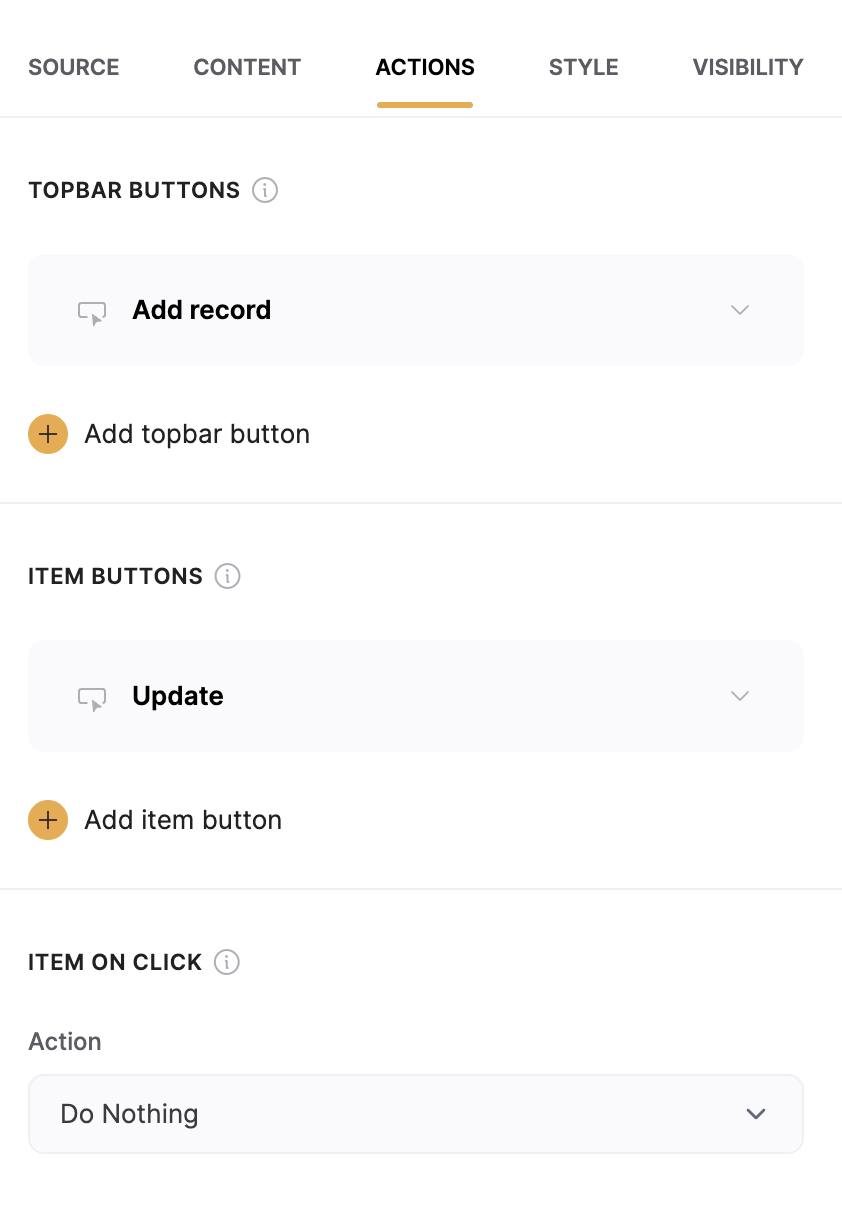
The **Action Buttons** are available from the **Actions** tab in block settings sidebar and are divided into the following three categories:
1. **Topbar Buttons**. Includes the [Add Record](/actions/ntEfT9zSJk6aY54G6W5KGU/add-record/3LrUMpQY4BKfDDQj6eb8h8) action and the standard **Open Page**, **Open URL**, and **Scroll To** actions that are discussed in greater detail under [on click actions](/actions/ntEfT9zSJk6aY54G6W5KGU/item-on-click-actions/f1ns7phZfNNvgwXA6tTN3M).
2. **Item Buttons.** This category includes actions that can be applied to distinct records in your data such as the [Update Record](/actions/ntEfT9zSJk6aY54G6W5KGU/edit-record/irSJXPF1gCMXNmfsQFscvx), [Delete Record](/actions/ntEfT9zSJk6aY54G6W5KGU/delete-record/peV9LGdJbM9sKHKynqopkH), and [One-click update](/actions/ntEfT9zSJk6aY54G6W5KGU/one-click-update/8BaX5i6KLZhZCrSZERGnej). It includes the standard [on click actions](/actions/ntEfT9zSJk6aY54G6W5KGU/item-on-click-actions/f1ns7phZfNNvgwXA6tTN3M) as well.
3. [Item on Click](/actions/ntEfT9zSJk6aY54G6W5KGU/item-on-click-actions/f1ns7phZfNNvgwXA6tTN3M). In this category, instead of creating a button, you can specify what happens when a user clicks on an item in your data representation.
Note: You cannot add or edit records located in synced tables.
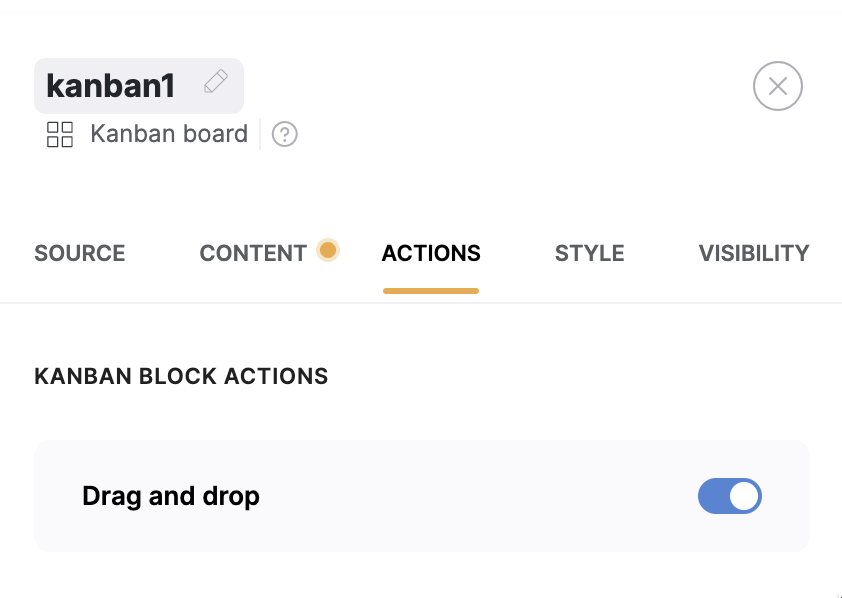
 The only exception is the [Kanban](https://www.notion.so/3513ac5b44034e1093cf96231dde3997) block, where there’s also a **Drag and drop** toggle that lets you choose whether you want to allow your users to drag and drop the board items or not.